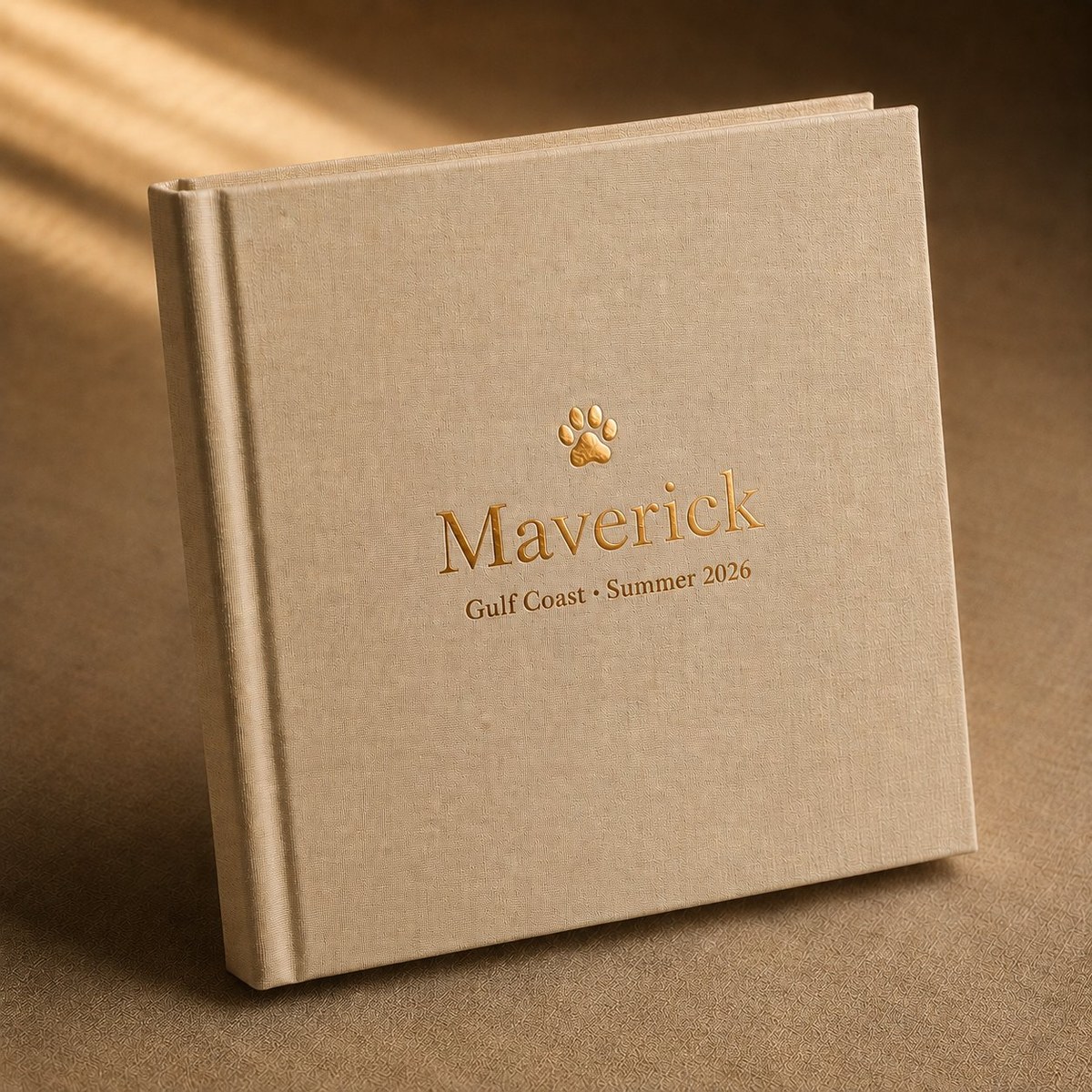
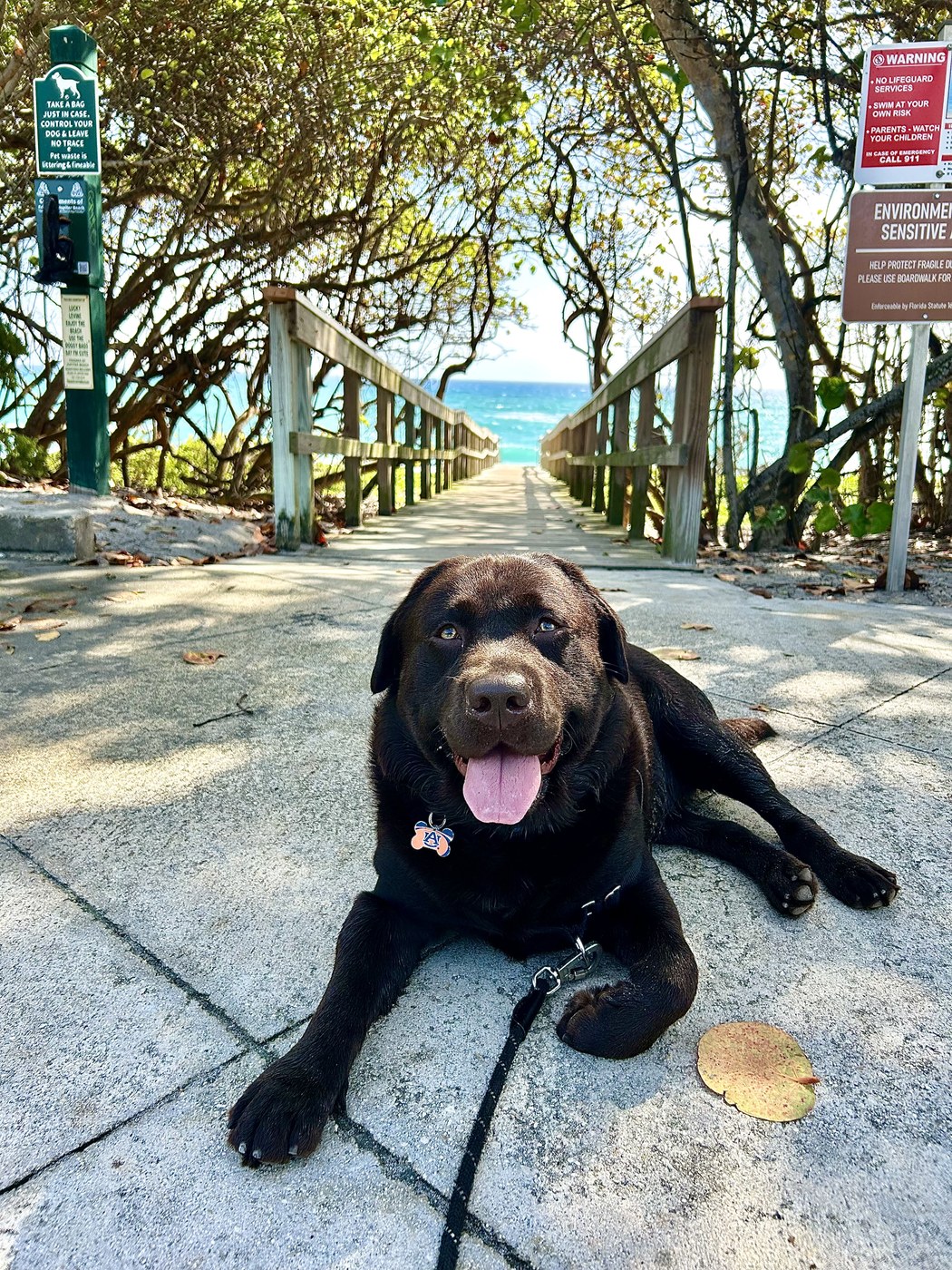
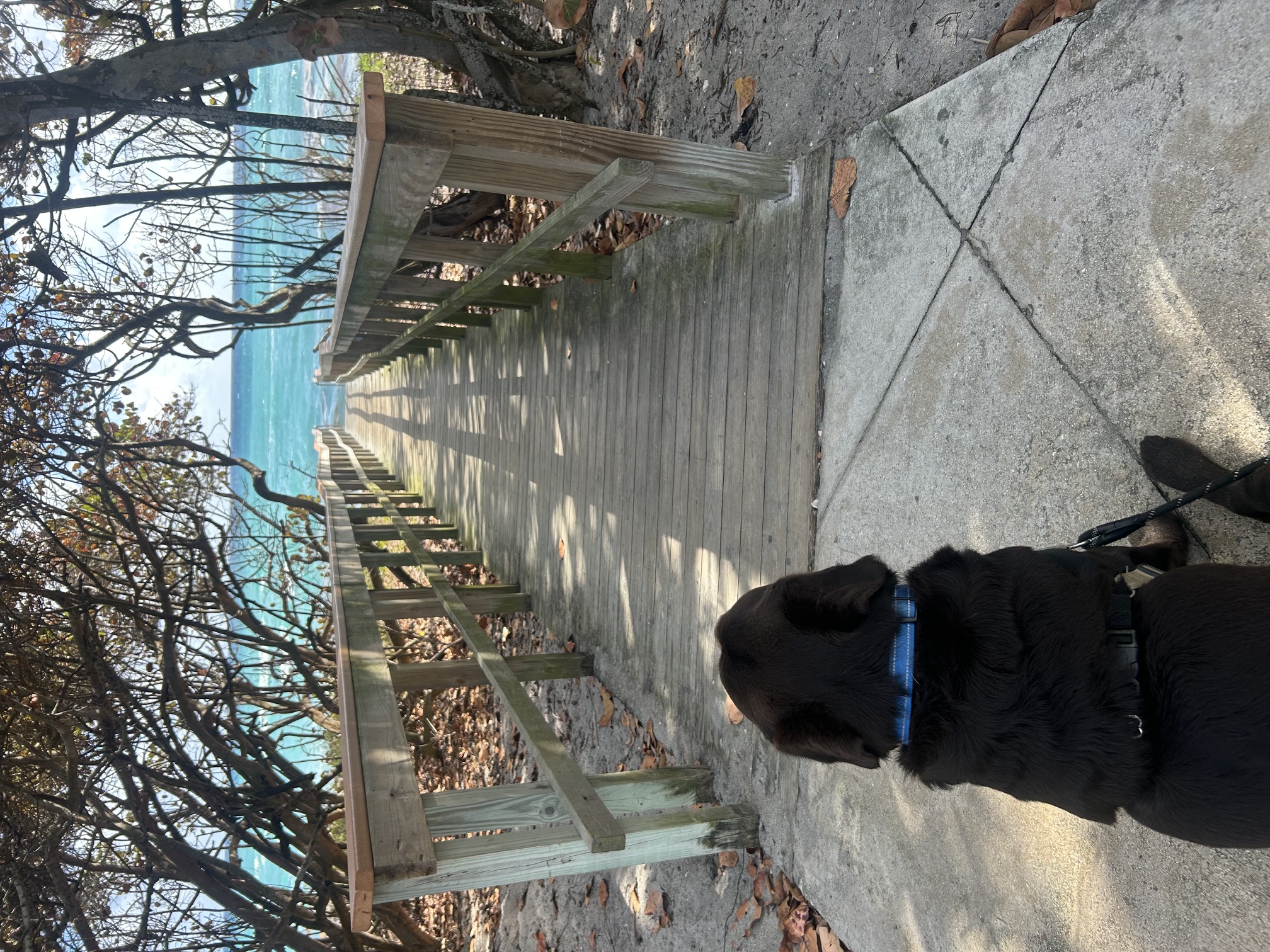
"I sat down right in the middle of that arch and waited. I needed that picture for my memories of this great place."
A real St. Pete weekend with Copper and Bob — read it in his own voice, or told by his biographer.
Inside the LifeBook
From a Saturday at the beach to a chapter worth keeping.
What you log…
📔 Journal · today
Another great day at Jupiter Beach. As usual Maverick didn't want to leave.
📷 today
📍
Check-in
Jupiter Dog Beach
✨ Maverick AI reads it all ▾
Maverick AI · Chapter 1
The Orange Bumper
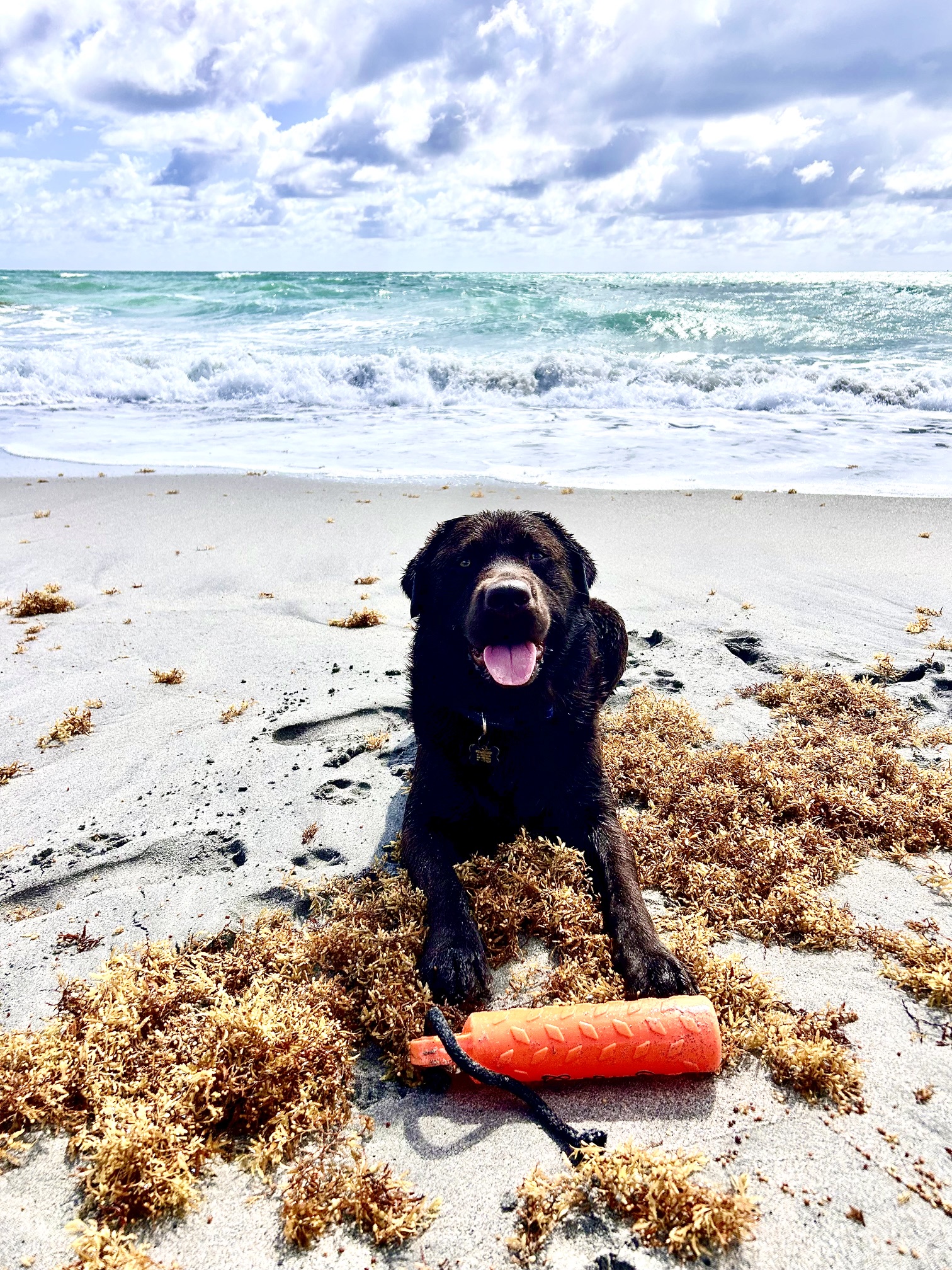
Jupiter Dog Beach was loud that morning — wind in the wave-tops, sargassum strung across the sand in long brown ribbons. Maverick lay between the seaweed and the surf, the orange bumper at his paws, his chocolate coat darkened by the seawater to almost black. He looked back at us the way Labs do, and I could see it in his eyes: "Come on, Dad — one more throw before we leave!"
You logged the day. Maverick AI wrote the chapter. Saved forever in his LifeBook.
Florida first — Jupiter is live, with more cities on the way.
Active now · Florida
Coming soon · Florida
More cities are on the horizon beyond Florida —
Pack Feed
See what other pet parents are sharing
Real stories, trips, and moments from the PawsAtlas community — browse freely, log in to like and follow.
🐶
Sarah & Biscuit
2 hours ago
🐾 Pack Story
"Best dog beach we've ever found. Biscuit ran for two hours straight and the staff at the snack bar even brought out a water bowl unprompted."
📍 Fort De Soto Beach · St. Petersburg
🐕
Marcus & Luna
Yesterday
✈️ Trip
Just wrapped a 3-day Gulf Coast tour with Luna. Sharing the full itinerary — every hotel, restaurant, and beach actually delivered on "pet-friendly."
📍 Sarasota → Naples → Marco Island
🐩
Priya & Mochi
2 days ago
📔 Journal
First brewery patio with Mochi — nervous at first, but five minutes in he was making friends with a Great Dane. Wins all around.
📍 Green Bench Brewing · St. Petersburg
Browse without an account · Log in to like, follow & share
Guides
New Dog — Where to Begin
Practical guides for life with a dog. Everything factual is sourced to a named veterinary authority, and we say which one at the end of each section.
Travel Guides
Pet-Friendly City Guides
In-depth guides to help you and your dog explore Florida. Guides for cities we have not launched yet are editorial and not yet checked against our verified venue data.
📖 City Guide
Paws Atlas Verified
Every venue, confirmed pet-friendly
We confirm pet policies directly with every venue we list — no scraped data, no out-of-date claims. Look for the green checkmark on listings.
🚨
Emergency
Help when you need it most
Emergency vets sorted by distance with one-tap calling, plus poison control, first-aid warning signs and per-trip checklists. No account needed.
Find an emergency vet →
🐾PawsAtlas Newsletter
Maverick's Travel Tails
Straight from Maverick's nose to your inbox — pet-friendly travel tips, new city launches, hidden gem venues, and the occasional dispatch from Maverick himself. Sniffed out by a chocolate Lab who's been to all the best spots.
🏖 New city alerts🍽 Venue spotlights📖 Travel tips🎉 Event roundups
Free forever · No spam · Unsubscribe anytime
🐾 Free forever for pet parents
Start your pet's Lifebook today
The pet travel platform that helps you explore the world with your best friend — and never forget a moment of it.
✅ You're in! We'll be in touch soon.
Free forever for pet owners · No spam · Maverick approves 🐾
Optional — one photo of your venue, up to 5MB. A good photo speeds up our review.
Submissions are reviewed by the PawsAtlas team before being added to the directory. Approved venues typically appear within 48 hours. After your venue is live, our team may reach out to confirm details before awarding the Paws Verified badge. No spam — we just love dogs!
🎉🐕
Woof! Submission Received!
Thank you for sharing your dog-friendly venue with us! Our team will review your submission and get back to you within 48 hours. Your pup-loving customers will find you soon!
🐾
Tell Maverick
An adoption day coming up, or a rescue that wants listed. Either one — this is the place.
This is how the dates get confirmed before anything goes up.
Every listing is checked against the organizer's own announcement before it goes up, so nothing appears with dates nobody published. If something already listed is wrong, this is also how to say so.
🐕
Maverick has it
Thank you. We check each one against the organizer's own announcement before it goes up, and we will come back to you if anything needs confirming.
Puppy days
The middle years
Senior years
What is a LifeBook?
Capture a lifetime of memories
It's about remembering the life we shared.
A LifeBook is your pet's whole life in one place — one for each pet, built automatically from the trips, moments, and milestones you log together.
Your pet's life is built from small moments — the first car ride, the favorite trail, the way they slept curled against your side. Lifebook is where those moments live, so years from now you can still find them.
What gets saved
🗺️
Trips & adventures
Every place you've explored together, saved and mapped.
⭐
Favorite places
The parks, beaches, and restaurants that became theirs.
🎖️
Milestones & firsts
Gotcha day. First swim. First snow. Every birthday.
📔
Daily moments
The walks, the naps, the small stuff worth remembering.
A life, in chapters
Puppy days
First car ride. First time at the beach. The chewed shoes you forgave. The chaos of it all.
The adventures
The trail you finally hiked. The hotel that let them on the bed. The road trip where they figured out they loved the wind. Years of the good stuff.
The senior years
Slower walks. Longer cuddles. Gray around the muzzle. The chapter where every moment counts more.
Rainbow Bridge
When they go ahead of us, Lifebook stays. Every adventure, every photo, every memory you saved — kept safe so you can visit any time you need to.
"Save the trips we took together. The places we slept. The walks that smelled the best. I want you to remember all of it — because it was never about the destination. It was always about you."
— Maverick
Save the moments that matter
Where we're headed
Florida first, then Maverick makes the call.
"These are the cities I know — or am about to. Tap one and I'll tell you what's good." 🐾
Active now · Florida
Coming soon · Florida
On the horizon · Beyond Florida
Florida first. Your city next. We're building deep local expertise city by city — not a thin national directory.
Choose a place
About
🐾
Welcome to PawsAtlas
Save favorites, build trips & track your adventures
On the map
🔍 Showing results for:
📍 City
🗺 Category
🔎 Name
79 places
Not seeing your place?
🎉
Pet events
🚨
Emergency vet
Call ahead if you can — it lets them prepare before you arrive.
Paws Atlas is not a veterinary service. Hospital details are confirmed by phone and re-checked periodically — always call before you drive.
Your Pet's Life
It starts with a car ride.
The day you bring them home, they don't know where the car is going. They just know they're with you. That's the whole deal, from here on.
Their whole life↓
The first time
The first time at the beach, everything is new — the waves, the sand, the way you laugh when they accidentally catch a wave back into shore. You'll tell this story for years.
The ordinary days
There's a walk you'll do a thousand times. The same corner, the same patch of grass, the same hopeful look at the leash. You won't think to photograph it. That's exactly the one you'll wish you had.
The road trips
Then come the road trips. The back seat with the window cracked. The ones you planned for months, and the ones you took just because. New beaches, new trails, the same happy chaos in the rearview.
The middle years
Somewhere in the middle, you stop counting the trips. The big adventures blur into the small ones, and you realize the ordinary days were the adventure all along.
Later on
The gray comes in slow — around the muzzle first, then the eyes. The walks get shorter. The tail doesn't change. Neither does the look when you reach for the leash.
To your dog, it was never about the destination.It was always about being with you.
The road has an end. Every road does.
The adventures end. What you kept doesn't.
Every car ride. Every beach. Every ordinary Tuesday. Still here, in their LifeBook.
Every adventure. Every memory. Every step together.
How It Works
Everything that goes into your dog's LifeBook.
Paws Atlas turns the trips you take and the moments you log into a growing storybook of your dog's life — written for you, kept forever, and printed only when you want to hold it. Here's the whole thing, start to finish.
The big idea
A LifeBook is your dog's whole life, in one place.
It isn't an app you have to feed. As you use Paws Atlas — logging a beach day, saving a favorite café, jotting a note after a vet visit — those moments quietly collect into one living archive. You don't sit down and build it. You live the adventures, and it fills itself in.
🐕One per dog
✨Builds itself as you go
💛Yours for their whole life
What goes in
Six kinds of memories, all in one book.
Everything you already do in Paws Atlas becomes part of the story.
🧳
Trips
Every road trip and getaway you plan, with the places you went together.
📍
Places you visit
The dog-friendly spots you check in at — each one ties the story to a real place.
✍️
Journal entries
The little notes — the ordinary Tuesday you'll want back later.
📸
Photos
The beach, the couch, the mid-run blur — all of it, in place.
🎂
Milestones
Birthdays, gotcha days, and firsts — the anchors of the story.
🐾
Pack Feed posts
Share a moment with the community — and keep the ones that matter in the book. A post with a photo offers to save a private copy to the LifeBook as you publish it; a text post can too. The choice is yours each time.
Anywhere you go
Don't wait for your city to launch. Start your LifeBook now.
Paws Atlas opens one city at a time. Your dog's life doesn't. Anywhere you go, make a custom venue card in a few seconds and log it to the LifeBook exactly like a verified place — a trail two states away, the restaurant down the street, your own back yard. When we do get to your city, everything you've already saved is right where you left it.
The magic moment
How the moments become a chapter.
This is the part nothing else does. Maverick AI reads your real memories and writes them into a chapter worth reading aloud.
1
You log the moments
Trips, notes, photos — just by using the app.
2
Maverick reads them
It works only from what really happened — never invents a thing.
3
A chapter gets written
Warm, vivid, real prose — not a caption list.
4
Saved to the LifeBook
It joins the book, ready to read or print.
And you're not stuck with one flavor. You choose how the story's told:
Narrator
Who's telling it
Your dog's own voiceA warm biographer
Tone
How it feels
HeartfeltPlayful
The your dog's own voice chapters sound like your dog because you tell us, once at setup, how they'd sound if they could talk — goofy, dramatic, sweet, a little grumpy. Maverick writes from there.
A real excerpt — written by Maverick AI, from real memories
"I sat down right in the middle of that arch and waited. I needed that picture for my memories of this great place."
I got in, lay down in it, and decided it was mine. There were two pools so I took advantage of both and so did Copper. The two of us played together in the ice and then I started barking at the other dogs to get them in there with me. And they came — it worked.
— Maverick's St. Pete weekend
Two words, one system
Albums and the LifeBook — how they fit together.
People mix these up. Here's the simple version.
An album
One moment, captured.
A single trip, a season, a weekend away. A short, shareable set of memories you can put together anytime.
The LifeBook
The whole life, automatically.
Every album and every moment, gathered into one lifelong book that grows on its own. This is the part you'll keep.
You'll make lots of albums. There's only ever one LifeBook per dog — and it's doing the remembering for you.
📖
When you're ready
Keep it digital. Print it when a chapter means enough to hold.
Your LifeBook lives on your screen — always with you, always growing. That's where most of the story stays. But some chapters you'll want in your hands: a first year, a big trip, a goodbye. When one of those comes, you can turn it into a printed keepsake for the shelf. The digital book is the everyday; print is for the moments that earn a place you can touch.
Start today
Start your dog's next chapter.
The next adventure you log is the next page. Begin their LifeBook — and let Maverick do the writing.
Every adventure. Every memory. Every step together.
The Site Guide
How Paws Atlas works.
Every feature, step by step — from finding a dog-friendly place to keeping the day forever.
I'm a chocolate Lab from Jupiter, Florida. I like the inlet, tennis balls, car rides and every single person I have ever met. My dad built this for me, and then he realised it was for you too.
Here is what I understand about it. You take me somewhere good. You write down what happened, or you just say it out loud and the words appear. A photo goes with it if you have one. And that day, which would have blurred into all the other days, stays. It sits in my LifeBook next to the day I came home and the first time I went in the ocean and decided the waves were personal.
That's the whole idea. Everything else in this guide — the places, the events, the trips, the emergency numbers, the vaccination dates — is there so the good days are easier to have and the hard days are easier to get through. The book is what's left when you add it all up.
Take me somewhere. Then write it down. I'll do the rest by being adorable.
Maverick
Chief Canine Officer, Paws Atlas
Before you start
Five things you'll do here.
Paws Atlas does a lot, so this guide follows what you actually do with it, in the order you'll meet it. Discover is finding places and events and, when it matters, the nearest emergency vet. Remember is the LifeBook — your pet's profile, journal entries, special occasions, speaking instead of typing, and albums. Share is the Pack — Pack Stories on a place, posts and meetups on the Pack Feed. Plan is trips and packing. Care is Health & Records, the Emergency Kit and the Pet Passport.
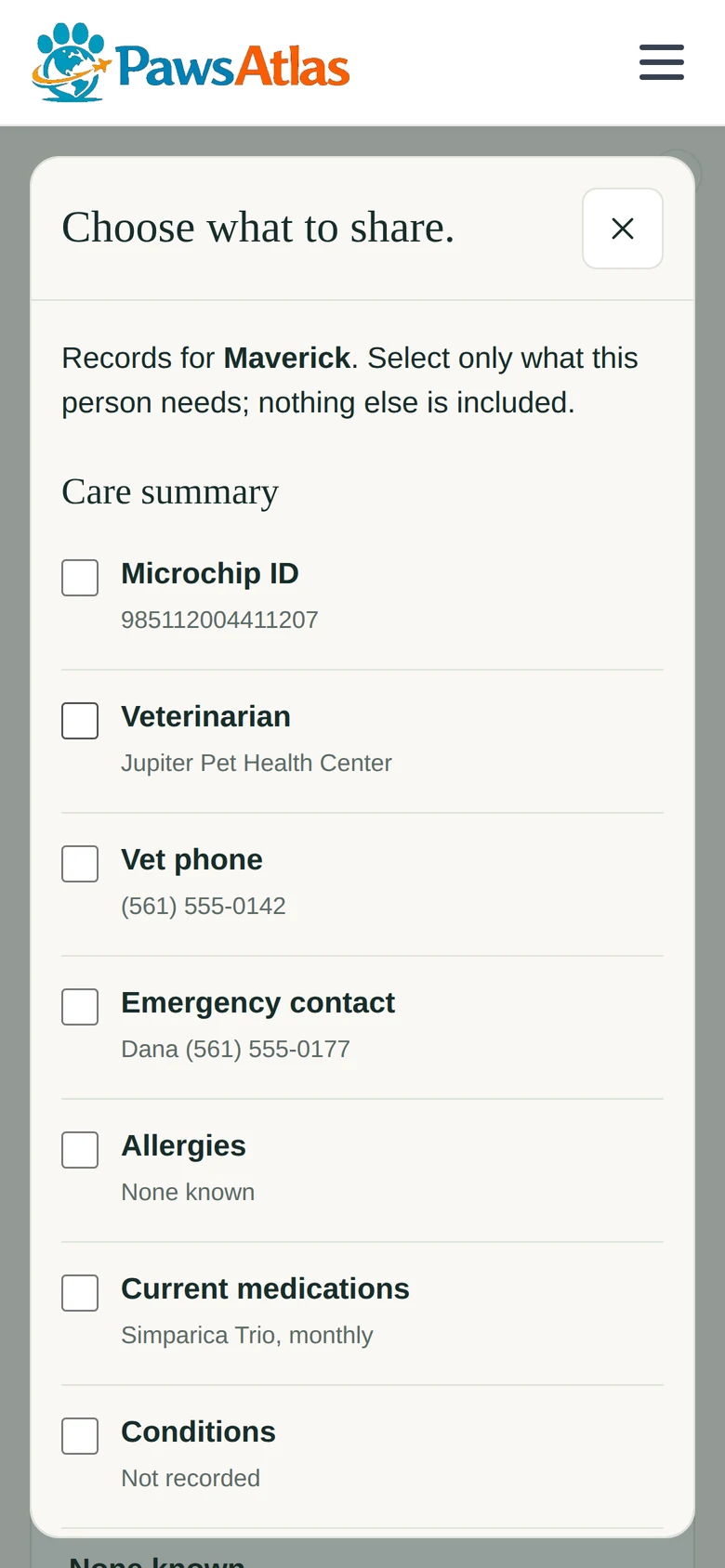
Each page covers one feature the same way: what it is, where it lives on the site, how to do it in a few steps, and what it becomes — because almost everything you do here ends up in the LifeBook. A short Good to know on each page says plainly what the feature does not do yet.
One thing to know before you start: Paws Atlas has no server accounts yet. Your pet, your memories, your trips and your records are saved by your browser, on the device you're using. Open the site on another device and they are not there. The guide repeats this where it matters most. It changes when accounts arrive.
PART ONE · Discover
Find the places worth the drive.
A directory of dog-friendly places with the pet policy checked, events and adoption days, and the nearest emergency vet one tap away.
THE DIRECTORY
Find a place
Every place on Paws Atlas has been looked at by a person, and says so.
What it is
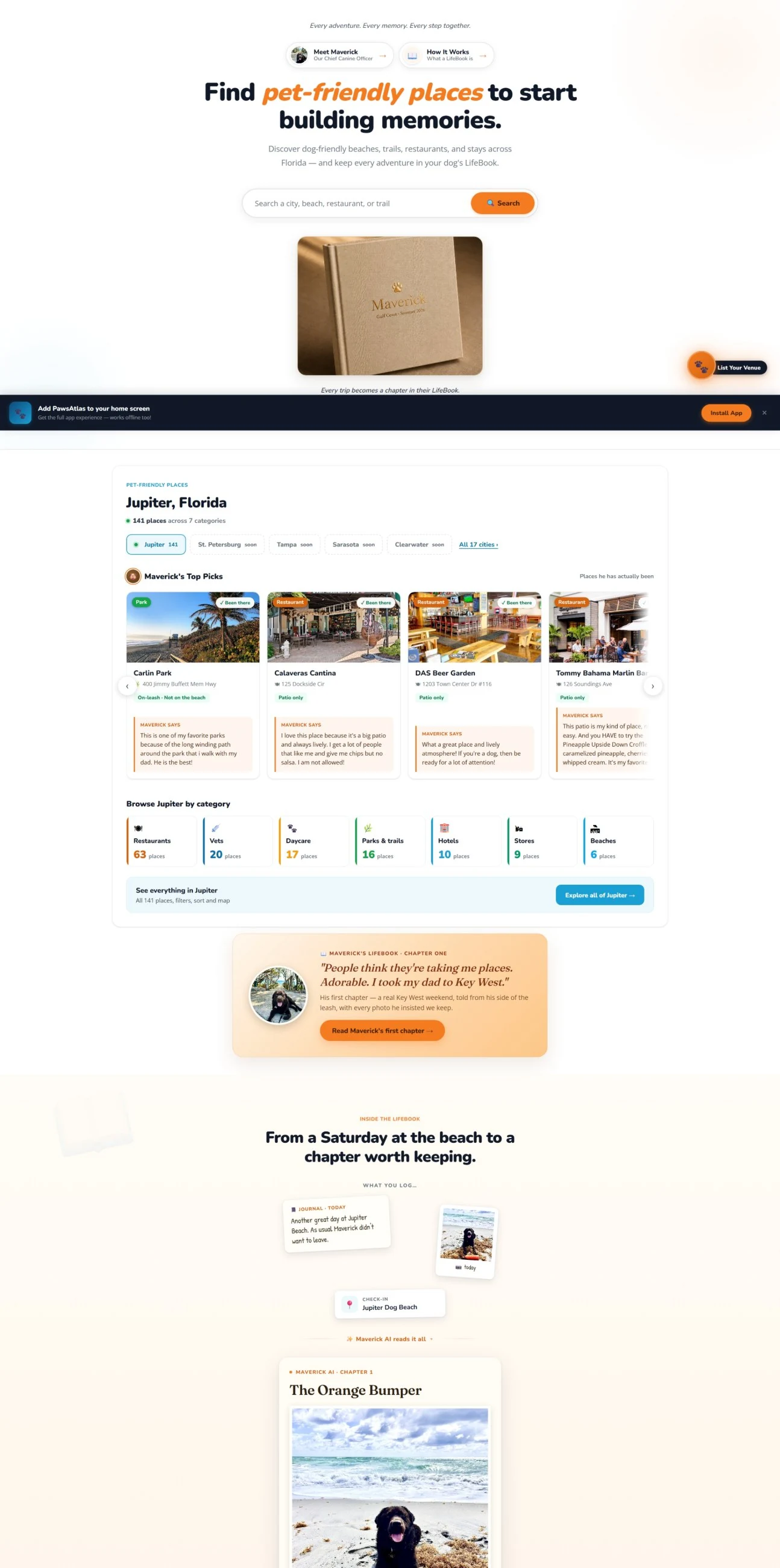
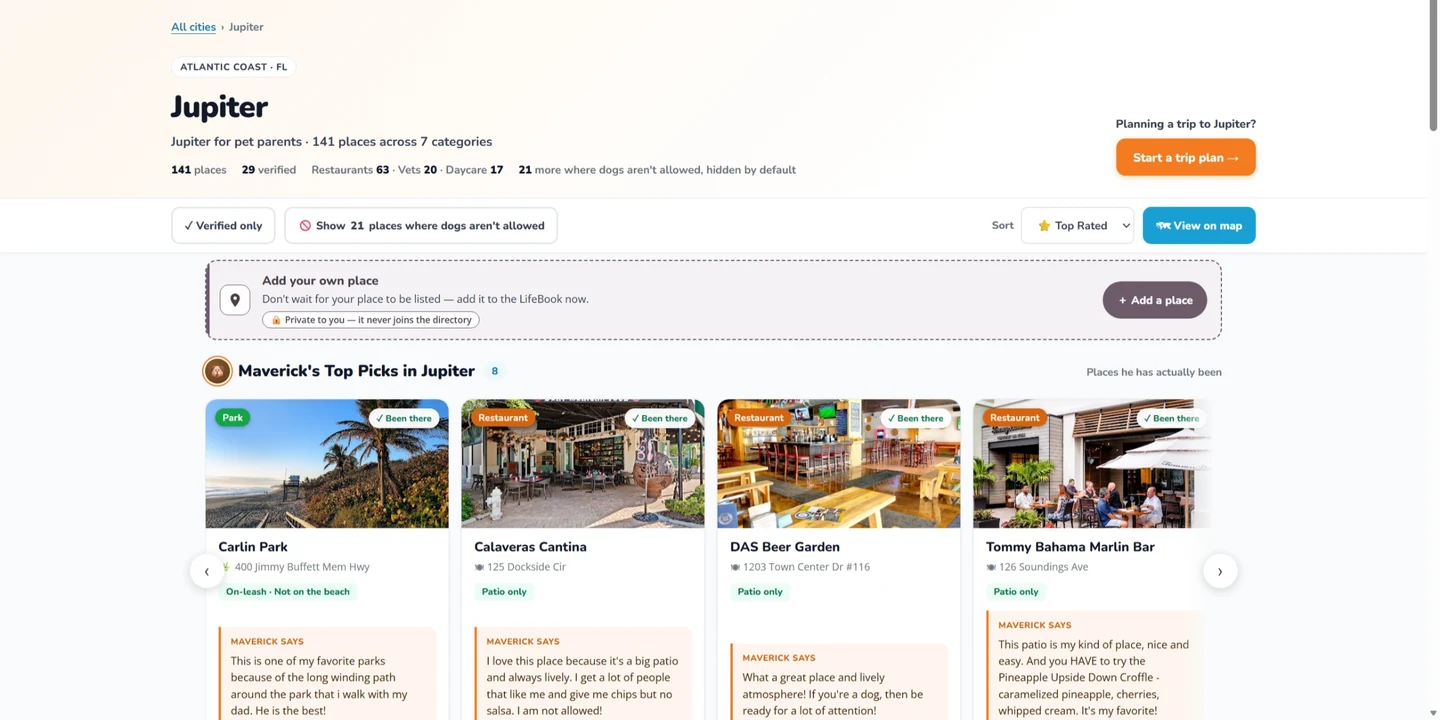
The directory is the front door of Paws Atlas: dog-friendly restaurants, parks, beaches, hotels, daycares, vets and stores, each with its pet policy stated the way the place itself states it. Jupiter, Florida is the first city. Maverick's Top Picks are the places he has actually been and would go back to.
Where it lives
The homepage, under the hero. From there every category and city opens the city page, and every card on the city page opens the place.
How to do it
Start at pawsatlas.com. The Jupiter now block shows how many places there are, by category, with Maverick's Top Picks in a row of their own.
Tap a category tile, or a city, to open the city page. Across the top are Favs, Verified, a toggle to show the places where dogs aren't allowed, and Cards or Map.
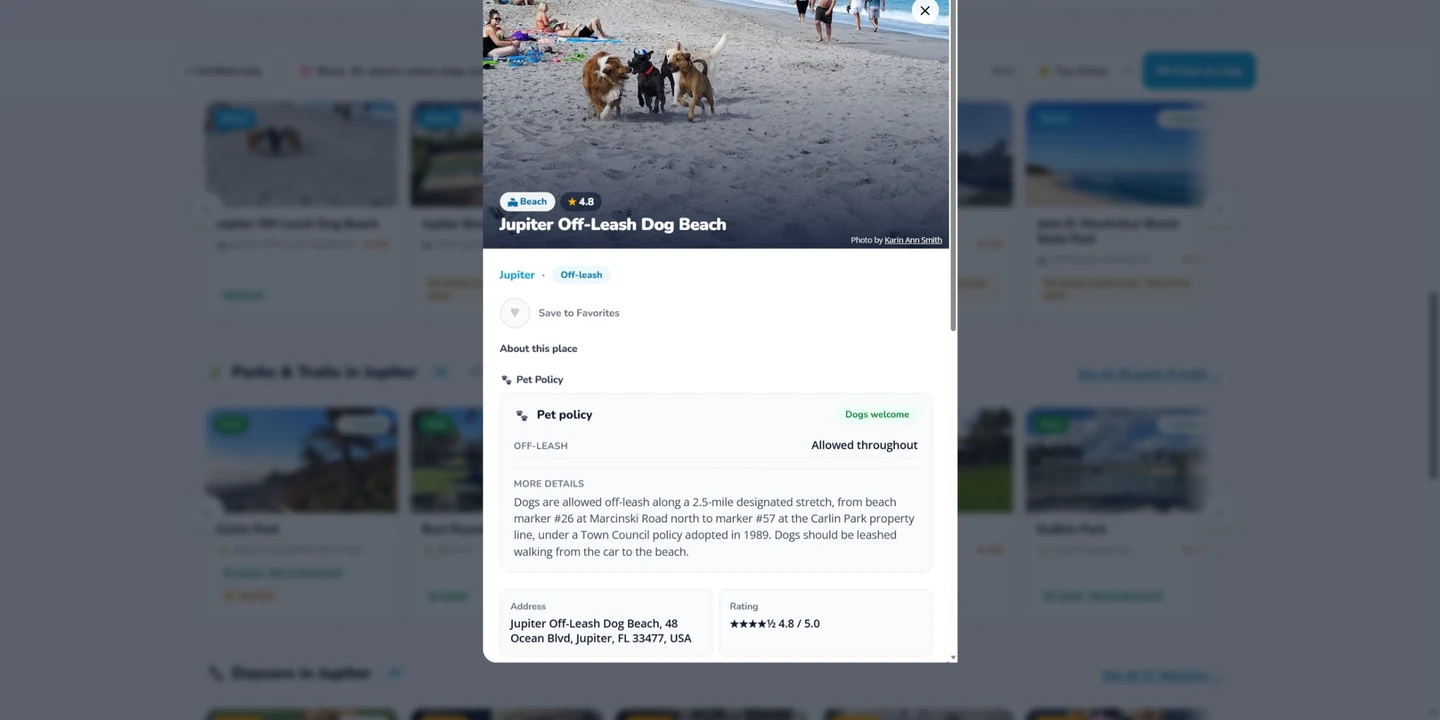
Tap Details → on any card. The place opens with its pet policy line, Call the venue, Visit website and Open in Google Maps.
Tap the ♥ on a card or a place to save it to your Saved places.
What it becomes
A place is where memories start. Check In Here on a place records the visit in your pet's LifeBook; Add a Memory opens the memory composer with the place already chosen; Add to Trip puts it on a trip you're planning.
Good to know
Jupiter is the launched city; the others in the city list are coming soon and say so. Places where dogs aren't allowed are kept out of the default view and shown only when you ask. A pet policy is never guessed: where a place hasn't stated one, the card says that instead.
The homepage: the "Jupiter now" block with categories and Maverick's Top Picks
The Jupiter city page — filters across the top, places below
A place, opened: the pet policy stated the way the place states it, and the doors into your LifeBook
ANYWHERE YOU GO
Places we don't have yet
Your dog's life doesn't wait for a city to launch.
What it is
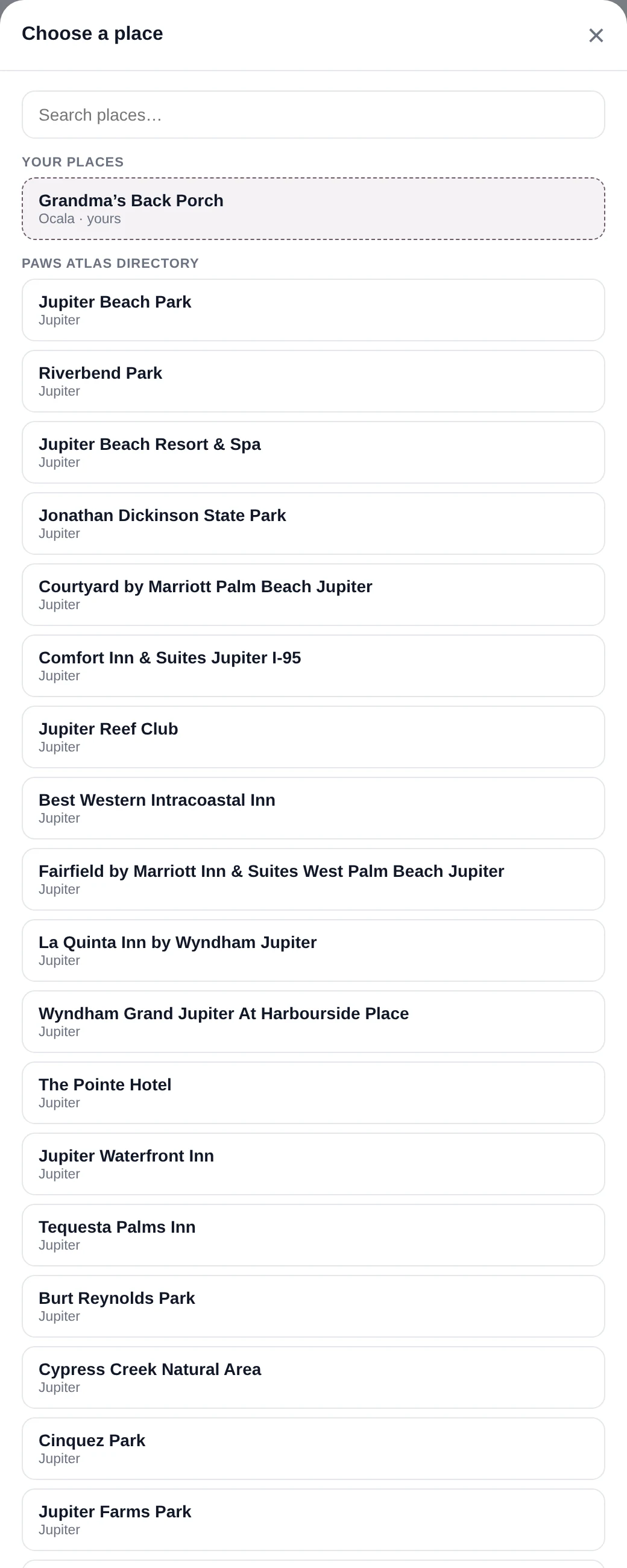
A place you make yourself — a trail two states away, the restaurant down the street, your mother's back porch — so a memory can be logged there exactly like at a verified place.
Where it lives
In the place picker, wherever you add a memory: the LifeBook composer, the Travel journal, and the head of a city page for a city that hasn't launched.
How to do it
In the LifeBook, tap Add a memory, then Add a place.
Search. If the place isn't there, tap + Add a place we don't have.
Give it a name, a city and a type, and save it. It now appears at the top of your picker under Your places, marked yours.
Choose it and finish the memory as usual.
What it becomes
Part of your pet's LifeBook, with the place named, the same as any other memory.
Good to know
A memory at a place you added is always private. It never appears on the Pack Feed and never becomes a Pack Story — the place hasn't been verified, and the Pack only sees places that have. Everything you save before your city launches is still there after it does.
The place picker: your own places first, marked "yours", then the directory
OUT THIS WEEK
Events & adoptions
Yappy hours, markets, game days, and the shelters that could use a hand.
What it is
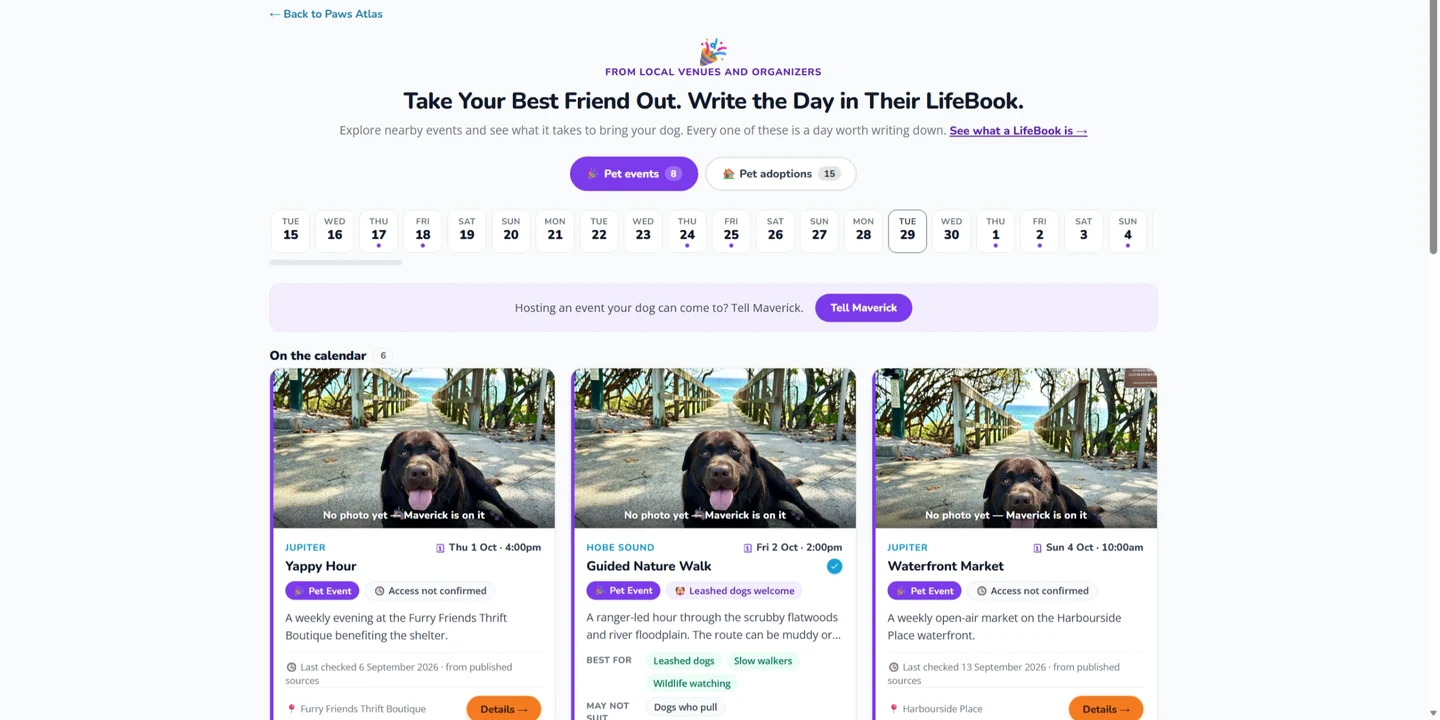
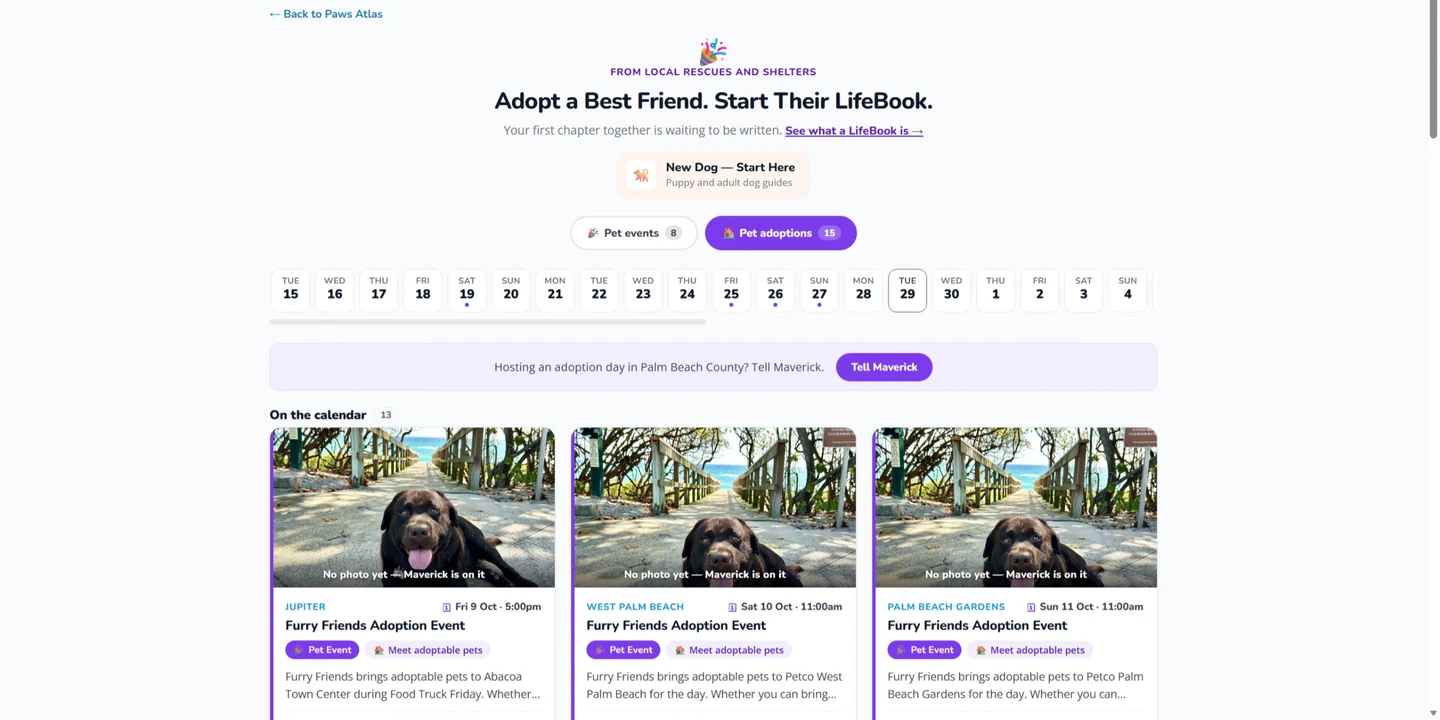
A calendar of dog-friendly happenings around Jupiter — yappy hours, markets, dog days at the ballpark, guided walks — and a separate tab of adoption events from the local rescues. Every date comes from the organizer's own page, and each event says whether your dog can come or whether that hasn't been confirmed.
Where it lives
The Events menu in the top bar: Pet events and Pet adoptions. On a phone, the menu's Events row.
How to do it
Open Events in the top bar and choose Pet events or Pet adoptions.
Scan the list — the next date is on each card. Tap a card to open the event.
Read the dog-access line before you go. Where the organizer hasn't said, the event says so and suggests you call.
Found something we're missing? Tell Maverick at the bottom of the adoptions tab sends it to us.
What it becomes
An event day is a good day to write down. Add it as a memory afterwards from the LifeBook.
Good to know
Paws Atlas lists events; it doesn't run them, and it doesn't guess whether dogs are welcome. "Not confirmed" means exactly that. Dates are re-checked every week.
Pet events for Jupiter
The Pet adoptions tab
WHEN IT'S URGENT
Emergency vet
The nearest hospitals, one tap to call, before you have to think.
What it is
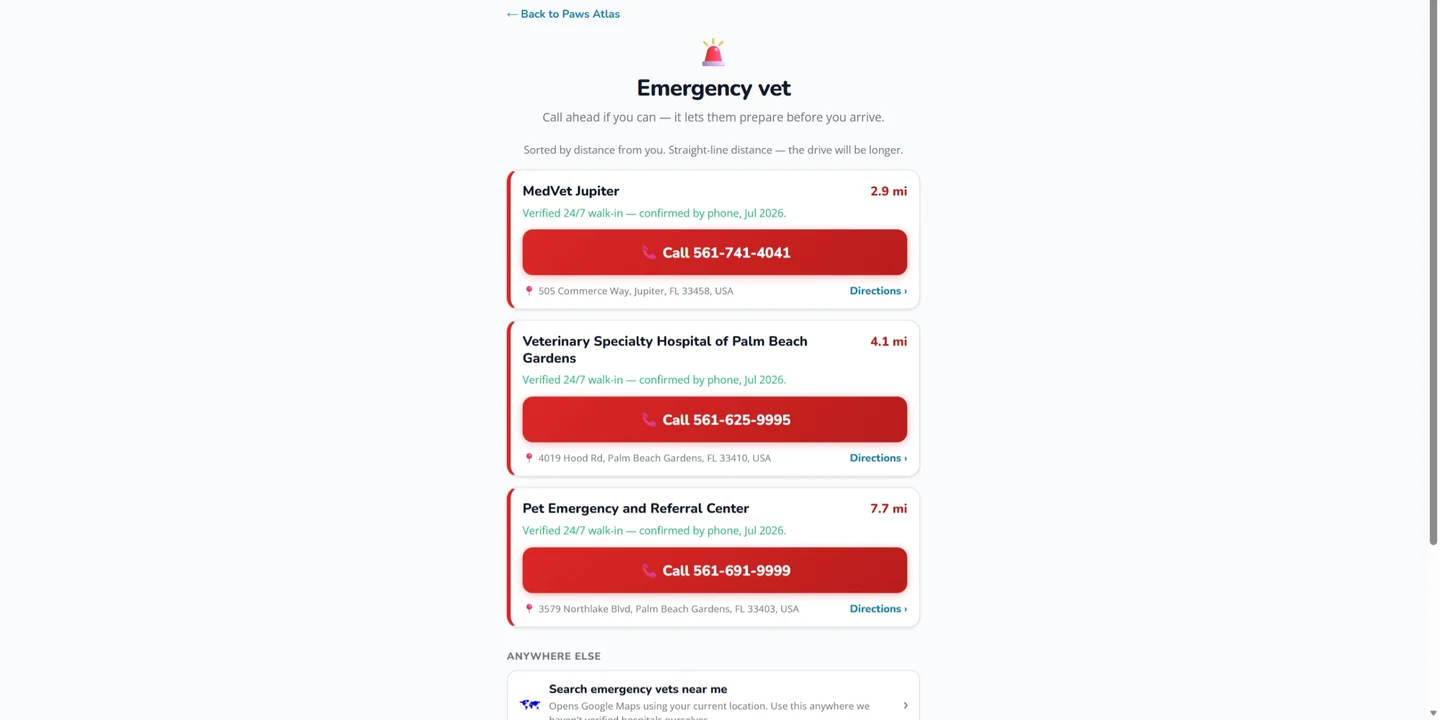
A page that does one thing: shows the nearest emergency animal hospitals with a call button and directions, plus the ASPCA Animal Poison Control line.
Where it lives
Pet-Friendly Places → Emergency vet in the top bar; the red Emergency vet row in the phone menu; the Emergency link at the top of every trip page; and Find emergency vet in the Emergency Kit.
How to do it
Open Emergency vet from wherever you are.
Allow your location if asked, so the nearest hospitals come first.
Tap 📞 Call on a hospital, or Open in Maps › for directions.
Anywhere we haven't verified hospitals ourselves, tap Search emergency vets near me to open Google Maps at your location.
What it becomes
Nothing — and that's the point. This page writes nothing down and asks nothing of you.
Good to know
The hospitals listed have been verified by us for Jupiter and the surrounding area. The Poison Control line is a 24/7 hotline with a consultation fee, stated on the page. In an emergency, call first.
The Emergency vet page
PART TWO · Remember
The story only you can tell.
The LifeBook is one book per dog, built from the ordinary days as much as the milestones. This is how to fill it.
START HERE
Your pet & "About Maverick"
One profile per dog, and the questions that teach the book how to sound.
What it is
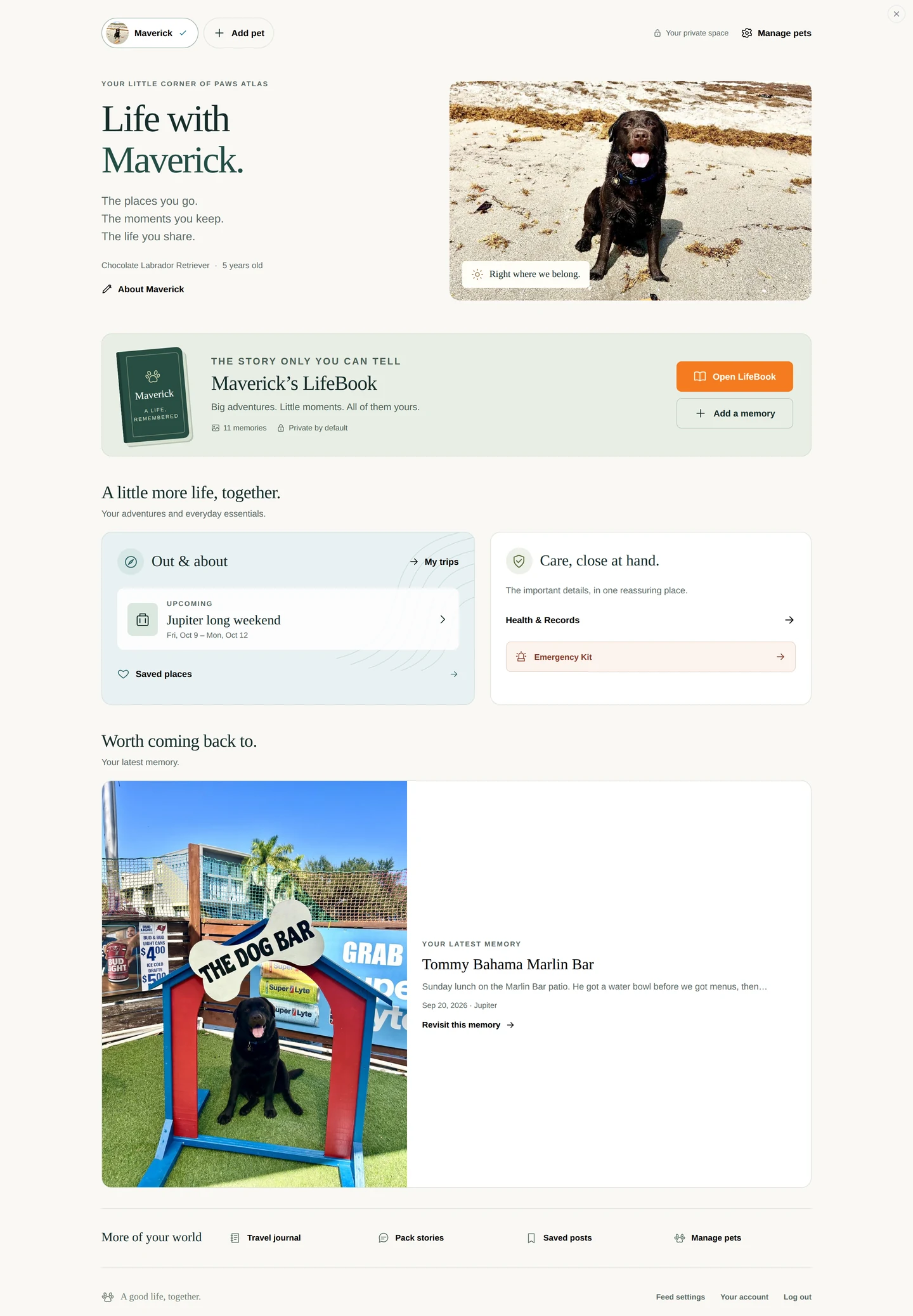
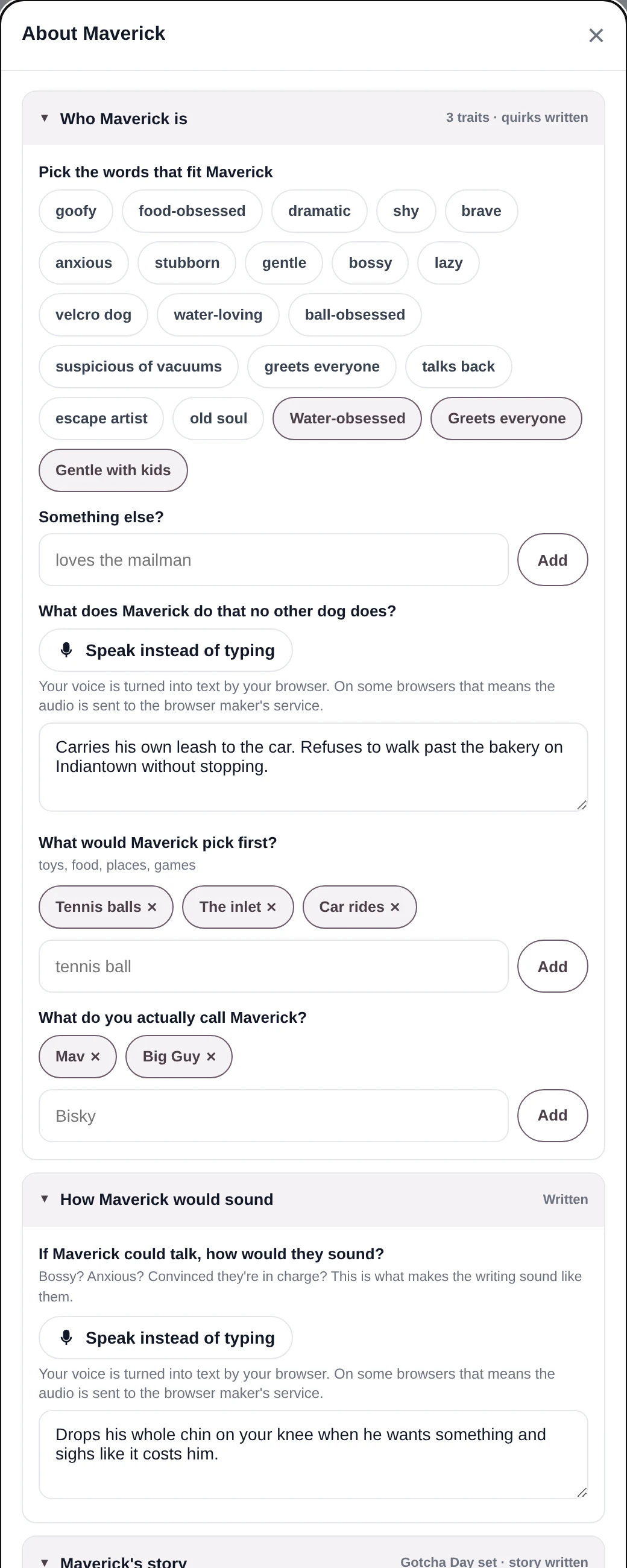
Your profile is your pet's home on Paws Atlas — the LifeBook door, trips, care, and the shelf of everything you've saved. About Maverick is a five-part sheet where you describe your dog in your own words: who they are, how they'd sound, how they came home, who's in their pack, and how you'd like their LifeBook told.
Where it lives
Log in and tap your name in the top bar. On the profile, About Maverick sits under the welcome; it's also in the LifeBook's More actions menu.
How to do it
Sign Up, then Add pet: name, breed, size, birthday, and a photo if you like. Add more dogs any time from Manage pets.
Open About Maverick. In Who Maverick is, tap the chips that fit — goofy, velcro dog, greets everyone — and answer What does Maverick do that no other dog does?
Answer If Maverick could talk, how would they sound? and How did Maverick join the family? Type, or tap Speak instead of typing.
Choose a narrator — Biographer, Maverick's Voice or Family Memoir — and a tone — Heartfelt, Playful or Adventurous. Tap Save.
What it becomes
The voice of the LifeBook. When Paws Atlas writes your dog's chapters, this sheet is what it reads first, so the story sounds like your dog and not like a form.
Good to know
Every field is optional and you can come back to it. Who's in Maverick's pack is private to you and is never shown anywhere public. Written chapters are not live yet; the sheet is ready for them.
"Life with Maverick." — the profile home, with every door on it
The About sheet: who your dog is, how they'd sound, their story
THE ORDINARY TUESDAY
Journal entry
A few lines, a place, a photo. The day stays.
What it is
A journal entry is the everyday memory: where you went, what happened, a photo or four. It is the most common thing in a LifeBook and the one most worth doing.
Where it lives
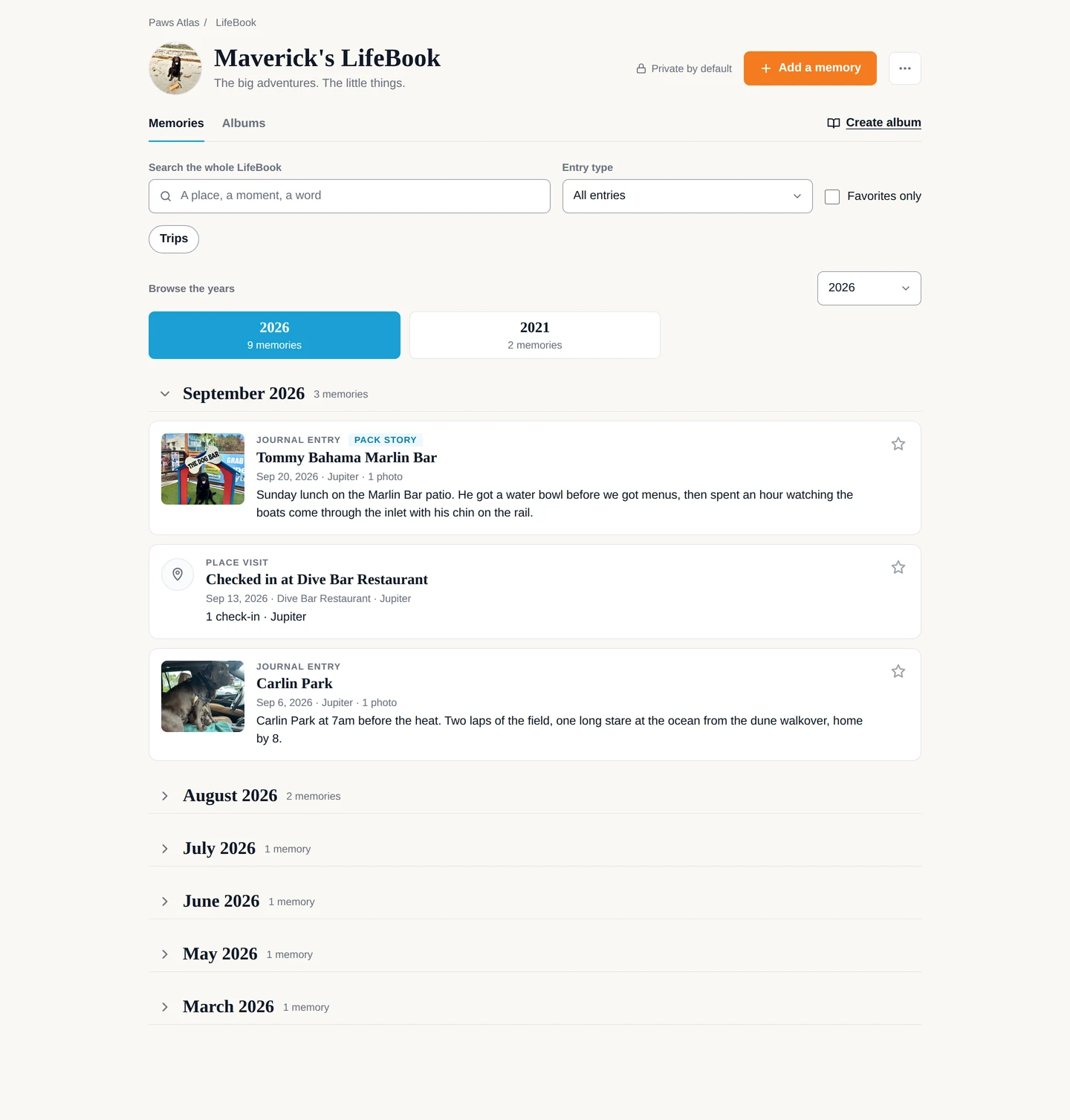
The LifeBook — Pet's Lifebook in the top bar, or Open LifeBook on your profile. Entries appear under Memories, newest month first. Your Travel journal on the profile lists them by place with Read entry, Edit and Share.
How to do it
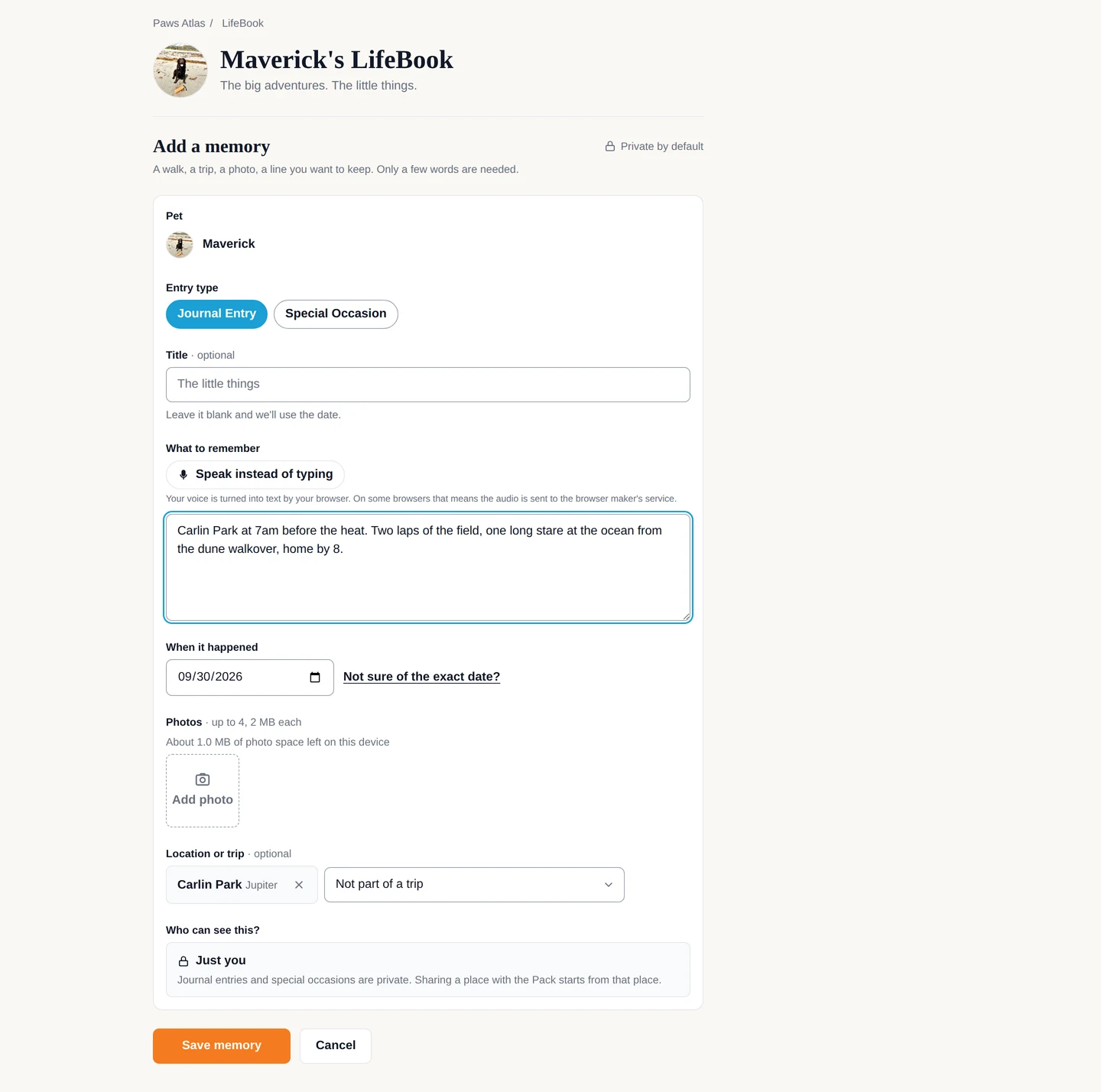
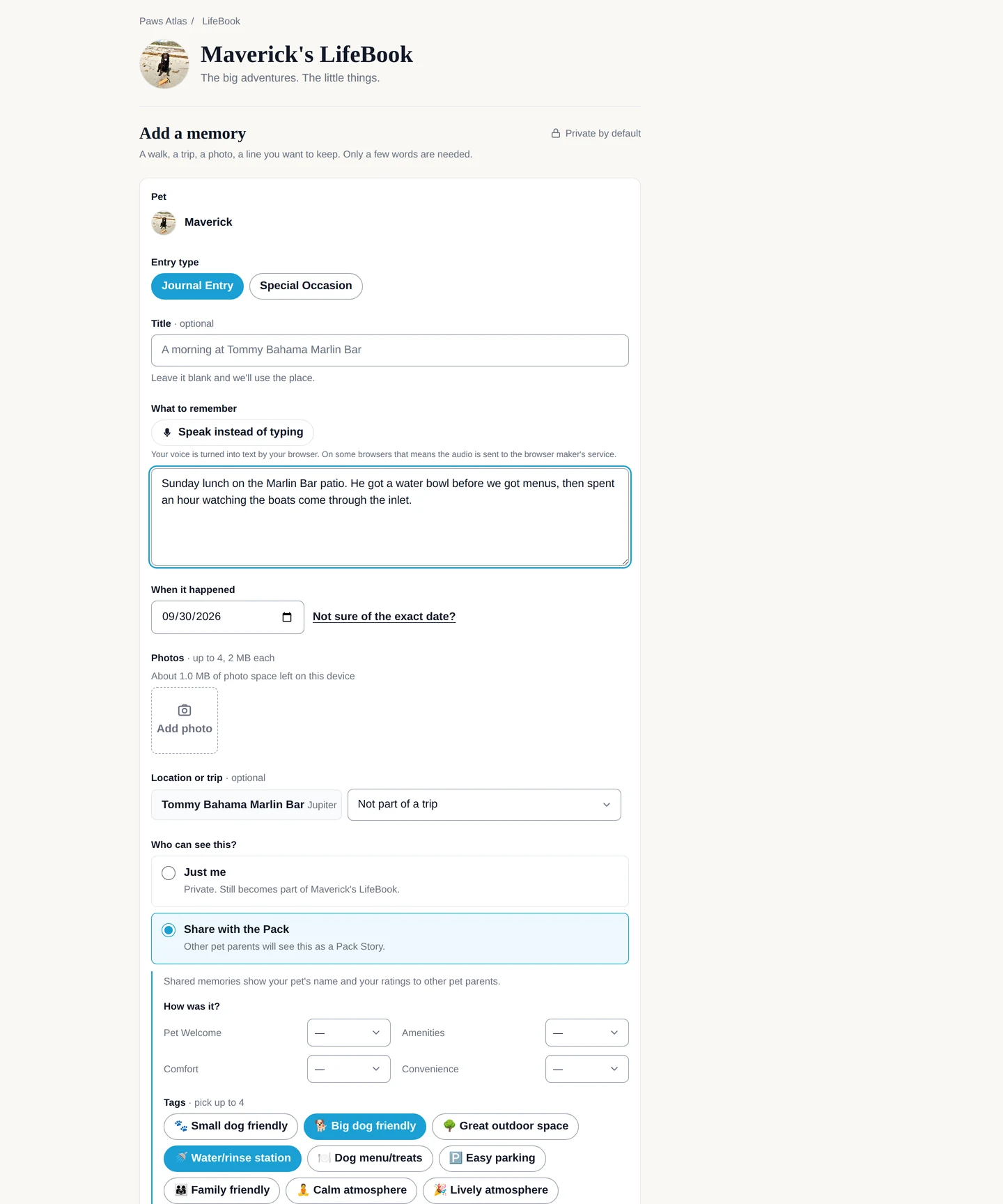
In the LifeBook, tap Add a memory. Journal Entry is selected.
Write in What to remember. A Title is optional.
Set When it happened — today is already filled in. Tap Add photo for up to four.
Tap Add a place and pick where you were, or skip it.
Tap Save memory.
What it becomes
A page in your dog's LifeBook, filed under its month and, if you chose a place, tied to that place. If the date falls inside one of your trips, it shows up on the trip too.
Good to know
A journal entry is private unless you choose to share it (see Pack Story). Photos are kept in your browser, so the LifeBook tells you how much room is left. Keep your originals somewhere you trust.
Add a memory: the composer with a place chosen
The LifeBook, month by month
THE ANCHORS
Moments & special occasions
Gotcha Day. Birthdays. Firsts. The dates the rest of the story hangs on.
What it is
A special occasion is a memory with a milestone attached — the day they came home, a birthday, the first time they did something. It also fits memories that don't have a place: the rainy Sunday on the couch.
Where it lives
The same Add a memory composer, with Special Occasion chosen instead of Journal Entry.
How to do it
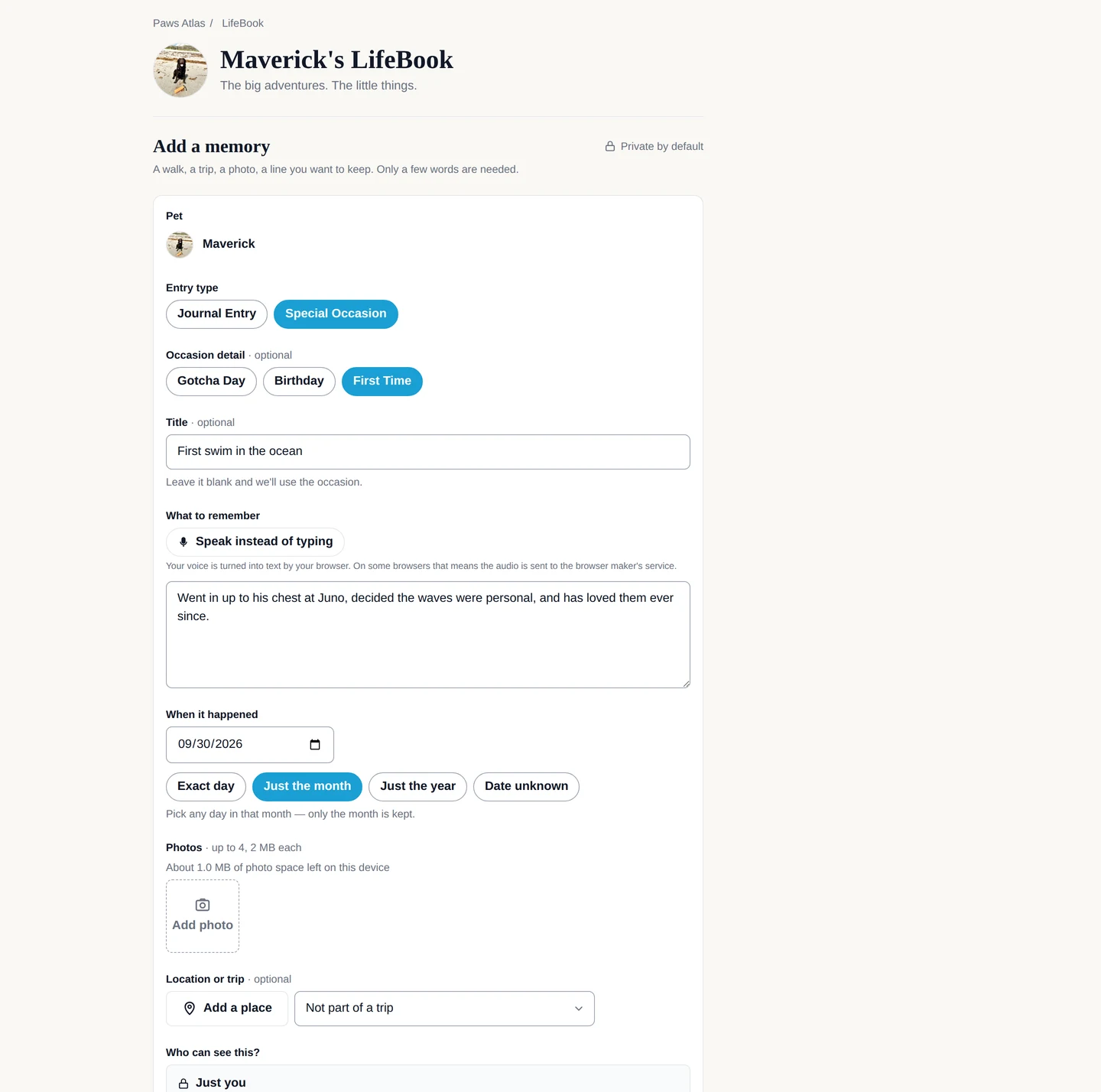
Tap Add a memory, then Special Occasion.
Pick Gotcha Day, Birthday or First Time — or none, for a moment that's simply worth keeping.
Write what happened. If you don't know the exact date, tap Not sure of the exact date? and choose Just the month, Just the year or Date unknown.
Add photos, and tap Save memory.
What it becomes
A milestone in the LifeBook. A Gotcha Day also fills in When did Maverick come home? on the About sheet if you haven't set it.
Good to know
A memory with only a month or a year is filed under that month or year and reads that way. When the time comes, the last chapter has a quiet home of its own — When the time comes… in the LifeBook's More actions menu — so it never sits beside the birthday chips.
Special Occasion: Gotcha Day, Birthday, First Time — and "Not sure of the exact date?"
SAY IT INSTEAD
Speak instead of typing
Talk about the day. The words appear. You still decide what stays.
What it is
A microphone button on every box where you'd describe a memory. Tap it, talk, and your words are typed into the box for you. Then you tidy them up and save, the same as if you'd typed them.
Where it lives
Under the label of every memory box: What to remember in the composer, the Travel journal's entry box, and the three story questions on the About Maverick sheet.
How to do it
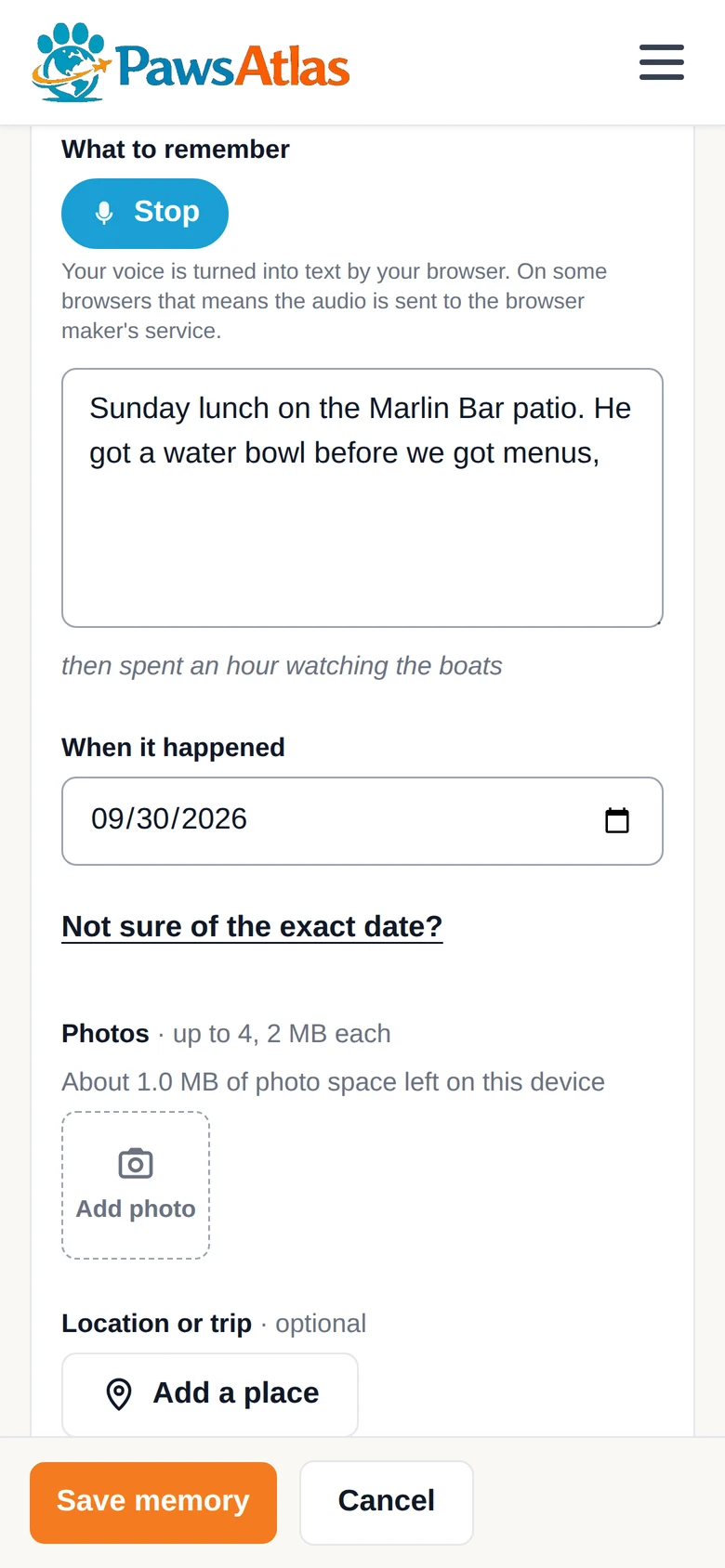
Tap Speak instead of typing. The first time, your browser asks to use the microphone — allow it.
Talk. Your words appear in the box as you go.
Tap Stop when you're done — or it stops on its own after a minute, or when you save or close.
Fix anything the browser misheard, especially names, then tap Save memory.
What it becomes
A memory like any other — and a note to the LifeBook that this one was spoken, which helps the story sound like you.
Good to know
Dictation fills the box; it never saves for you. Your voice is turned into text by your browser, and on some browsers that means the audio is sent to the browser maker's service — the sheet says so under the button. The button appears only where the browser can do it: it isn't there on Firefox.
The mic on the memory box, listening
THE PART YOU'D HAND SOMEONE
Albums
A LifeBook is everything. An album is a small, ordered selection with a name and a cover.
What it is
An album is a selection of memories from one pet's LifeBook, in an order you choose, with a title and a cover — the trip, the first year, the summer you both got old together. It reads like a short book. The originals never move.
Where it lives
The LifeBook's Albums tab. Also Add to album on any memory, and Create album on a trip page.
How to do it
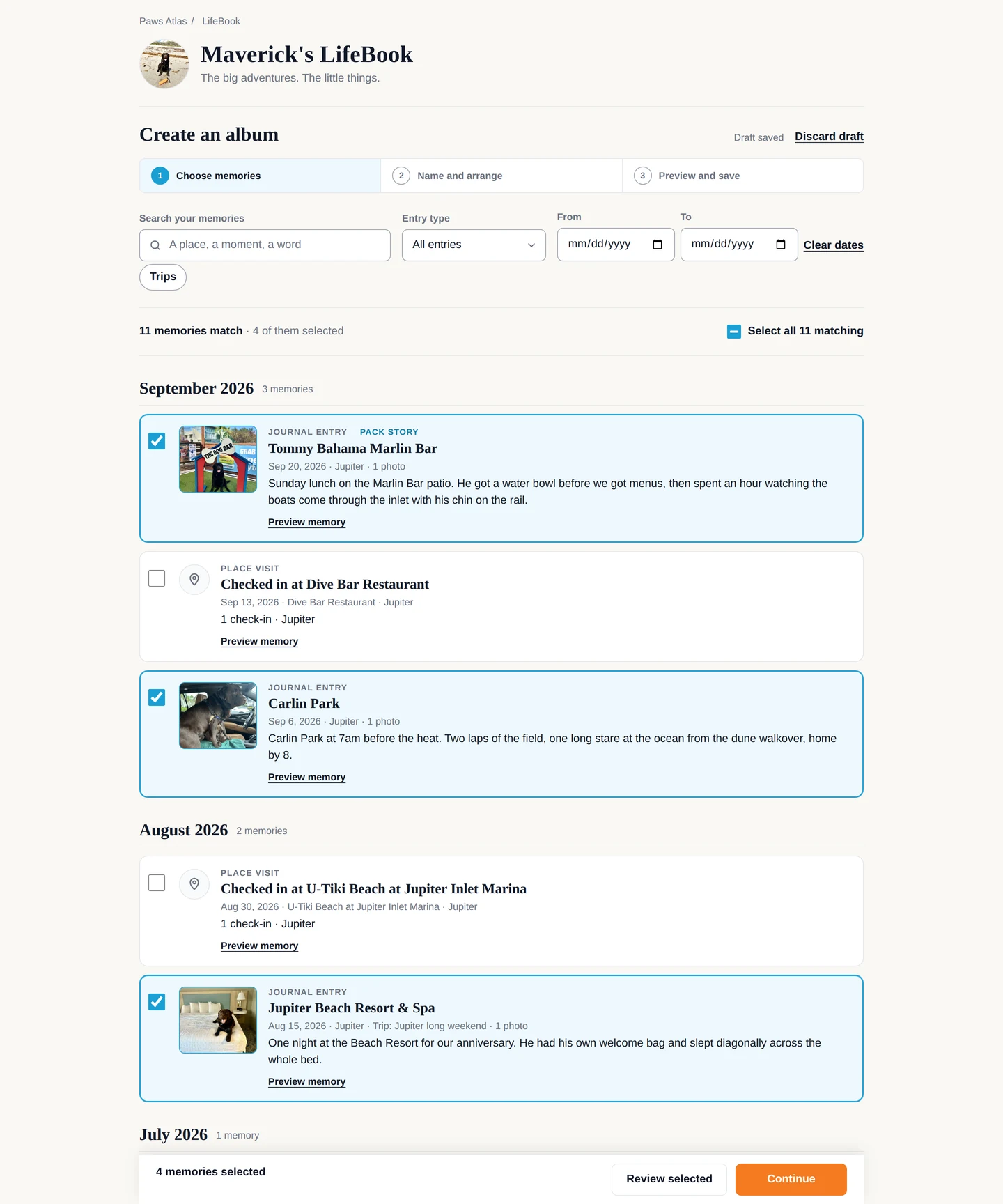
On the Albums tab, tap Create album. Step one is your LifeBook in selection mode: tap the memories that belong. Review selected shows what you've ticked; Continue moves on.
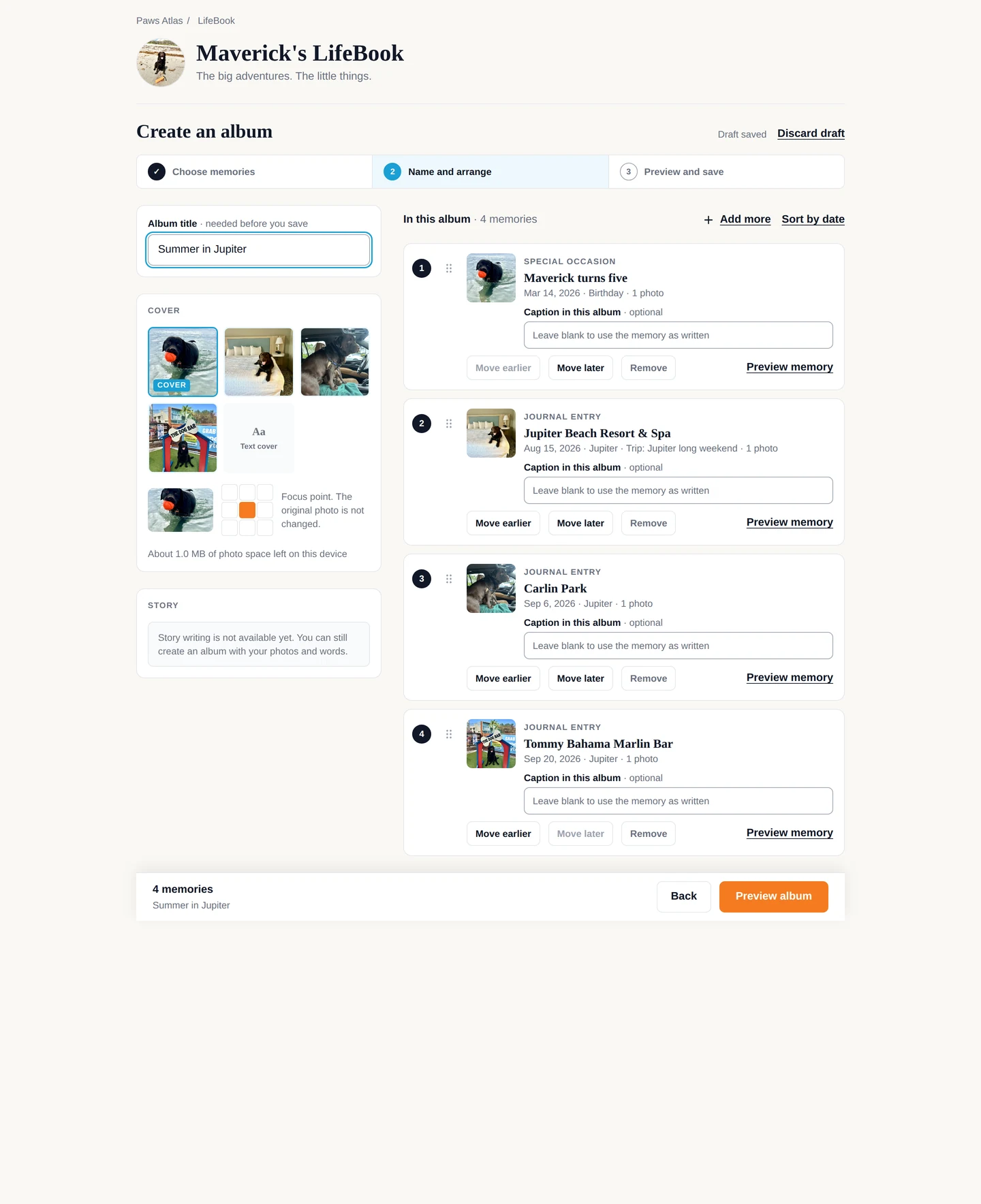
Step two: give it a title, pick a cover photo or a Text cover, and put the pages in order. A caption replaces a memory's words in this album only. Draft saved appears as you go.
Step three is the finished book. Save draft to come back later, or Save album.
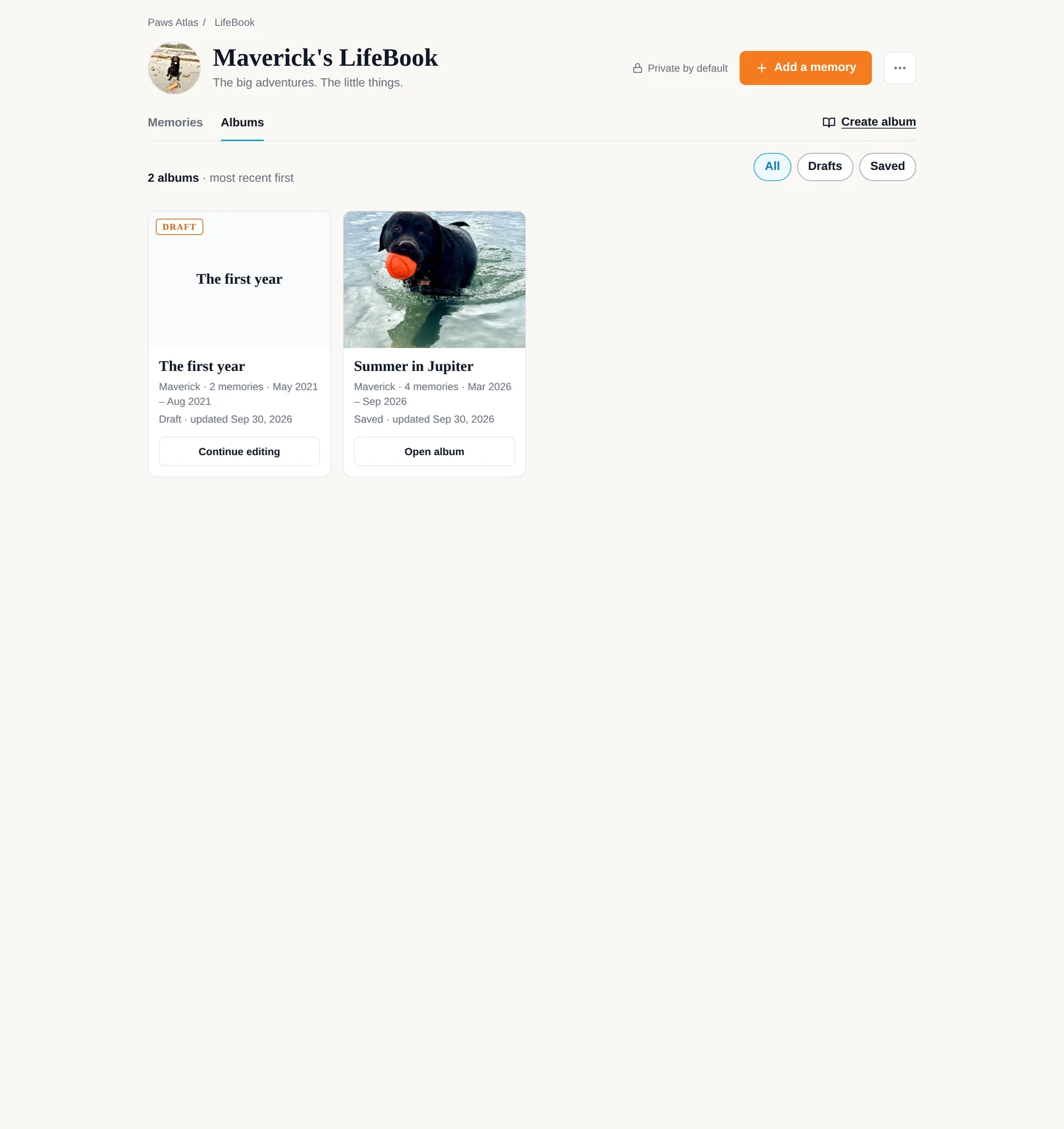
In the library, Open album reads it; Edit album reopens step two.
What it becomes
Its own book inside the LifeBook, pointing at your memories rather than copying them. One memory can be in as many albums as you like.
Good to know
Albums are private — there is no link and no public page. A saved album can be edited but not yet deleted. There is no written story in an album yet; it is your photos and your words. Both are on the list.
Step 1 — Choose memories
Step 2 — Name and arrange
The Albums tab: your library
FINDING YOUR WAY BACK
Favorites, search & the timeline
Nine memories or nine hundred — the year you want is one tap away.
What it is
The LifeBook's Memories tab is a timeline by year and month, with a search box and filters so the day you're thinking of is easy to find. A Favorite star marks the ones you'd keep if you could only keep a few.
Where it lives
The top of the Memories tab, and on every memory when you open it.
How to do it
Type in Search the whole LifeBook, or narrow by Entry type, Favorites only or the Trips chip.
Tap a year under Choose a year, then a month to open or close it.
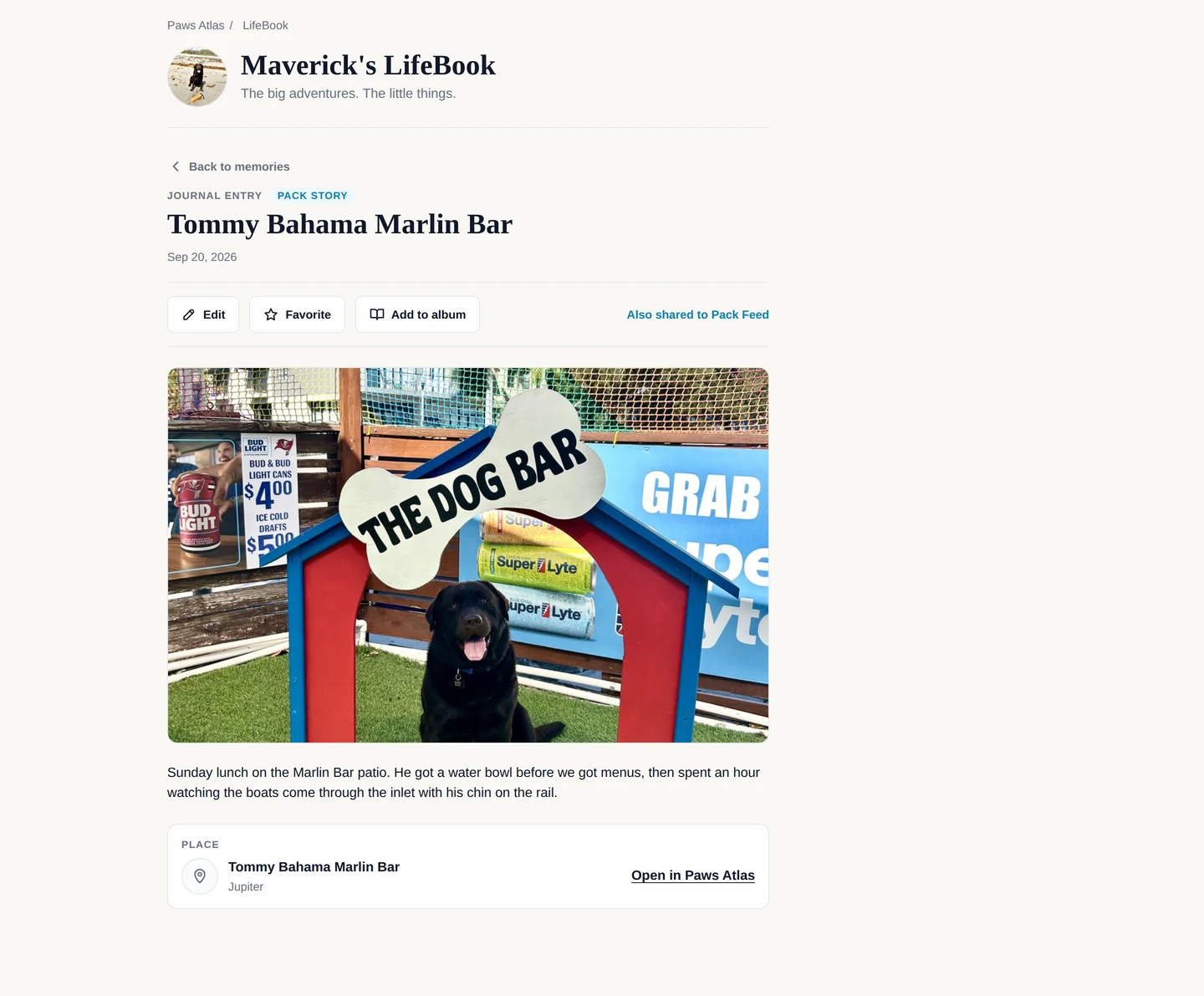
Tap any card to open the memory. From there: Edit, Favorite, Add to album, and Open in Paws Atlas for the place.
Back to memories returns you to the same spot on the timeline.
What it becomes
Favorites are a filter, not a separate book: tick Favorites only and the timeline shows just those.
Good to know
Check-ins and Pack Stories are in the timeline too, alongside journal entries and occasions. Every memory in the LifeBook can be favorited and can go in an album.
A memory, opened: Edit, Favorite, Add to album, and its place
PART THREE · Share
Other people's dogs are having a good time too.
The Pack is the community side of Paws Atlas. You choose what leaves your LifeBook; nothing leaves on its own.
ON THE PLACE ITSELF
Pack Story
A memory you chose to share, shown on the place where it happened.
What it is
A Pack Story is a journal entry you've shared. It appears on the place's own page for other pet parents to read, and on the Pack Feed. Tags — Shaded seating, Off-leash area, Dog menu/treats — tell the next dog what to expect.
Where it lives
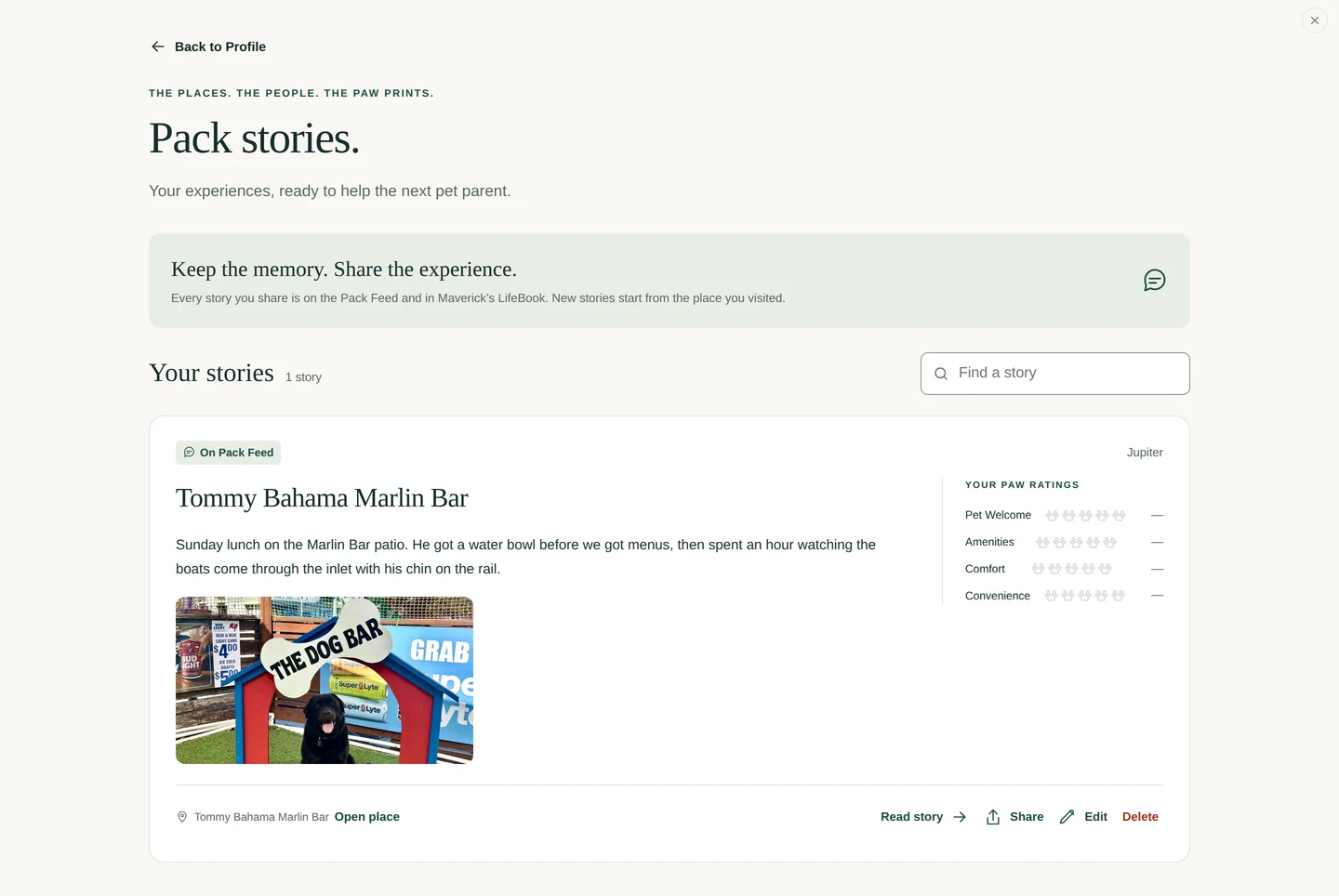
Start from the place: ✨ Share Your Pack Story on any venue page. Your shared stories are listed under Pack stories on your profile with Open place, Read story, Share, Edit and Delete.
How to do it
On a place, tap ✨ Share Your Pack Story. The composer opens with the place chosen and Share with the Pack selected.
Write what happened. Tap the chips that fit the place.
Tap Save and share to Pack Feed. Or choose Just me and Save memory to keep it private.
Change your mind later from Pack stories on your profile: Edit the words, or Delete the story.
What it becomes
It is a page in your dog's LifeBook first, with a Pack Story badge. Sharing is a switch on the memory, not a copy of it.
Good to know
Because a Pack Story is the memory itself, deleting the story deletes the memory. Only verified places can carry a Pack Story — a place you added yourself stays private by rule.
The composer with "Share with the Pack" chosen and the tag chips open
Pack stories on your profile
ALREADY WRITTEN
Sharing a memory you already have
Written it privately? You can share it later, from the journal or from the feed.
What it is
Any journal entry or memory you've saved privately can be shared afterwards, without retyping it. A trip can be shared the same way, with a few words about how it went.
Where it lives
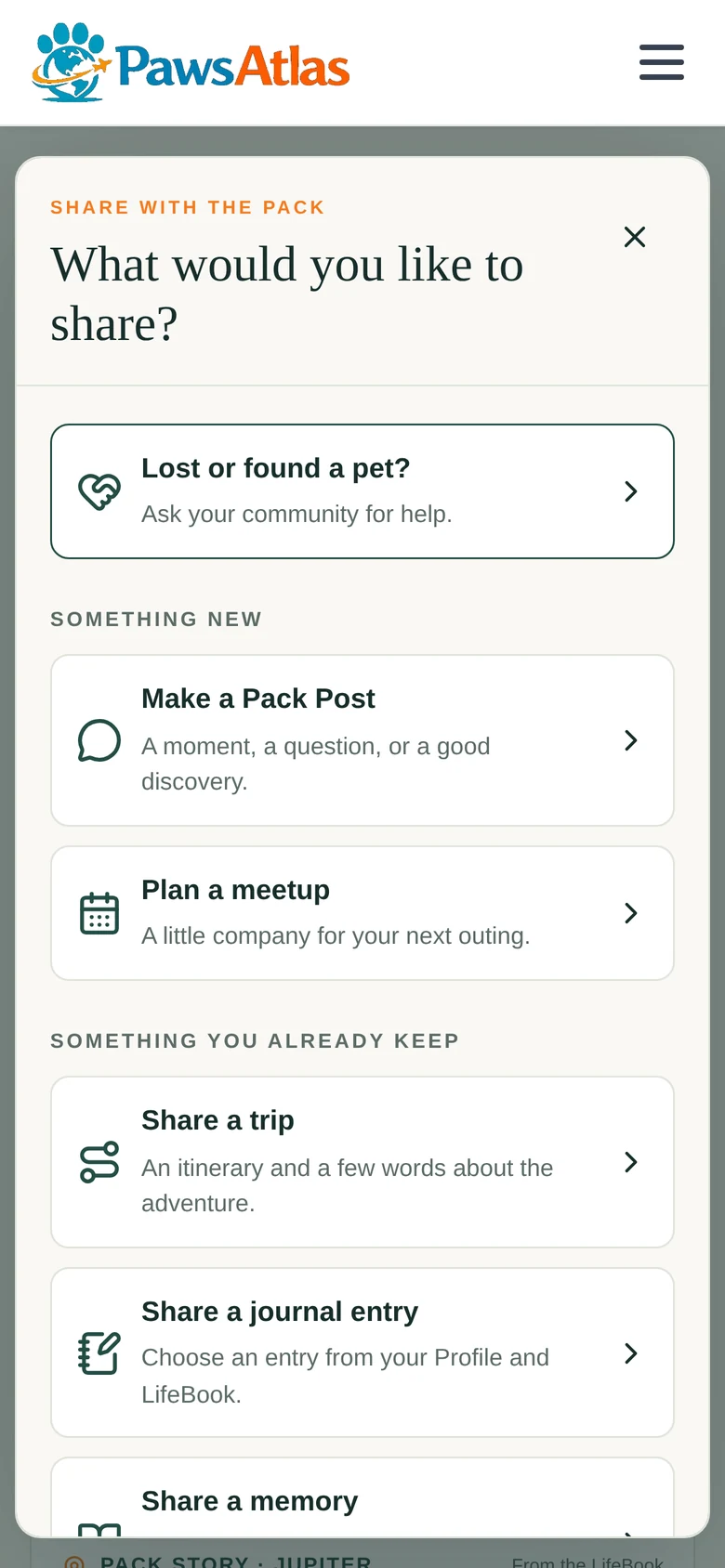
On the Pack Feed: Share a journal entry, Share a memory and Share a trip, behind the Share with the Pack button, under Something you already keep.
How to do it
Open the Pack Feed and tap Share with the Pack.
Choose Share a journal entry or Share a memory, and tap Choose on the one you mean. An entry that is already on the feed offers View post instead.
Read it over as the Pack will see it, then tap Share this entry or Share this memory. It appears on the Pack Feed under You.
For a trip, choose Share a trip, pick the trip, write How was the trip?, decide whether to Include planned places and Include pet names, then Review trip post and Share trip with the Pack.
The Share button on an entry in your Travel journal is different: it sends that entry's words to a person, through your phone's share sheet, and shows nothing to the Pack.
What it becomes
A journal entry shared this way becomes a Pack Story on its place, exactly as if you'd shared it when you wrote it.
Good to know
A memory at a place you added yourself can't be chosen — it stays private. Sharing never moves or copies the memory out of the LifeBook. A shared trip carries its places and only the journal entries you've already shared; your notes, packing list and care records stay out of it, and sharing the same trip again updates the post rather than adding another.
"Share with the Pack" — something new, or something you already keep
THE PACK FEED
Pack Feed post
A moment, a question, a tip — fresh from your day.
What it is
The Pack Feed is where pet parents post to each other: a photo from this afternoon, a question for the Pack, a discovery worth passing on. You can follow people, love a post, comment and share it.
Where it lives
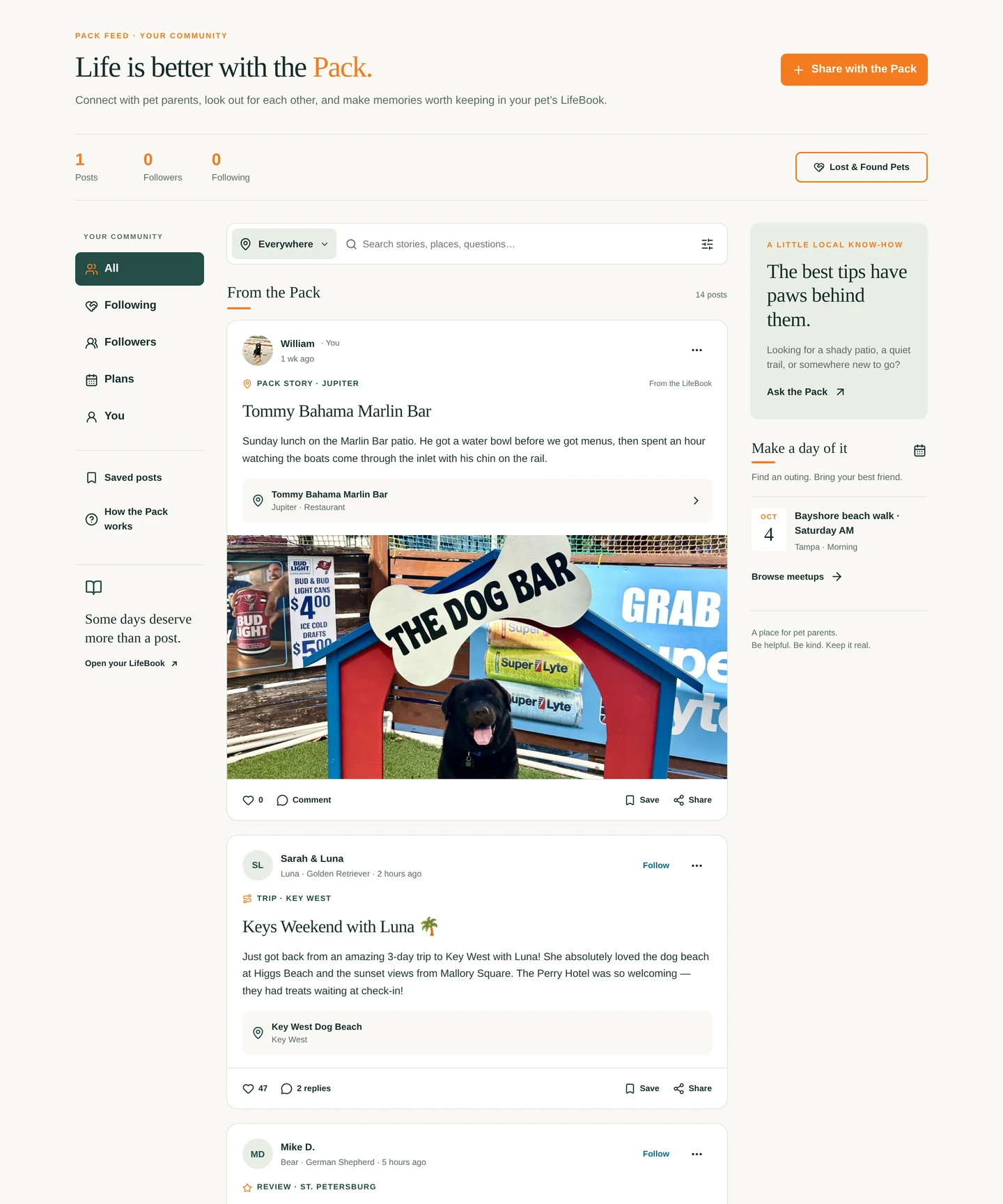
🐾 Pack Feed in the top bar. The views are All, Following, Followers, Plans and You, down the side on a computer and in a row on a phone. Everywhere above the posts narrows the feed to one city, and the search box finds a post by its words, its place or its author.
How to do it
Open the Pack Feed and tap Share with the Pack, then Make a Pack Post.
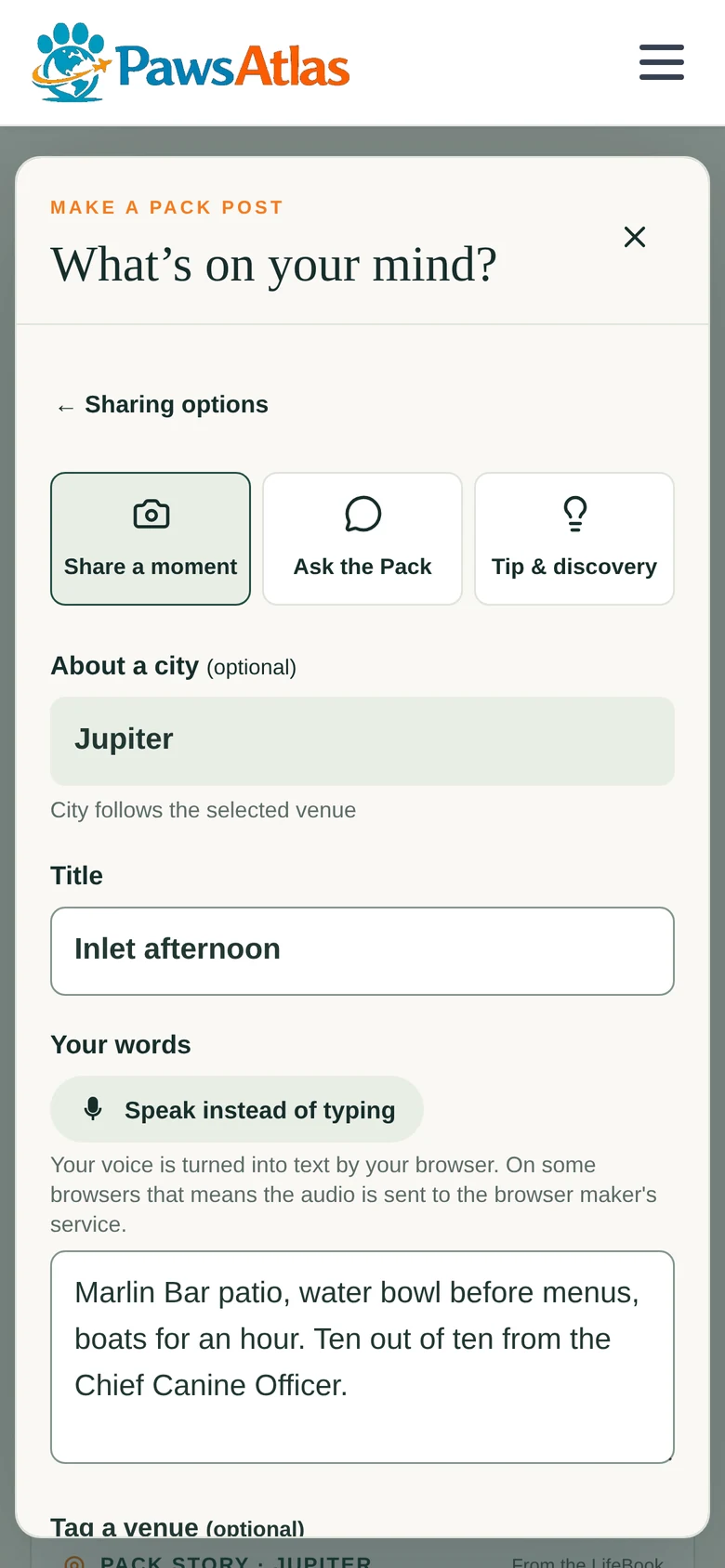
Pick what it is: Share a moment, Ask the Pack or Tip & discovery. Add a Title and Your words — type them, or tap Speak instead of typing. Name a city under About a city if the post is about one, or Tag a venue and the venue's city comes with it. Add up to four photos.
Decide whether to Also save to your dog's LifeBook. A post with a photo starts with this on; a text-only post starts with it off. Either way the choice is yours.
Tap Review post, read it as the Pack will see it, then Share with the Pack.
What it becomes
A post on the feed, under You, with your dog's name and photo on it. If you kept the LifeBook save on, a private memory with the same words and photos is in the LifeBook too — the post stays public, the memory stays yours. On every post, the three-dot menu offers Save post, Hide this post and Report post; on your own, Edit post and Delete post. Saved posts keeps the ones you bookmark.
Good to know
Posts on the feed today include sample posts so you can see how it works before the Pack fills in. Followers stays empty until accounts arrive: the Pack Feed lives in your browser today, so no one else can follow you yet. Editing a post changes the post, not the memory it saved; deleting the post keeps the memory. Everything you post stays yours to delete.
The Pack Feed: the views down the side, Everywhere and search above the posts
Make a Pack Post: a moment, a question or a tip, your words, a place
MEET UP
Pack Plan
Heading to the beach Saturday? Say so, and see who joins.
What it is
A Pack Plan is a meetup you're proposing: a beach hang, a trail hike, a patio dinner, or just hanging out, on a day and at a place, for everyone or just the people who follow you.
Where it lives
Plan a meetup behind Share with the Pack on the Pack Feed; plans appear under the Plans tab.
How to do it
On the Pack Feed, tap Share with the Pack, then Plan a meetup.
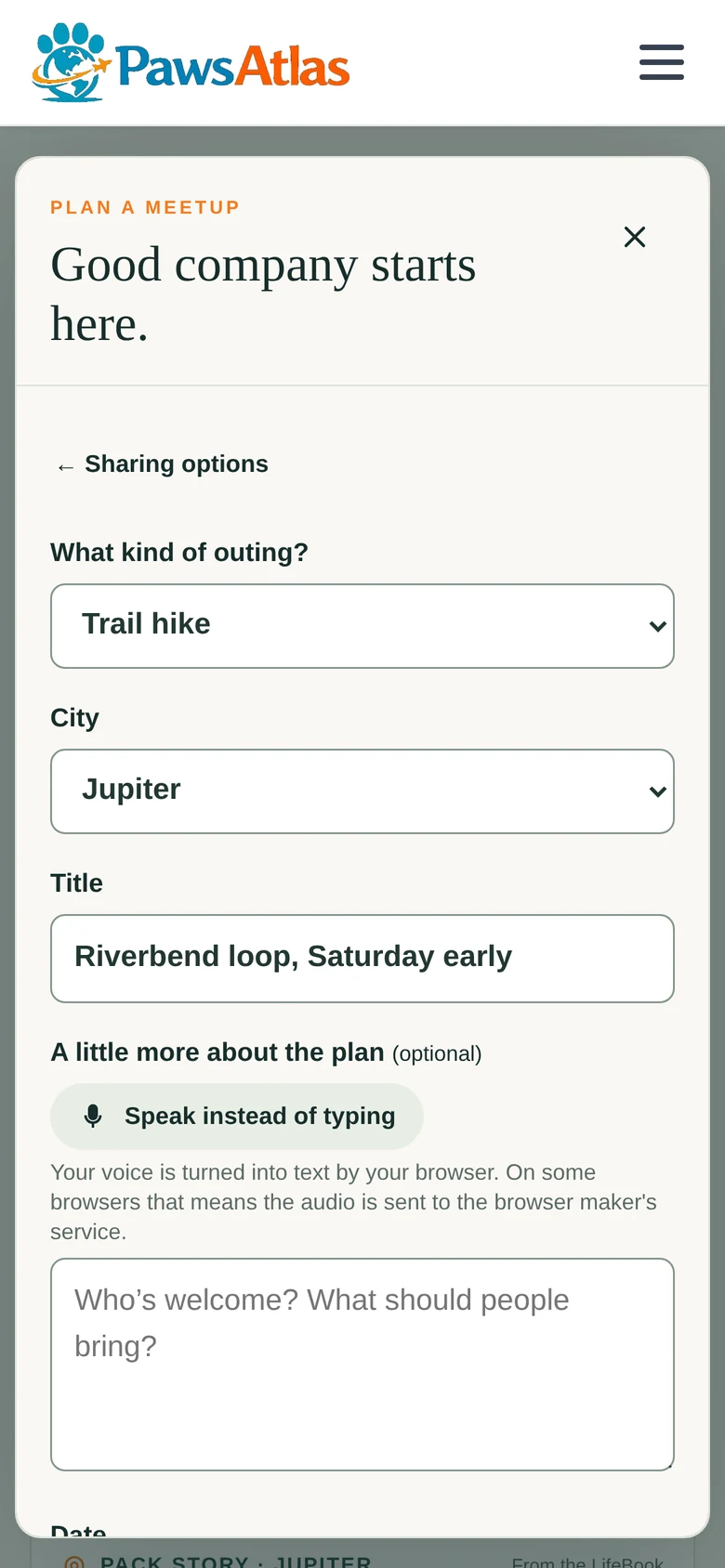
Pick What kind of outing? — Beach hang, Trail hike, Patio dinner or Just hanging out — choose the City, and give it a Title.
Set the Date and the Time of day: Morning, Afternoon or Evening. Tick This plan spans more than one day to add an End date. Tag a venue if you have one in mind.
Under Who sees this? choose Everyone or Followers only, tap Review plan, then Share with the Pack.
What it becomes
A card under Plans that others can love and comment on. Filter the tab by date to see what's coming up.
Good to know
A plan is an invitation, not a booking. Whether the place welcomes dogs is on the place's own page — check it before you propose it.
Plan a meetup: what kind of outing, when, where
LOOK OUT FOR EACH OTHER
Lost & Found Pets
When a pet goes missing or turns up, ask the people nearby.
What it is
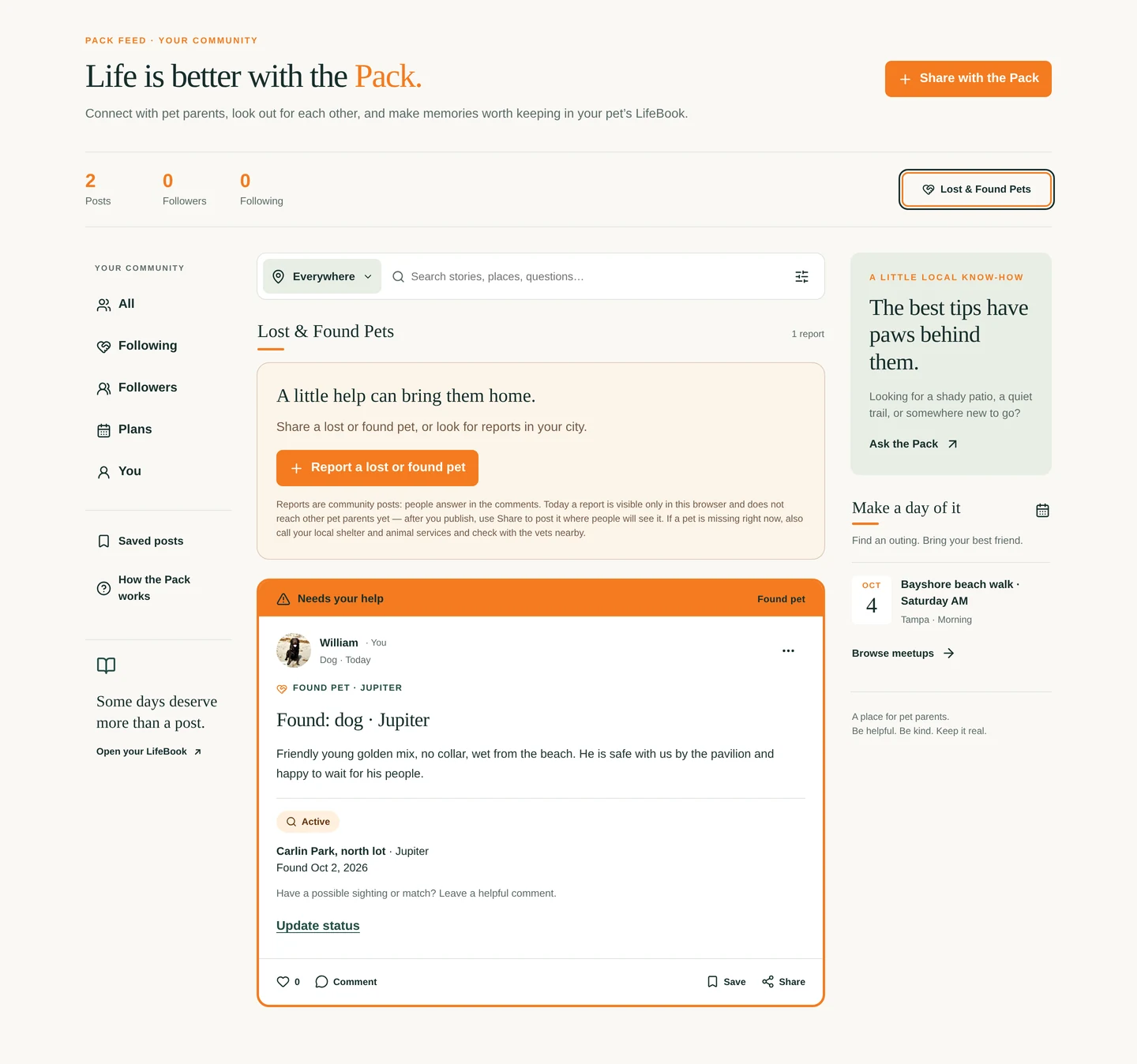
A report for a pet that has gone missing, or one you have found: the kind of pet, the general area, the date, a photo if you have one, posted so people nearby can keep an eye out and answer in the comments. While it is active it carries an orange Needs your help banner and shows ahead of other posts in its city.
Where it lives
Lost & Found Pets, beside Share with the Pack on the Pack Feed, opens the Lost & Found view: every report, active ones first, with Report a lost or found pet above them. The same form is the first door, Lost or found a pet?, behind Share with the Pack.
How to do it
On the Pack Feed, tap Lost & Found Pets, then Report a lost or found pet.
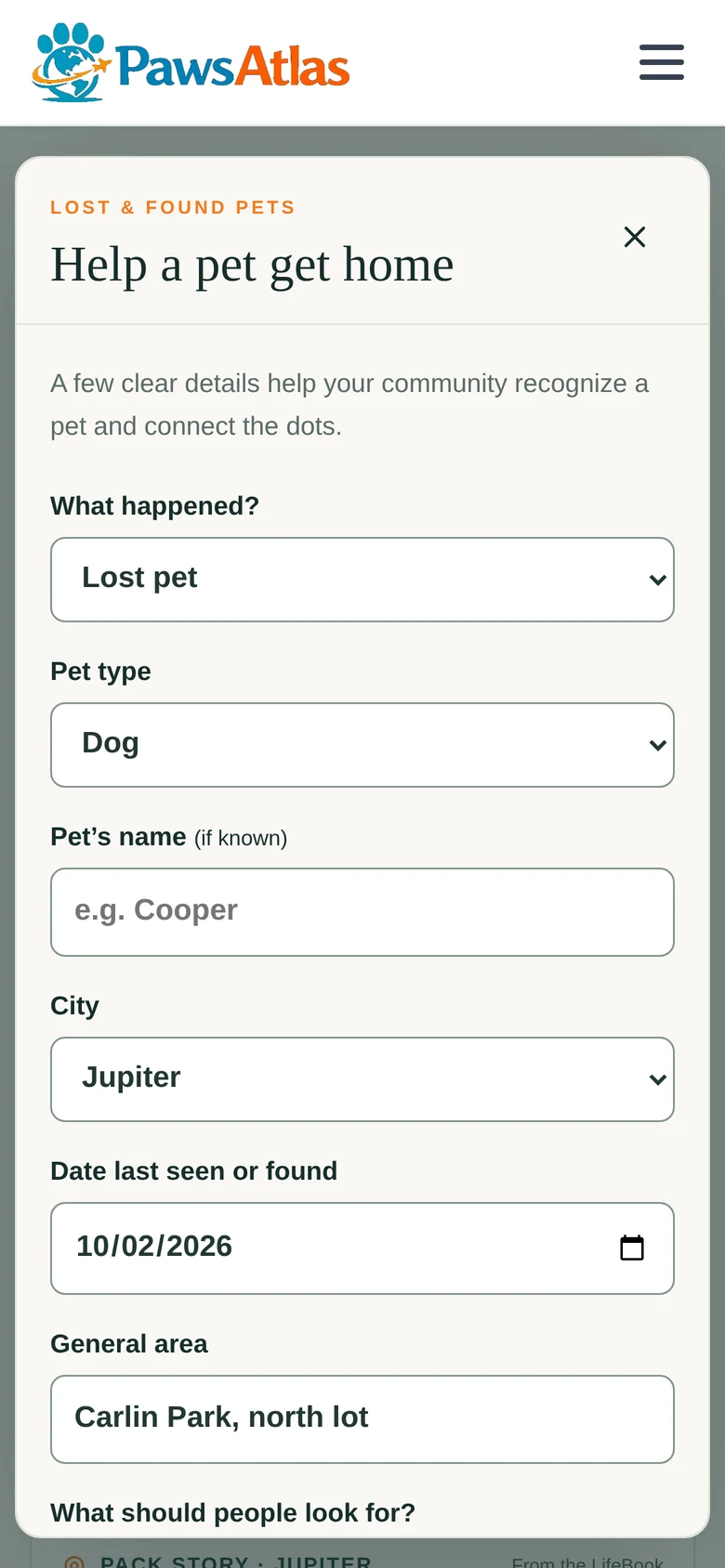
Choose Lost pet or Found pet and the Pet type. Add the City, the Date last seen or found, a General area — a park or a landmark, never a home address — and What should people look for? One photo helps.
Tap Review report, read it as the Pack will see it, then Publish report.
When there is news, tap Update status on the card: Reunited with their family or Close report. Reopen report brings it back.
What it becomes
A post in Lost & Found and on the feed, with your name on it and the pet's. Active reports lead the feed, and with a city chosen they sit in their own Help a pet in section above everything else. People reply in the comments; Edit report and Delete report are in its three-dot menu. Reunited or Closed takes the banner off and keeps the report and its comments as history.
Good to know
A report is a community post, not a report to an animal service: if a pet is missing right now, also call your local shelter and animal services. Today a report is saved only in this browser and does not reach other pet parents yet, so after you publish, use Share outside the Pack to post it where your neighbors already look. Reports are never saved to the LifeBook, even with a photo.
Lost & Found Pets: the door above, the active report first, ringed in orange
Help a pet get home: what happened, where, when, and what to look for
PART FOUR · Plan
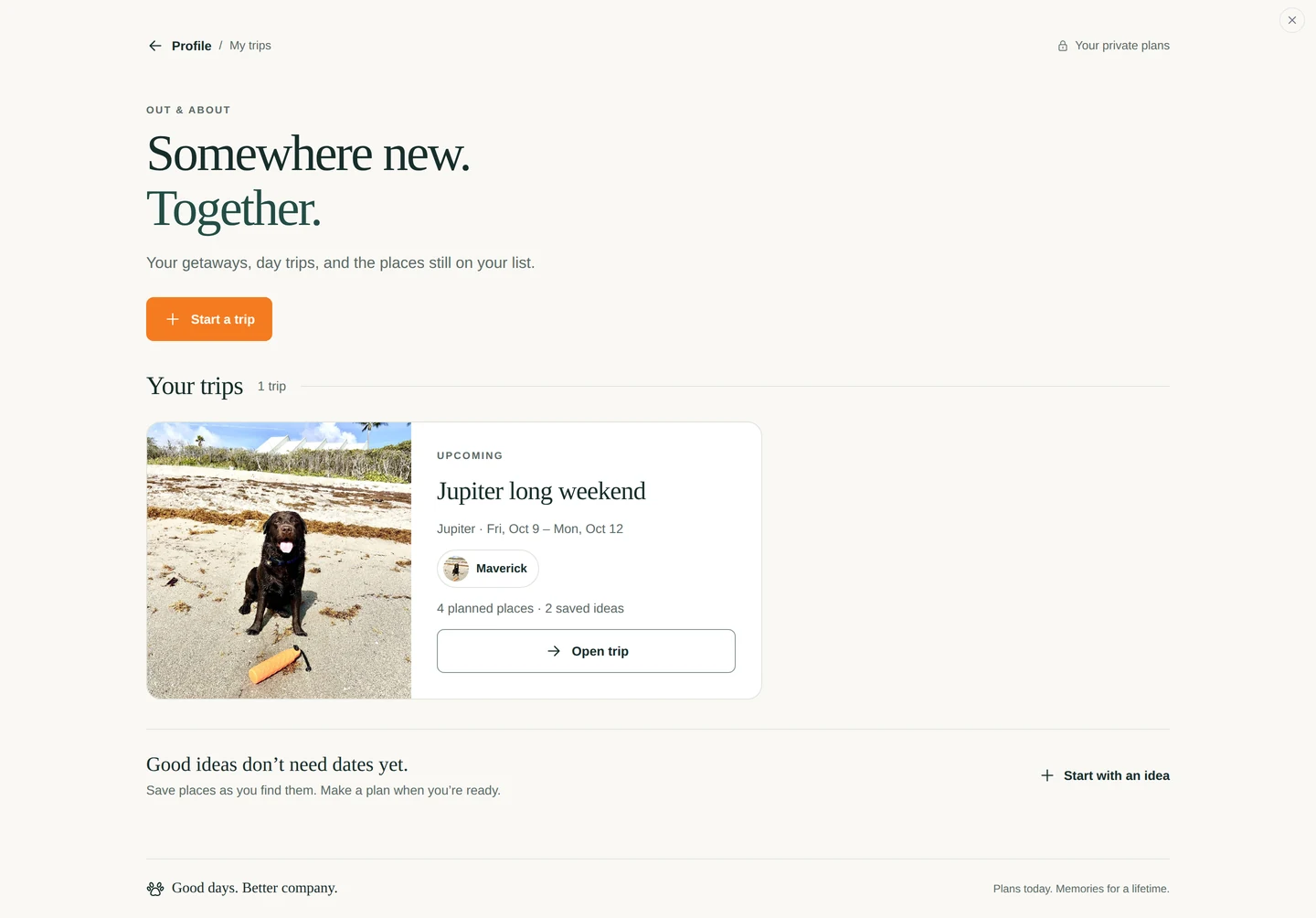
Somewhere new. Together.
A trip is a few days, a place to stay, a list of stops and a packing list — and afterwards, a chapter.
THE PLAN
Trips
Start with the dates, add the places, put them on days.
What it is
A trip is a destination and a date range, with the places you want to visit arranged by day, a stay, a packing list, and the memories you make while you're there.
Where it lives
My trips on your profile. Each trip has its own page.
How to do it
On your profile, tap My trips, then Start a trip. Name it, choose a destination — Jupiter or one of the Florida cities coming next — set the dates, and choose who's coming.
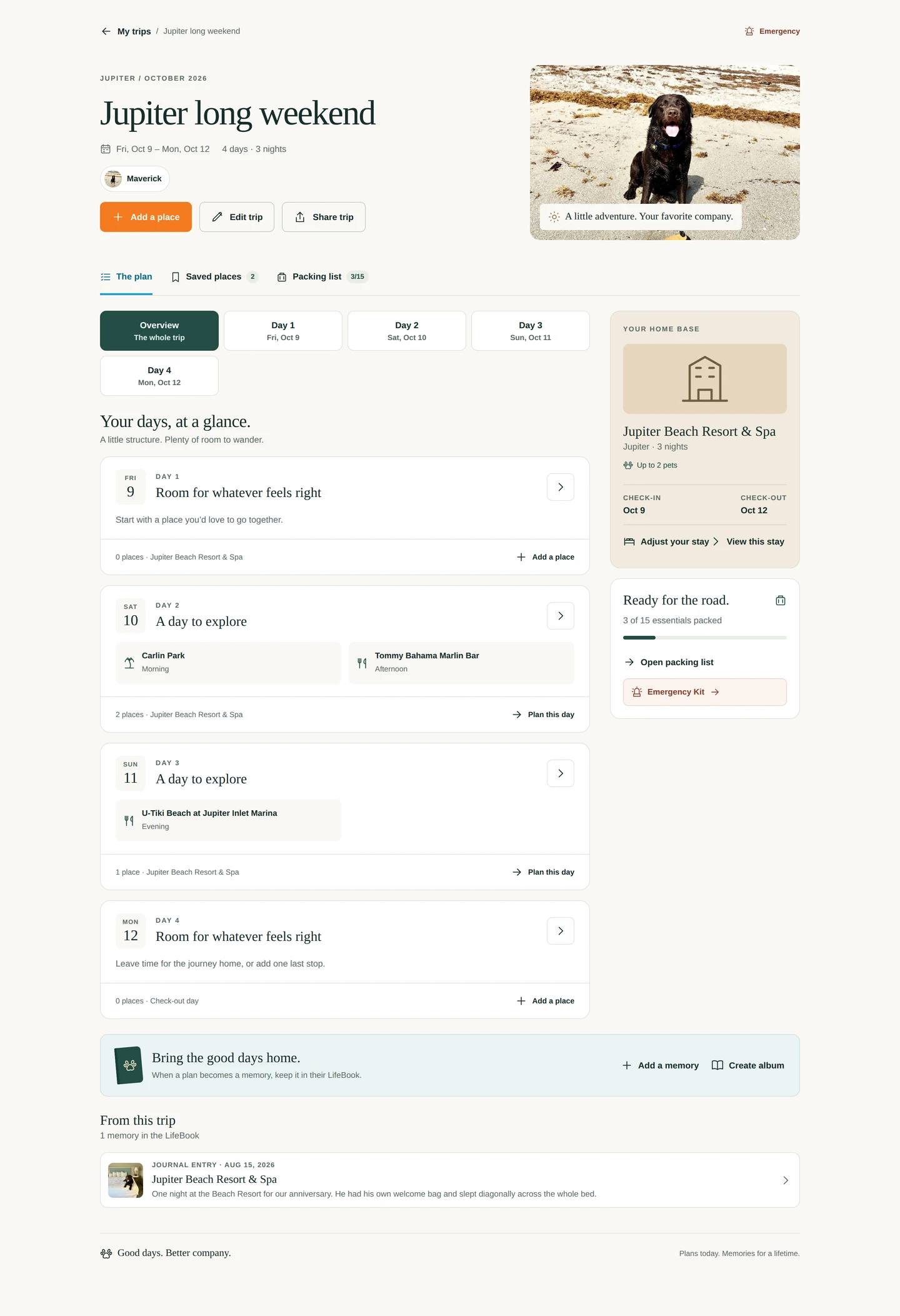
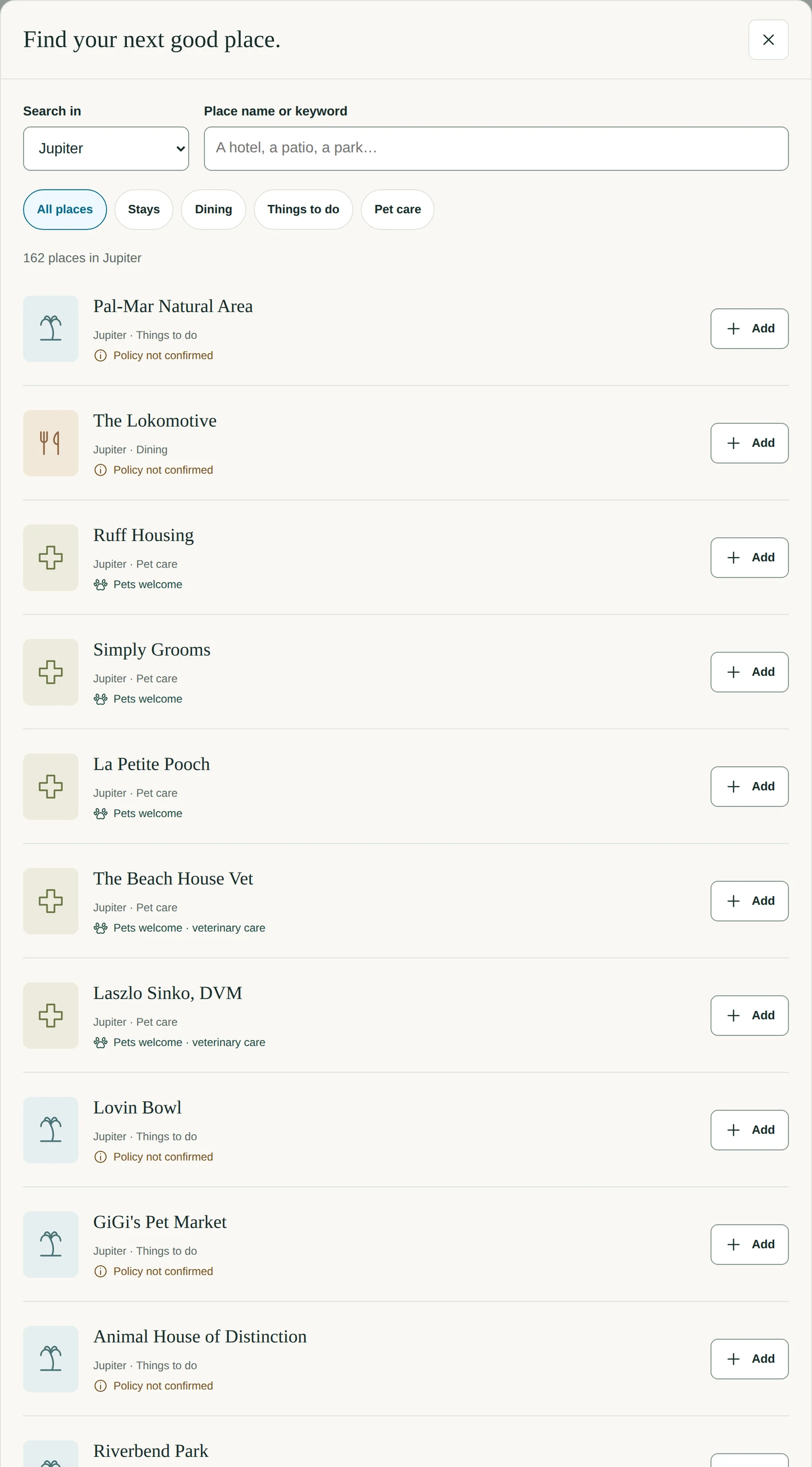
On the trip page, tap Add a place. Search by keyword or category, tap Add, and choose a day and time — or Save for later under Saved places.
Hotels go under Your home base: choose one, set the nights, and Adjust your stay any time.
Open a day to see it in order. Mark visited as you go; Time & day and More options move a stop.
What it becomes
Any memory you save with a date inside the trip appears under From this trip on the trip page — and Create album there starts an album from exactly those.
Good to know
Trips run up to 21 days. Add to Trip on any place in the directory saves it to a trip's Saved places from the card. The destination list includes the cities coming soon, so you can plan the trip before the directory has caught up.
My trips
A trip page: the plan, the days, your home base
Add a place — the Find-a-place dialog
READY FOR THE ROAD
Packing & sharing a trip
Fourteen things you always forget, and an itinerary you can send.
What it is
Every trip has a packing list — fourteen dog essentials to tick off, plus your own items — and a Share trip button that sends the itinerary as text to whoever's coming.
Where it lives
The Packing list tab on the trip page, and Share trip at the top of it.
How to do it
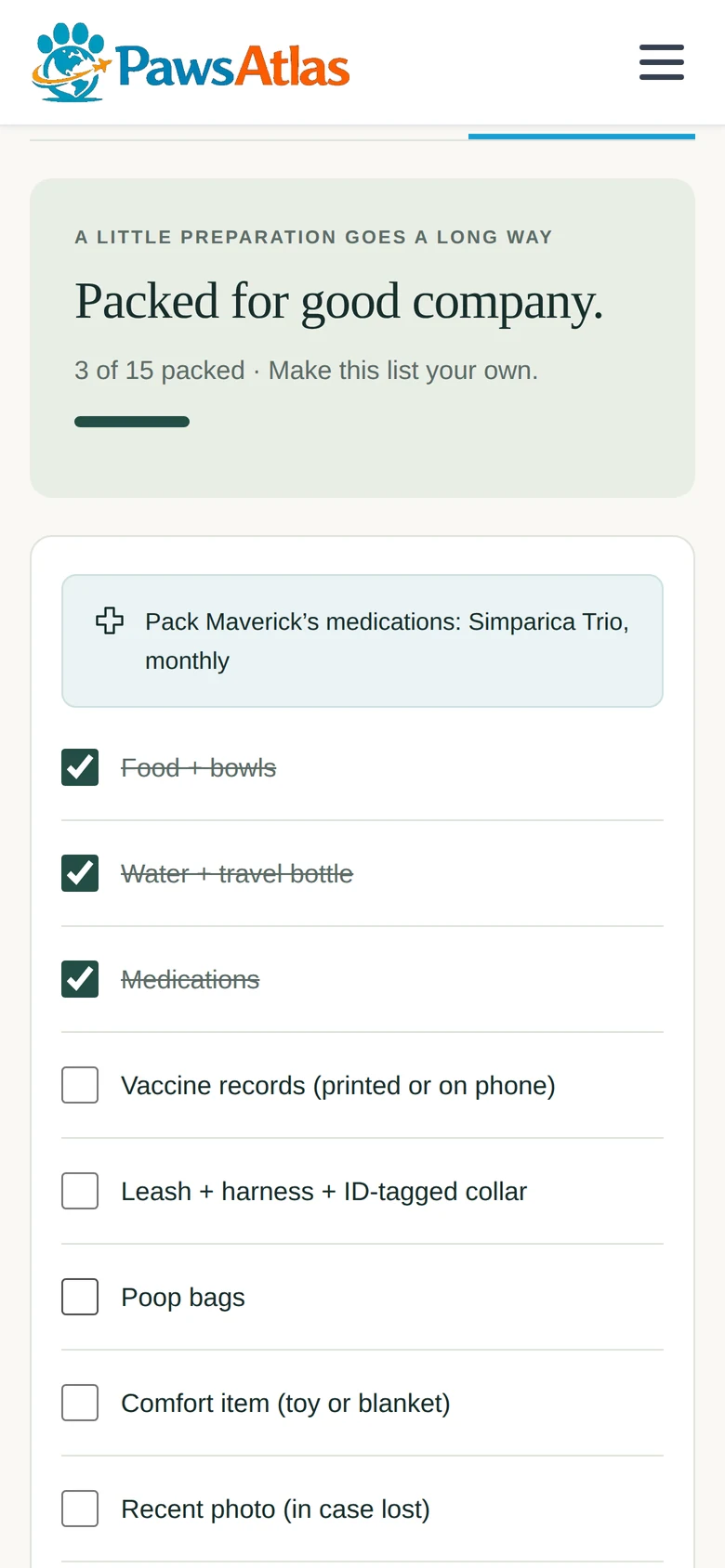
Open the trip and tap Packing list. Tick items as you pack. Add your own item for anything the list doesn't have. If a pet on the trip has medications on file, the list reminds you.
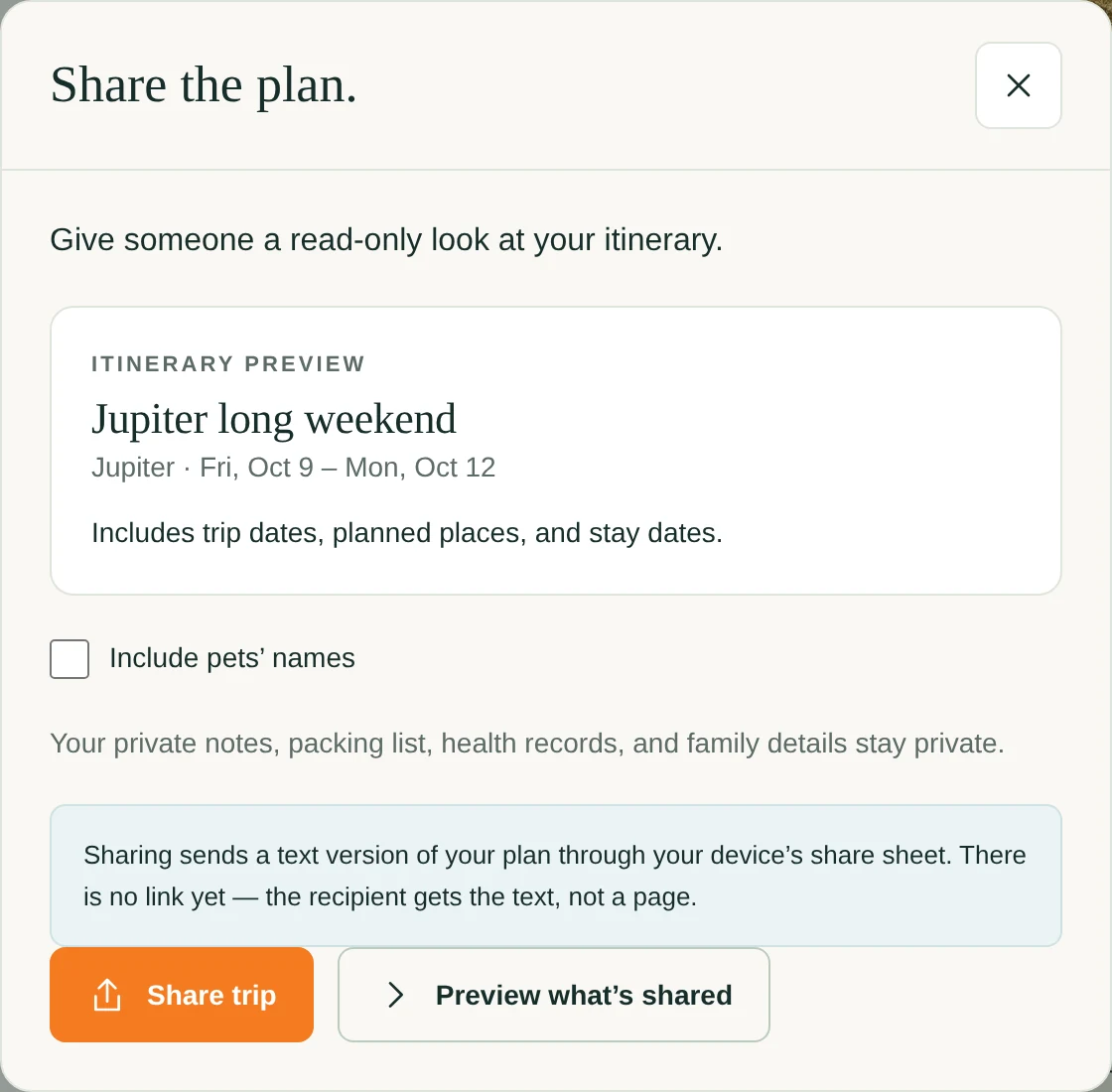
Tap Share trip. Tick Include pets’ names if you want them in, and Preview what’s shared to read exactly what will be sent: the days, the stops and the stay.
Tap Share trip to send it through your phone's share sheet. On a computer without one, it's copied to the clipboard instead.
What it becomes
The list stays with the trip, ticked and ready for next time; the Emergency Kit reads the same list.
Good to know
Your day notes are private and never go in the shared itinerary, whatever else you include. The share is plain text today — a link to the trip comes with accounts.
The Packing list
Share trip: what goes in the itinerary
PART FIVE · Care
Close at hand.
The details you need in a waiting room, the numbers you need at 2 a.m., and one page you can hand to anyone who looks after your dog.
PRIVATE CARE
Health & Records
Microchip, vet, vaccinations, documents — in one place, for the day you need them fast.
What it is
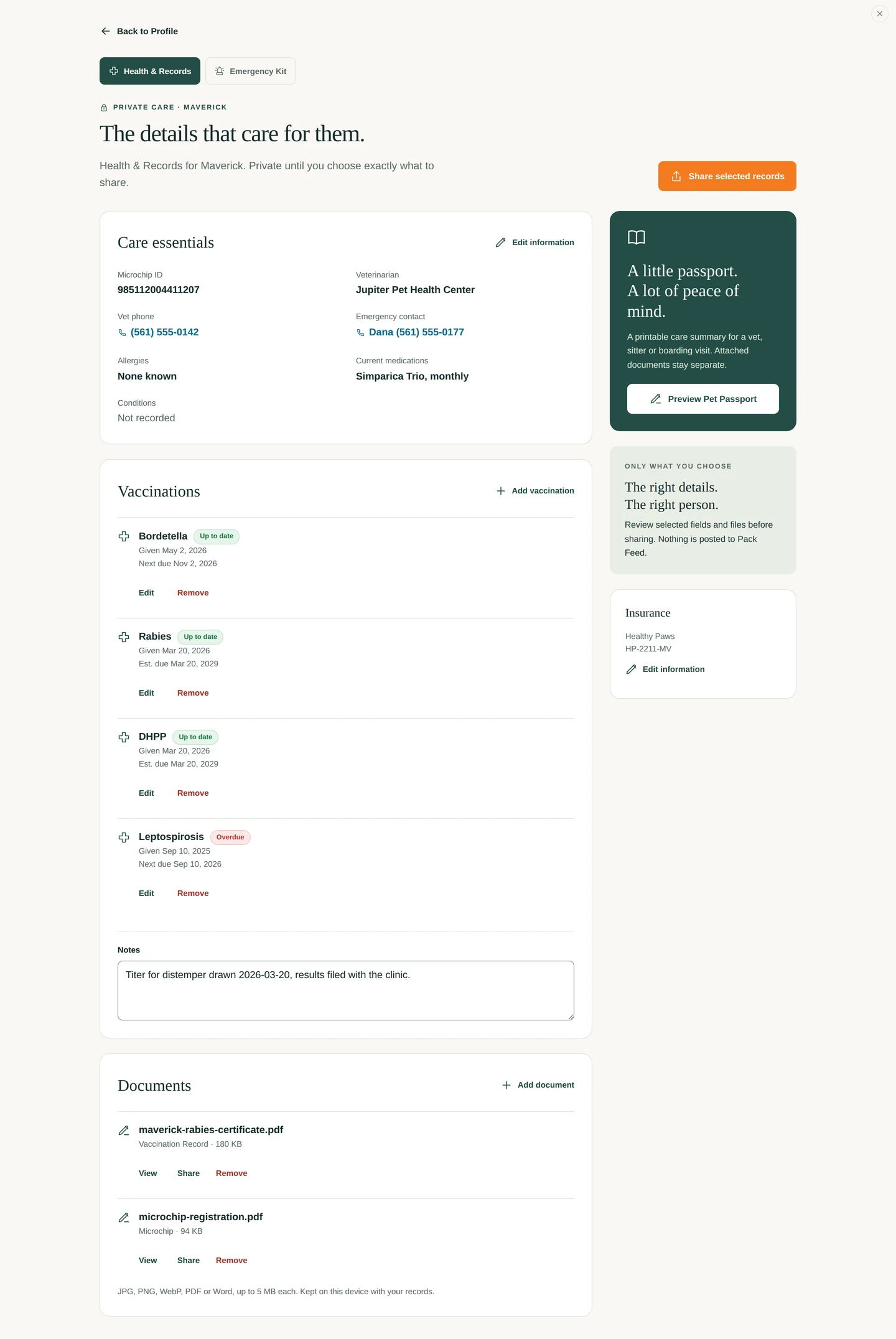
A private record for each dog: the care essentials (microchip, vet, emergency contact, allergies, medications, insurance), a vaccination ledger that works out when the next one is due, and a place to keep the documents.
Where it lives
Health & Records on your profile. It follows the pet selected on your profile.
How to do it
Open Health & Records. Under Care essentials, tap Edit information and fill in what you know. Phone numbers become one-tap calls.
Under Vaccinations, tap Add vaccination. Pick from the common ones or type your own, enter the date given, and choose a one-year or three-year booster. The page shows Est. due, Due soon and Overdue for you.
Under Documents, tap Add document to keep the rabies certificate, the microchip registration, the insurance card. View, Share or Remove any of them.
What it becomes
The source for the Pet Passport and for Share selected records (next page), and the numbers the Emergency Kit dials.
Good to know
Booster intervals are standard references, not medical advice — your vet's schedule wins. Documents are stored in your browser on this device; keep the originals too. Nothing here is ever shown publicly.
Health & Records: care essentials, vaccinations, documents
HELP COMES FIRST
Emergency Kit
What to watch for, who to call, and what to say when you get them.
What it is
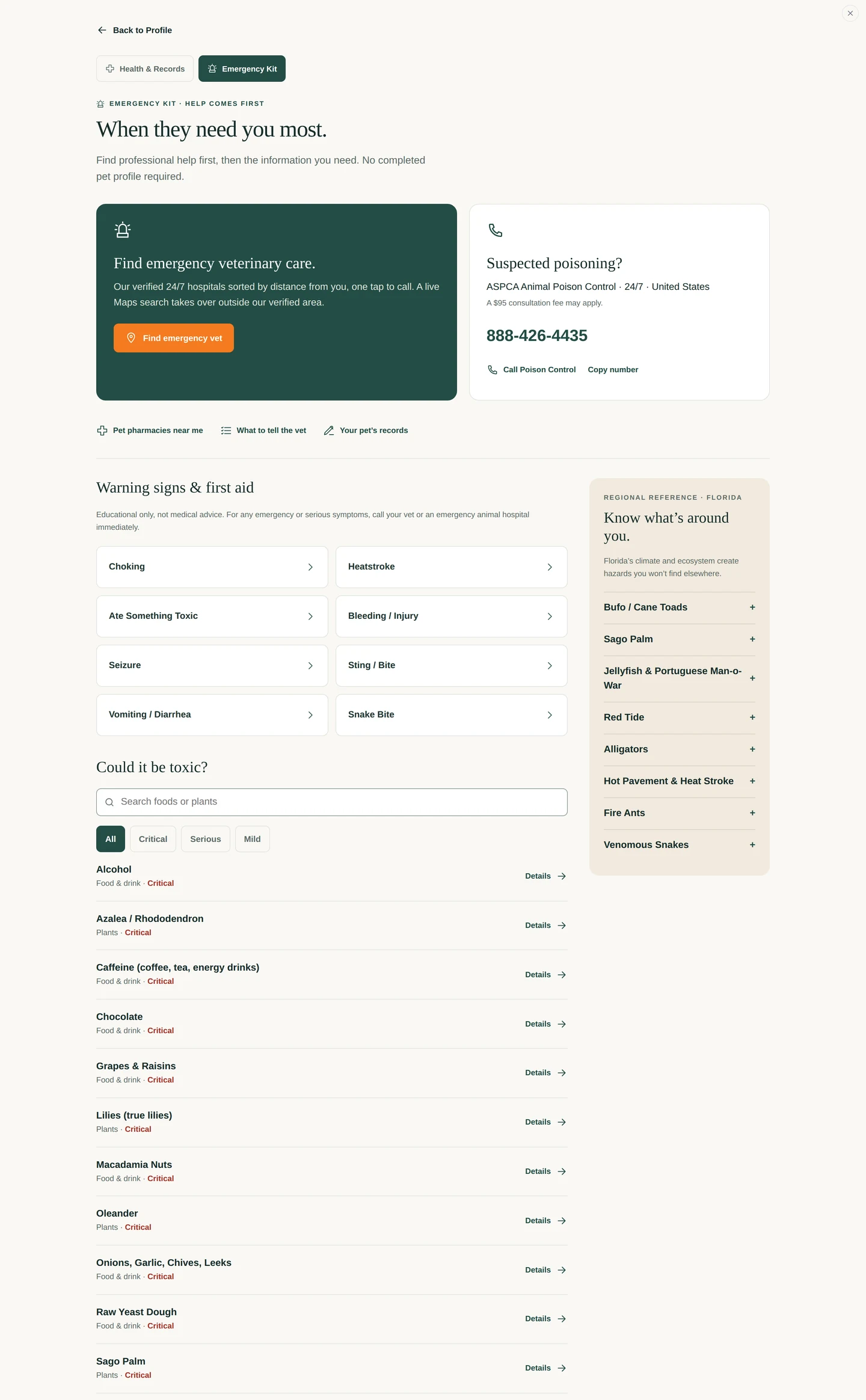
A calm page for a bad moment: the nearest emergency vet, Poison Control, the warning signs for eight common emergencies, a searchable list of toxic foods and plants, and the Florida hazards a new arrival might not know.
Where it lives
The Emergency Kit tab beside Health & Records on your profile; Emergency Kit on the profile home and on every trip page.
How to do it
Tap Find emergency vet for the nearest hospitals, or Call Poison Control — Copy number if you'd rather dial from another phone.
Tap What to tell the vet for the eight questions they'll ask, so you have the answers ready.
Under Warning signs & first aid, tap the situation — Choking, Heatstroke, Ate Something Toxic and more — for the signs and when to call.
Under Could it be toxic?, search a food or plant; Critical, Serious and Mild say how urgent.
What it becomes
Nothing is saved here. It reads your dog's records so Call my vet dials the right number, and it reads the trip's packing list on the road.
Good to know
The Kit lists warning signs and tells you when to call. It does not give treatment instructions — deliberately. In an emergency, the vet is the answer and the Kit is how you reach one faster.
The Emergency Kit
ONLY WHAT YOU CHOOSE
Pet Passport & sharing records
One printable page for the sitter, the kennel, the hotel — with exactly the details you pick.
What it is
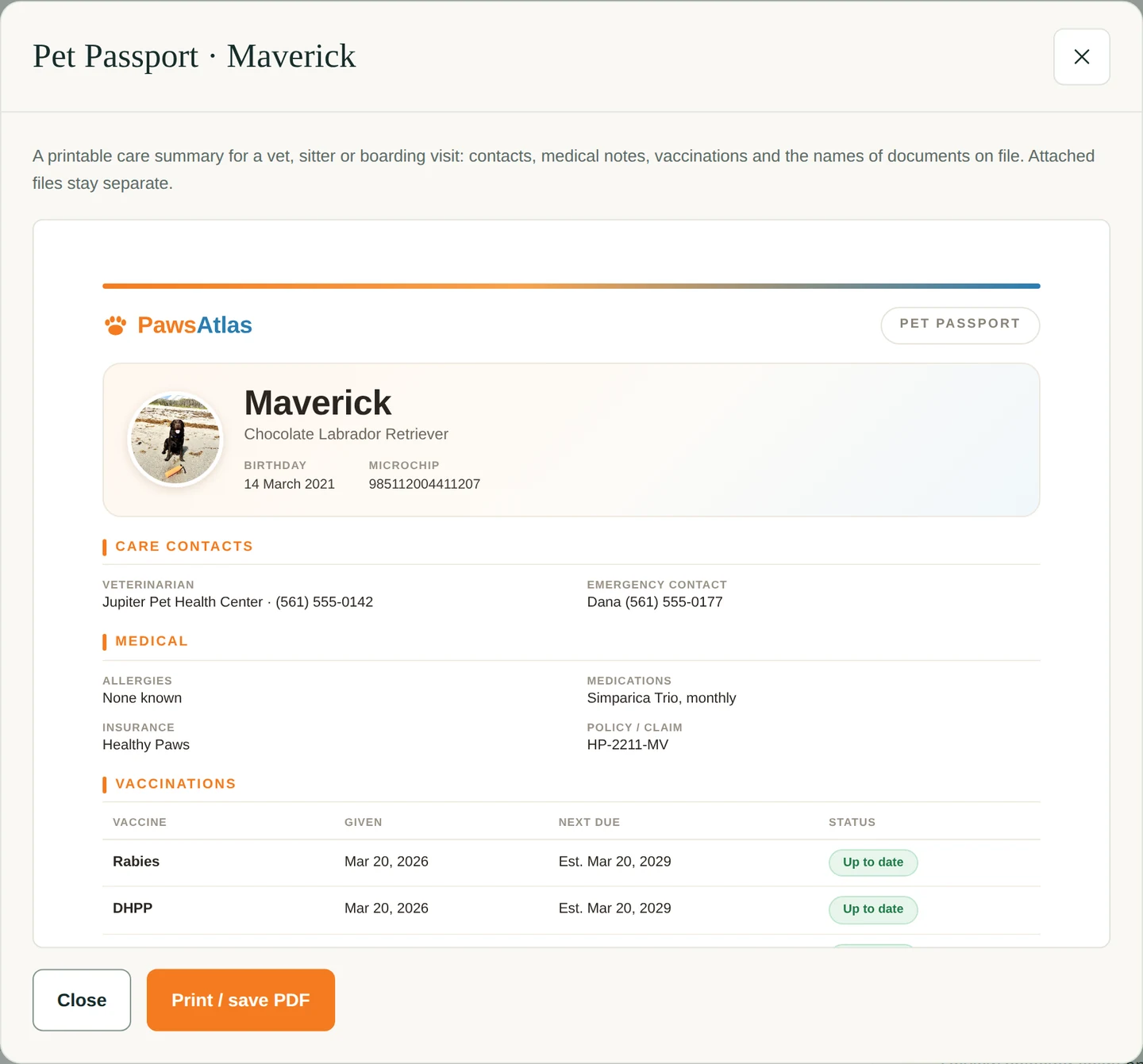
The Pet Passport is a one-page summary of your dog — identity, care essentials, vaccinations — that you can print or save as a PDF. Share selected records sends the same details as text, but only the ones you tick.
Where it lives
At the bottom of Health & Records: Preview Pet Passport and, at the top, Share selected records.
How to do it
Open Health & Records and tap Preview Pet Passport. Check it, then print it or save it as a PDF from the print dialog.
To send only some of it, tap Share selected records. Tick the details, the vaccination summary and any documents you want to include.
Review the text, then Share it or Copy it. Each document you selected has its own share button, because files travel separately from text.
What it becomes
The page a stranger can care for your dog from.
Good to know
Nothing you don't tick is included — the review shows you exactly what will be sent. The passport is built from what you've entered; empty fields are left off rather than guessed.
The Pet Passport preview
Share selected records: the right details, the right person
The last page
Said plainly.
Where things live
Paws Atlas has no server accounts yet. Your pet, memories, albums, trips and records are saved by your browser on the device you're using. Another device, another browser, or clearing site data means they're not there. Keep original photos and documents somewhere you trust. Accounts are the next big step, and everything you've saved will come with you.
What the Pack sees
Only what you share, and only from verified places. Nothing leaves your LifeBook on its own, and sharing is a switch you can turn off.
What isn't here yet
Written LifeBook chapters, told in the voice you chose on the About sheet. Ask Maverick, his take on where to go. Albums you can delete, share or read as a story. Cities beyond Jupiter — St. Petersburg, Tampa, Sarasota, Clearwater, Naples, Orlando and Miami are on the way. And the mic on Firefox, which is Firefox's to fix.
Every adventure. Every memory. Every step together.
Maverick's LifeBook · St. Pete
Maverick's St. Pete Weekend
St. Petersburg, Florida · A weekend with Copper and Bob · Told by Maverick
Same weekend, same photos — two ways to tell it.
Read his chapter↓
✨
A real St. Pete weekend — written in Maverick's own voice by Maverick AI, from the photos and moments his dad logged along the way.
One weekend. One chapter. A whole life still ahead of us.
Every adventure. Every memory. Every step together.
Maverick's LifeBook · Key West
The Weekend I Planned for My Dad
Key West, Florida · A birthday weekend · Told by Maverick
Read his chapter↓
✨
A real Key West weekend — written in Maverick's own voice by Maverick AI, from the photos and moments his family logged along the way.
Let me set the record straight before we begin. People will tell you this was a birthday weekend, and they'll be talking about my dad, William. That part is true — it was his weekend, and I am thrilled for him. But somebody had to arrange it, and that somebody was me. Three days in Key West, two nights right on the water, my best friend Copper at my side, our friend Bob along for the ride. I brought my dad as my guest. I think he had a wonderful time. He should — I'd been working on it.
"People think they're taking me places. Adorable. I took my dad to Key West."
— Maverick
Settling In on the Water
The house we stayed in floated. I want to be clear that I planned that too. It sat right off the marina, the kind of place where the whole back wall is just water and boats and, eventually, a sunset that does most of the work for you. My dad liked to sit and relax, and I let him, because a good host knows when to let his guest unwind.
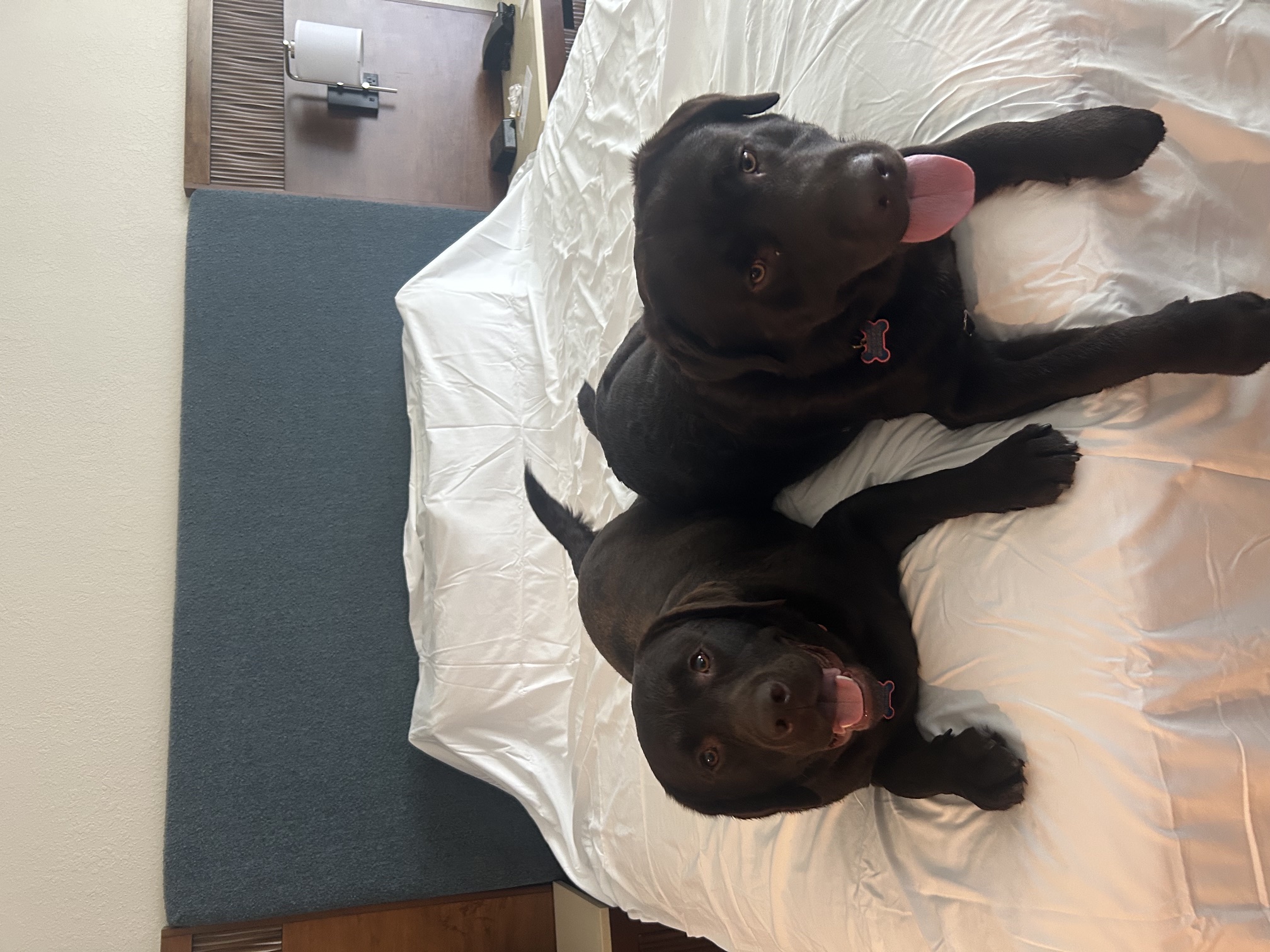
But the real prize was the bed. Copper and I tested it thoroughly and immediately, and I am pleased to report it passed. We sprawled. We took up an indefensible amount of space. This is what a bed is for, and anyone who tells you otherwise has never been a Labrador on vacation.
The bed passed inspection. Copper and I made certain of it.
The Dog Beach Belongs to Me
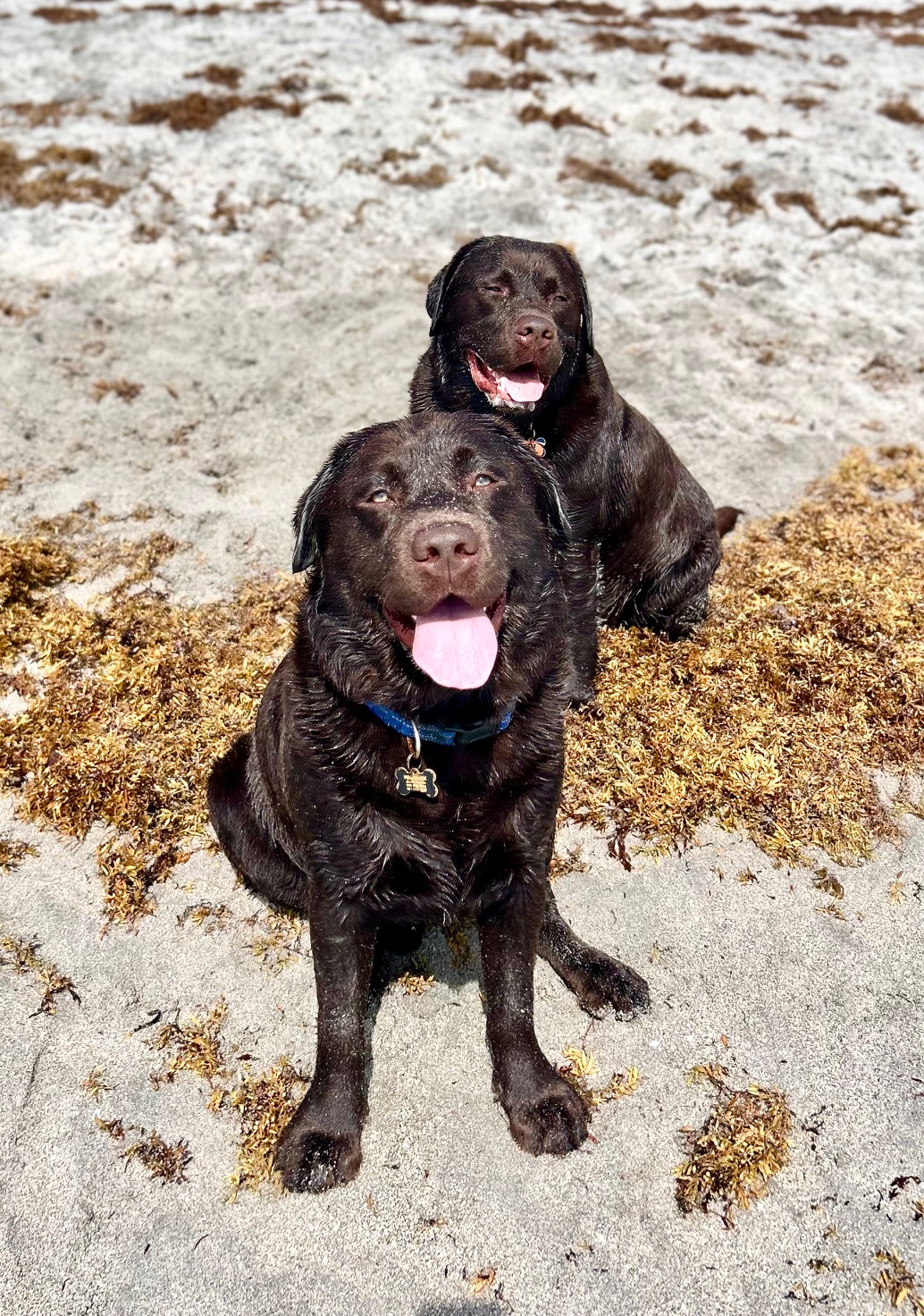
Then there was the beach, and the beach was the good part. The water came in clear — so clear you could see your own feet hitting the sand — and it came in waves, which I consider a personal invitation. Copper and I argued with every one of them. We swam. We dug. We did that thing where you run full speed at nothing in particular just because the day is wide open and you are good at running. My best friend in the whole world, the clear water, and a sky that didn't end. If I planned only one thing this entire trip, this would have been enough. But I am nothing if not generous, so there was more.
My best friend, clear water, and a sky that didn't end — the whole reason for the weekend, right here.
Running the Rooms
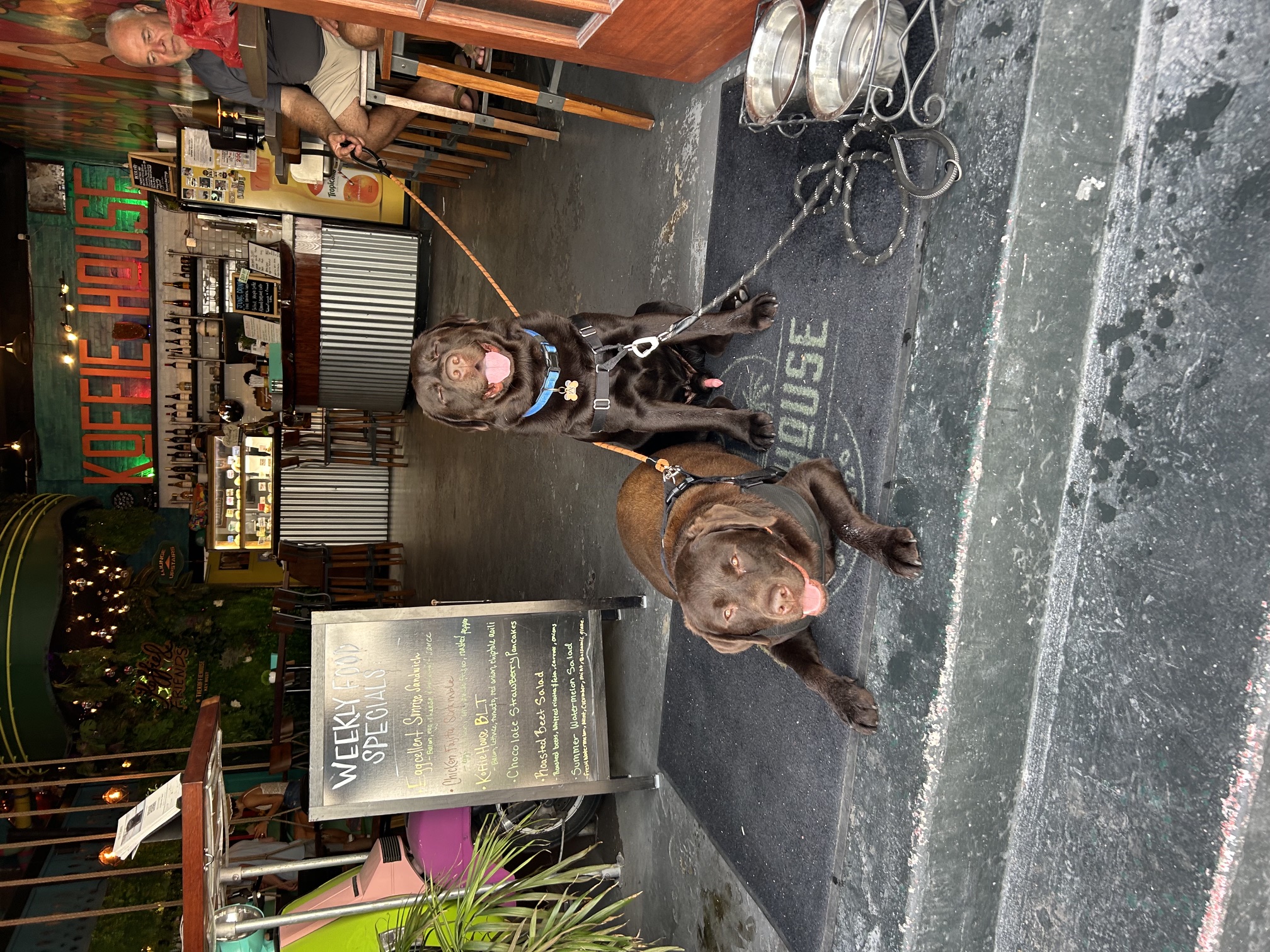
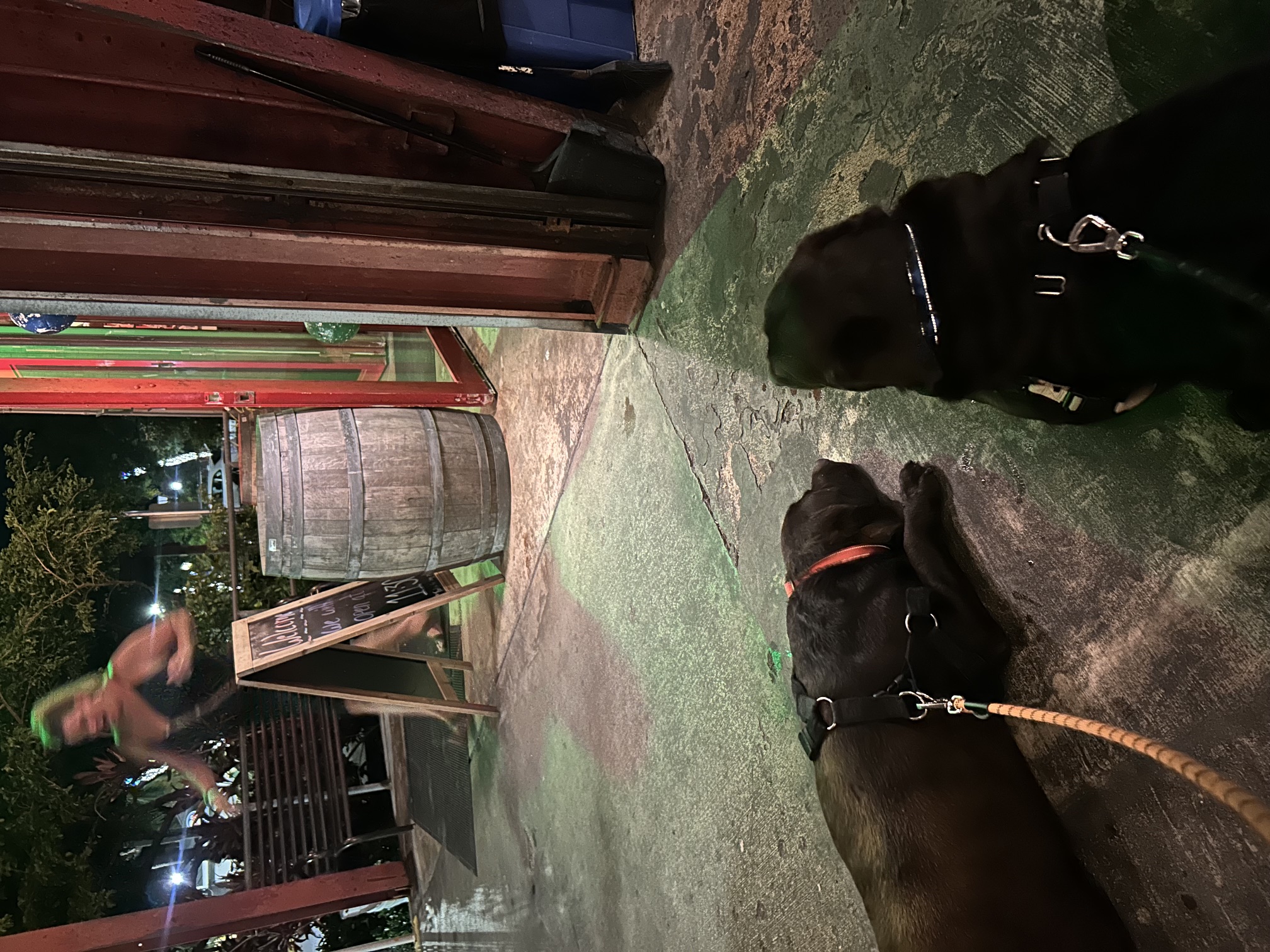
Here is what I do, and here is what I'm best at: I walk into a place, and shortly afterward, the place is mine. I don't raise my voice. I don't need to. At the Koffie House — my favorite spot to hang my hat — the smell of coffee was enormous, the floor was cool against my belly, and the breeze came right through the open door where Copper and I parked ourselves to keep an eye on the comings and goings. A dog could be very happy on that floor. I was.
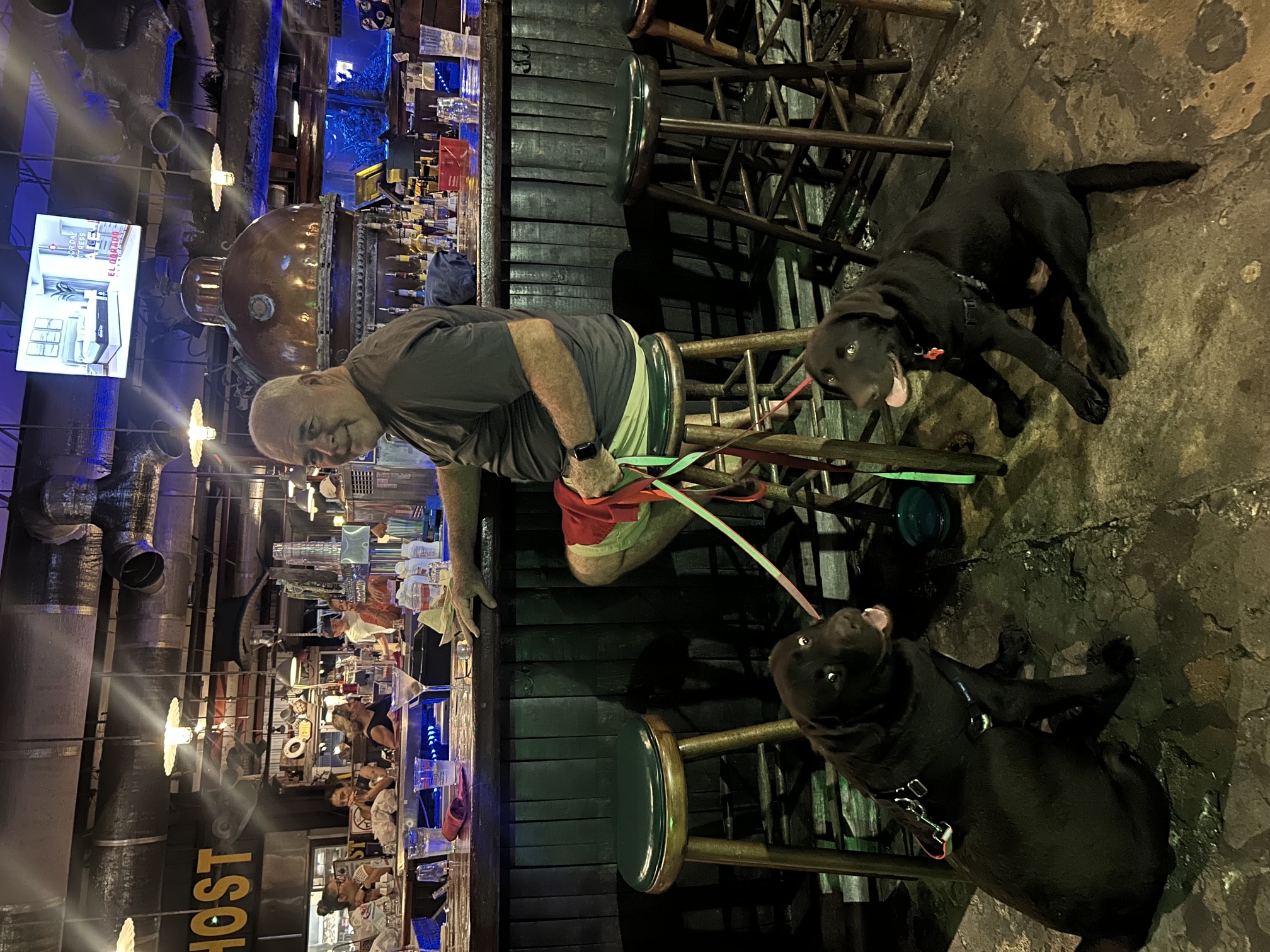
Dinner was Conch Republic, which sits right on the marina and runs festive from the moment you arrive. People kept walking up to that open bar, and every single one of them had to pass by me to do it. You see the math here. I greeted them all. There were other dogs, which I love, and a great deal of attention, which I love more, and my dad and Bob sitting back watching me work the whole room like it was the most natural thing in the world. It was.
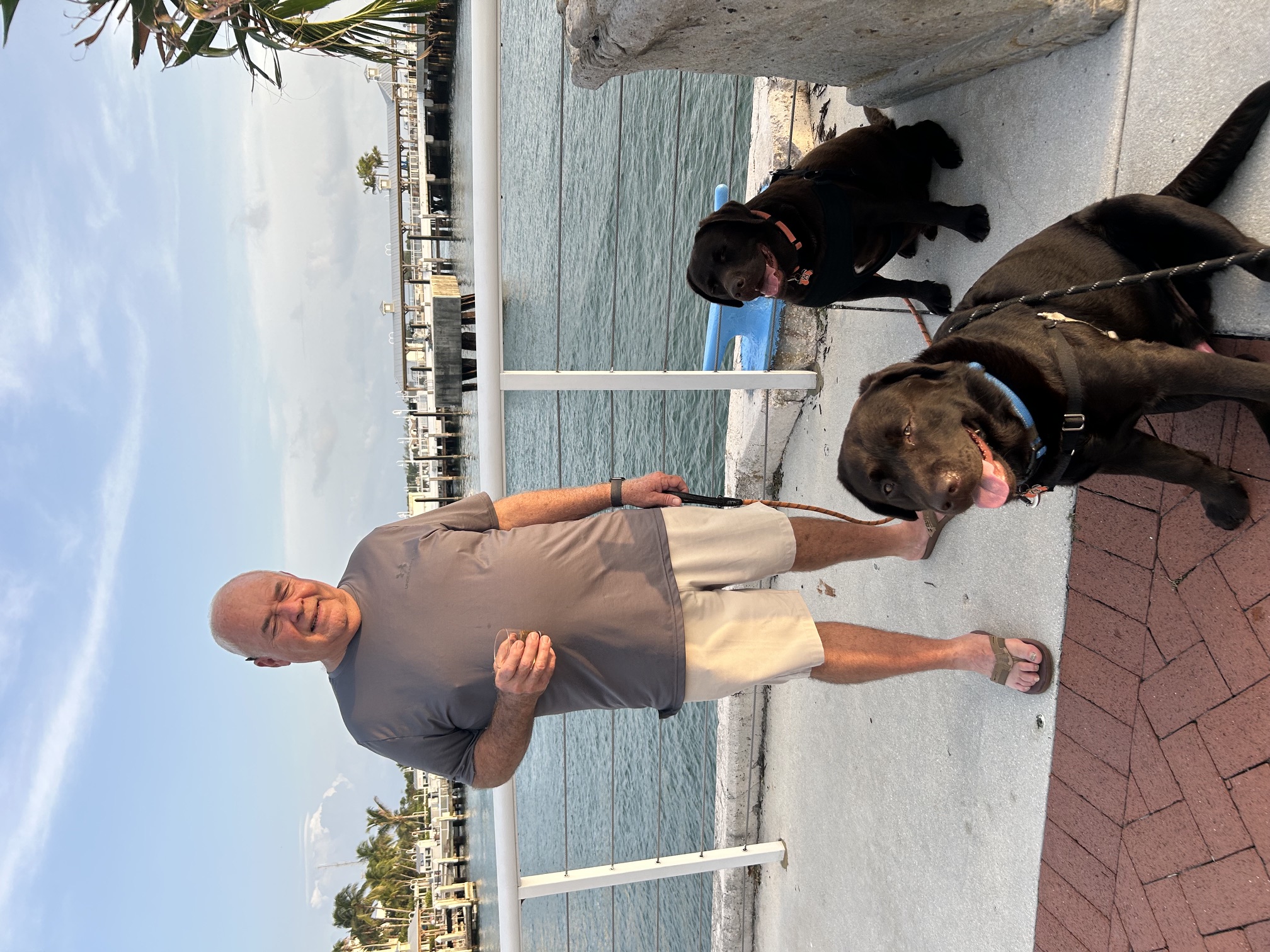
Later we walked Mallory Square, where everybody on the island goes to watch the sun go down. The breeze came cool off the water, the crowd was enormous, and I made it my business to be a hit with all of it. The sunset was lovely. I was the main event.
Stationed in the doorway of the Koffie House, cool floor below, breeze coming through. A dog could be happy here. I was.Holding court at Conch Republic with Bob and Copper while the whole bar walked right past me.Copper and me, smiling straight at the camera, running the room without raising our voices.Mallory Square at sunset with Bob and Copper — the water behind us, the crowd in front of me.
A Slower Morning, a Hotter Afternoon
The second day started slow and I let it. We took a long morning walk down Duval before the stores were properly awake — though the people were already out, and people are my favorite weather. I greeted anyone within greeting range and inspected the store windows like a man with opinions.
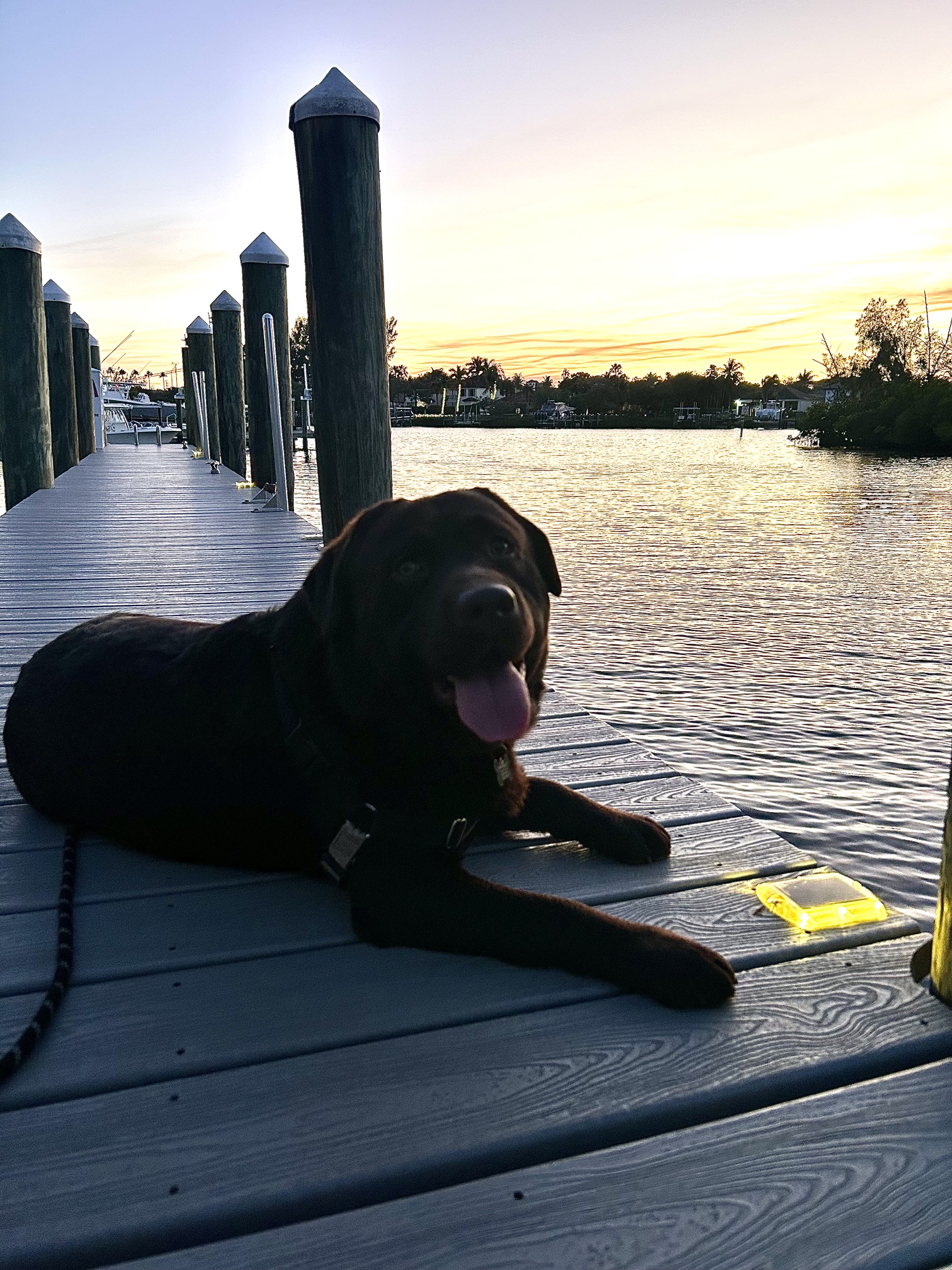
Then we found a dock on the marina, and I did something I rarely admit to: I laid right down. Just put myself flat on the boards and took in all that water and all those boats, and for a minute I wasn't running anything at all. I was just a dog on a dock, which it turns out is also a wonderful thing to be.
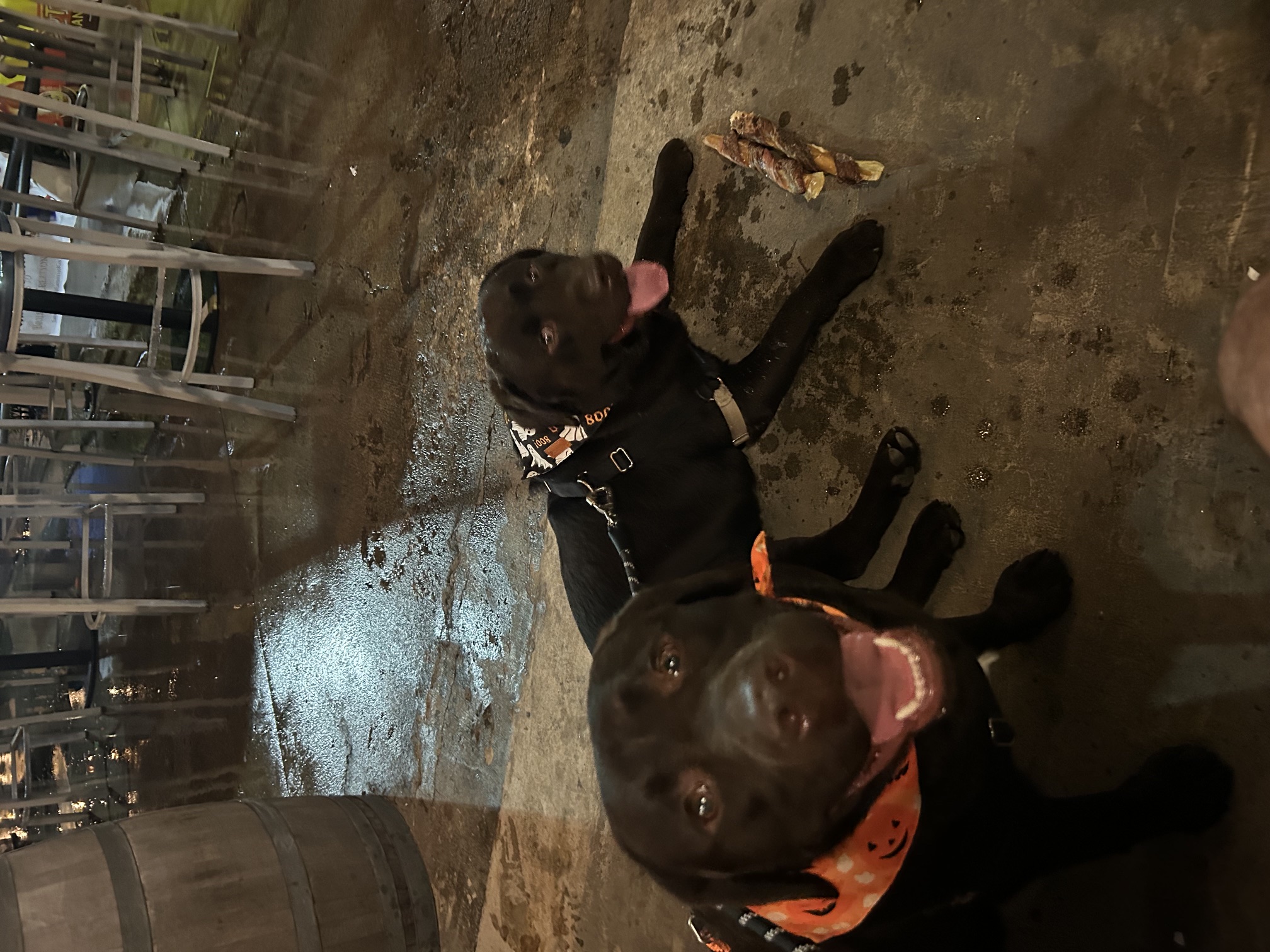
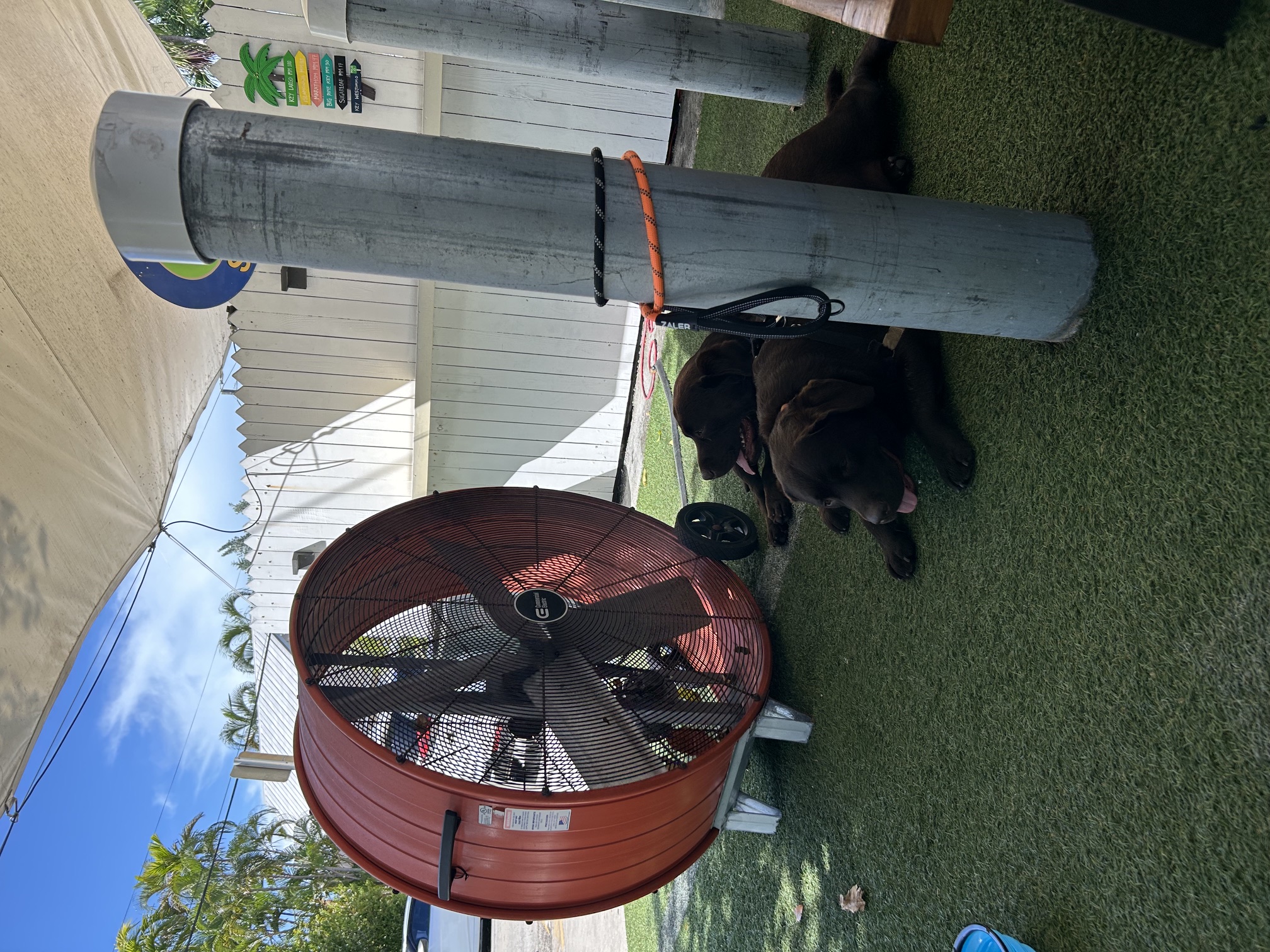
Lunch tested my patience. We went to the Seafood Market, where roosters wander around looking for handouts, strutting like they own the place — which they do not, but I've learned the hard way that they'll defend the misunderstanding with their whole bodies. So I watched. I did not touch. A wiser dog knows his battles. It was brutally hot, so Copper and I made the only sensible decision and stationed ourselves directly in front of a big fan, where we stayed until the heat gave up first.
Flat on the dock, taking in all that water. Even I lie down sometimes.Copper and me, parked directly in front of the big fan, winning our battle with the heat.
Key Lime and the Hole in the Wall
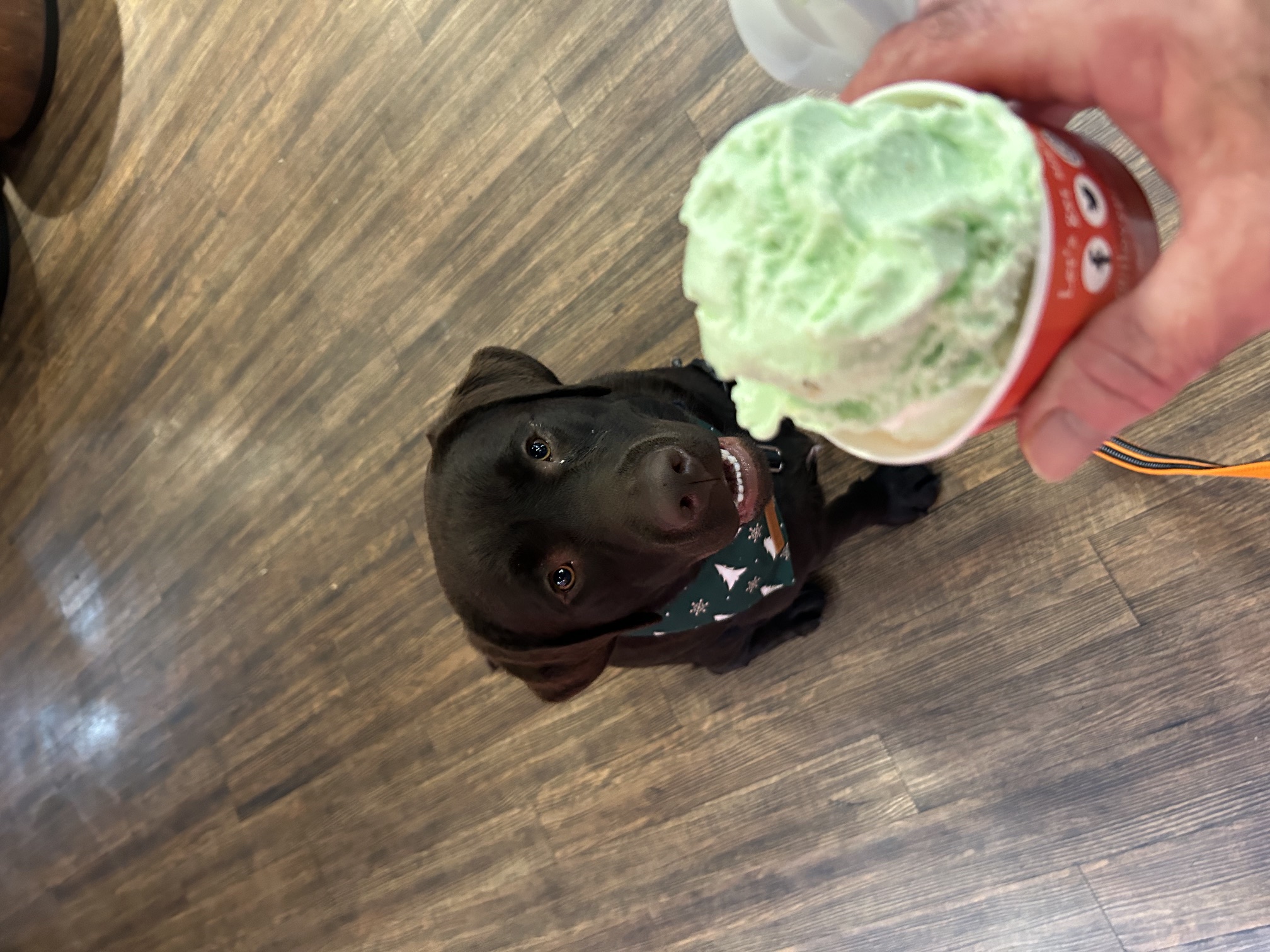
We walked it off after that, and I collected pets from a frankly heroic number of strangers — every one of them a friend who simply hadn't met me yet. Then came the ice cream shop on Duval, and then came key lime ice cream, and I will tell you plainly that I did not wait patiently. I do not believe in waiting patiently for key lime ice cream. There is a photo of me making this position extremely clear.
Dinner was the best kind of place — Hog Fish Grill, out on Stock Island, a waterfront hole-in-the-wall held together by salt and regulars. The bar is open-air and so is the welcome. The regulars knew exactly what to do with a dog like me, which is to make a fuss over him, and they did. My dad shared his fried shrimp. I'd also like to note, for the historical record, that a few French fries went missing, and that no one can prove anything.
Waiting for the key lime ice cream. Not patiently. I want this on the record.Watching the front door at Hog Fish Grill so we wouldn't miss a single thing.
Last Night, and the Dance Floor
Our last night I saved my best work for. A long walk around the marina and down Duval with the bars packed shoulder to shoulder, and girls — actual girls — coming out of those bars just to pet me. I loved every single second. I would do it again right now.
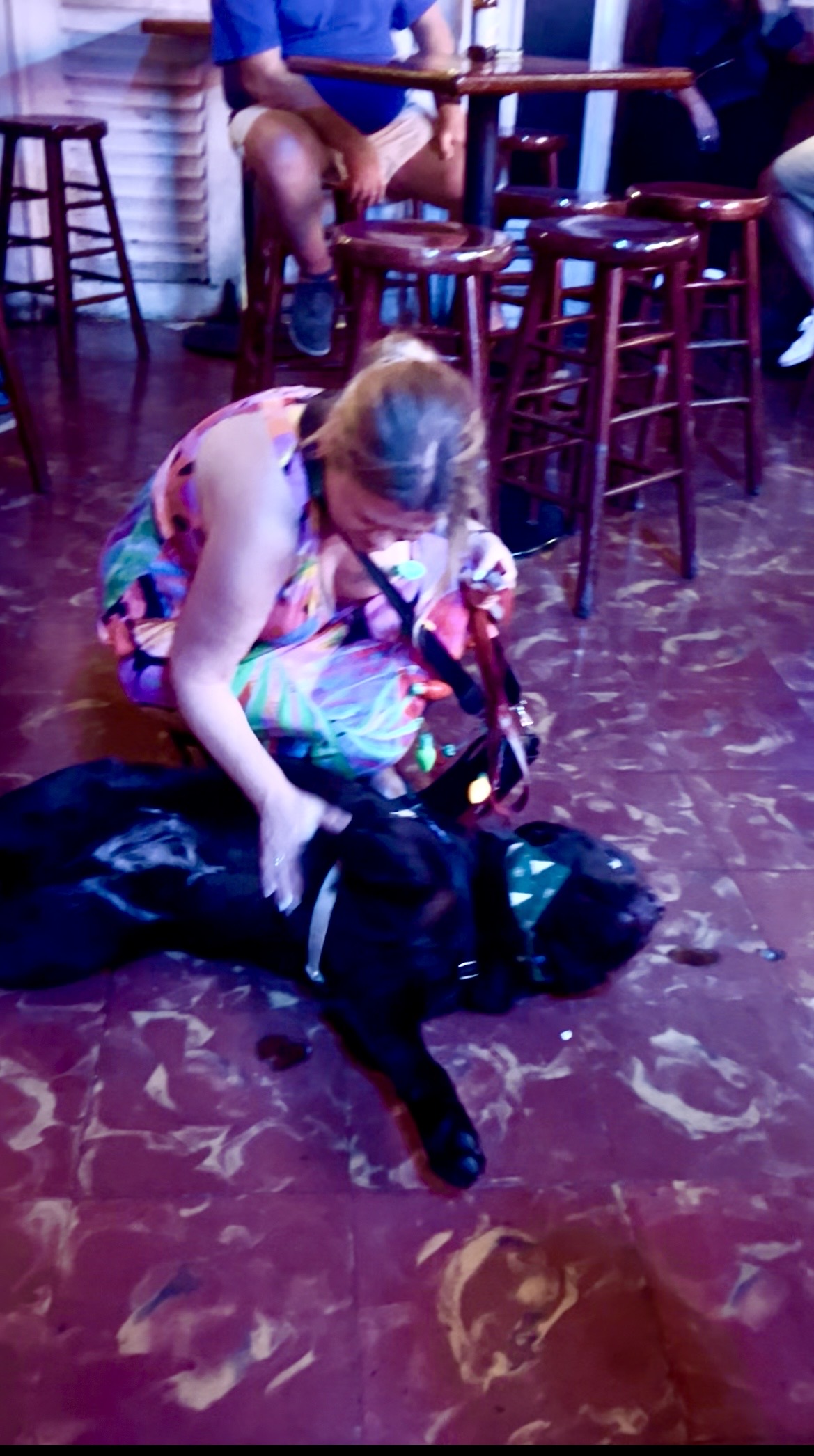
And then there was Sloppy Joe's, where I'll confess I got a little loose. My dad came looking and found me up on the dance floor, flat on my back, getting a belly rub from a couple of complete strangers who had, in the space of about ninety seconds, become my closest friends. He says I loved it. He's right. That's the whole thing about me, the part that matters: I'd run every room on this island, and I'd loved every single person in all of them. Most important guy in the place and the friendliest one too. I genuinely don't see the problem.
Up on the dance floor at Sloppy Joe's, on my back, surrounded by brand-new best friends.
One Last Look Down the Walkway
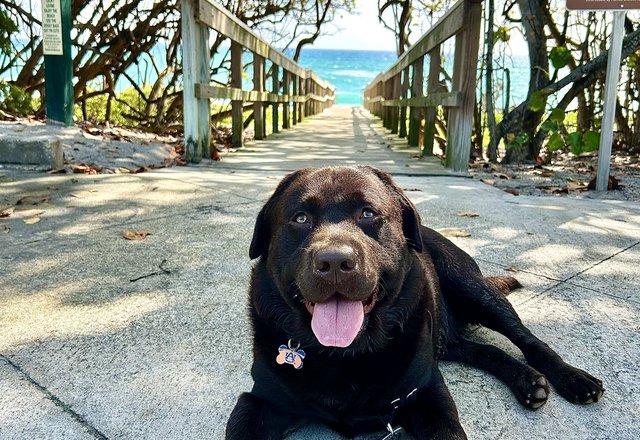
I knew we were leaving before anyone told me. I always know. So before we went, I took myself to the walkway down to the beach — the one I'd walked so many times that weekend it had started to feel like mine — and I just stood there a while, looking down it. My dad caught me at it. He says he's pretty sure I was thinking, well, I'll be back soon, I hope. He's pretty sure right.
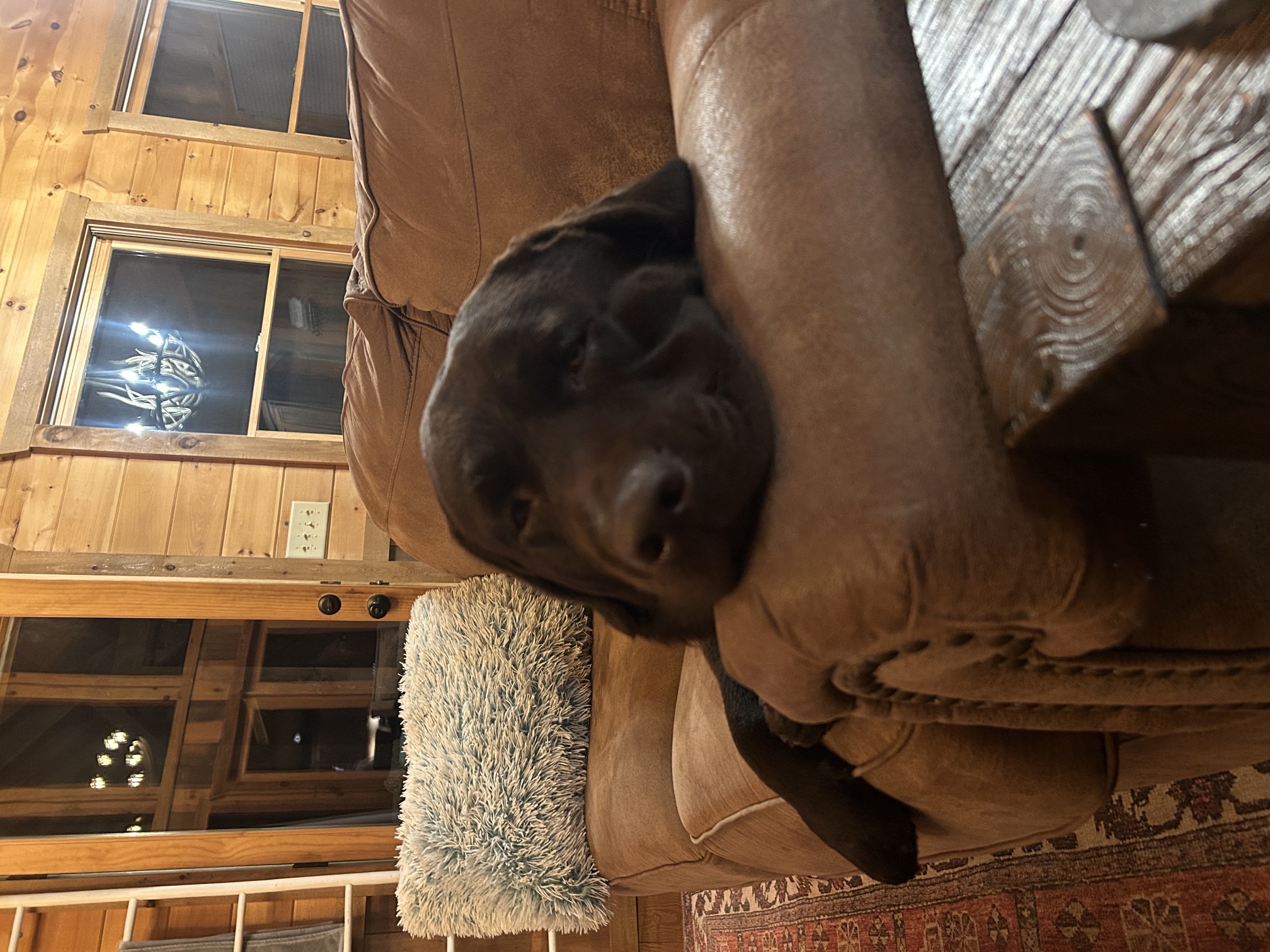
Then it was the long drive home to Jupiter, four hours of road, and I'll be honest with you: I didn't see any of it. I slept the entire way, completely and thoroughly worn out, the good kind of tired that only comes from a weekend done exactly right. When we got home I poured myself onto the couch and didn't move. My dad thinks I planned this whole trip for myself, that the whole thing was for me. And yeah — it probably was. But I planned it for him too. That's the part he doesn't quite know. I'll tell him in the dream. I was already most of the way back to Key West.
One last look down the walkway to the beach. I'll be back soon. I hope.Home at last, poured onto the couch, already dreaming my way back to Key West.
One weekend. One chapter. A whole life still ahead of us.
Every adventure. Every memory. Every step together.
Save a place. Start a possibility.
📔 Travel Journal
🐾 Pack Feed
💡 Pack Feed Tips
A few hidden tricks to make the most of the Pack Feed:
👤
Tap any avatar or username
See all of someone's posts in one place — and follow them with one tap.
📍
Tap any venue tag
Open the venue page from any post to see details, photos, and Pack Stories.
💬
Tap "Comment" to join the conversation
Read replies, ask follow-up questions, and share your own tips.
✨
Tap "Share with the Pack" to post anything
Share a fresh Pack Post, plan a meetup, share a trip, or share a journal entry or memory from your pet's LifeBook. A post with a photo offers to save a private copy to the LifeBook; the choice is yours each time.
🗓️
Plan a meetup with the pack
Heading to the beach Saturday? Doing dinner on a patio? Post a Pack Plan and let other pet parents in your city join in. Open Plans, choose a city with Everywhere, and pick when to see what's coming up.
⋯
Tap the three dots on any post for more options
Save a post to come back to later, hide one you don't want to see, mute someone whose posts aren't for you, or report something off. On your own posts, you can also edit or delete.
🎯
Switch views to filter your feed
All for discovery, Following for your circle, Followers for who follows you, Plans for upcoming meetups, You for your own posts. Saved posts keeps your bookmarks.
🐾
Lost or found a pet? Tap Lost & Found Pets
Report it with a general area, the date and what to look for. Active reports show first in their city, and the owner can mark them Reunited or Closed. Today a report is saved only in this browser and does not reach other pet parents yet — use Share to post it where people will see it.